Introduction to Remediating Files from IML to LEMDO TEI
The documentation in this chapter is for remediators working on files that were originally
encoded in IML, the encoding language of the Internet Shakespeare Editions. Those remediating other types of files can find links to relevant documentation
for their work in Types of LEMDO Remediations. Those encoding new files (i.e., files that were not converted from another encoding
language or are not coming from a project with a different TEI customization) can
find information written for them in other chapters of our Encoding Guidelines.
Many of LEMDO’s files come to us from the Internet Shakespeare Editions project, which used its own custom markup language, IML. The documentation in this
chapter explains how those files are converted into TEI, and provides information
on how to remediate the converted files to match LEMDO’s standard practices.
Note that while the schema and Schematron will flag some of the things you need to
fix while remediating, you will also need to follow the documentation in this chapter
to find and fix other things.
Learning Outcomes
By the time you have worked through this chapter, you will:
Know LEMDO’s typical processes for remediating a file from IML, including the overall
workflow that you should follow when remediating a full edition.
Be familiar with IML, the markup language of the Internet Shakespeare Editions project.
Be familiar with the process of converting files to LEMDO TEI.
Know how to remediate all edition components to match LEMDO’s encoding practice.
LEMDO has an established workflow for remediating full editions that have been converted
from IML to TEI. Although your workflow may not match this workflow exactly depending
on your contract with LEMDO, LEMDO’s priorities at a specific time, and the files
that we have available to remediate, the workflow described in this documentation
is typically the starting point for determining remediation pathways.
Standard Workflow for a Full Edition
If you are remediating a full edition that has come from the old ISE platform, you
will typically follow this workflow:
Our remediation documentation reflects this workflow. Generally, you will find the
information that you need to remediate an edition from IML in the order that you will
need it.
Validate IML Files
Introduction
Converting IML to TEI is a delicate process that requires valid IML files. Although
IML files have been carefully encoded, the practice might still leave some errors
that cannot be easily detected. The IML validator catches said errors, and allows
for a smoother conversion from IML to TEI.
Process
To validate your file, first save it in your local lemdo repository, in lemdo/code/isetools. Make sure that the file is saved with a name that starts with doc_. This is important for later creating of the xml:id of the converted file. Next, open
your Terminal window and navigate to the isetools directory as such, assuming you
are already in the lemdo directory:
enter the following command: cd code/isetools.
Then, to run the validator, enter the following command: java -jar isetools-jar-with-dependencies.jar validate filename.txt >log.txt.
In the second command, java -jar tells the processor the nature of the program you are running, isetools-jar-with-dependencies.jar is the name of the program file, validate is the command and what aspect of the program you want to run, filename.txt is the file that you want to validate, and >log.txt outputs the results in a txt file that will be also save in lemdo/code/isetools.
Once you have the output, look for error in the text file (ctrl+F or command+F). Find the error in the IML file that you are working with and fix it. Then proceed
to another error. If you notice redundant errors, fix them all at once. For example,
if you get an error that element
<SIG>
has been deprecated and you need to replace it by an attribute
@sig in the
<PAGE>
element, the find all
<SIG>
s and replace them with
@sig as appropriate. Once you have fixed these errors, run the validator again (as described
above). The old txt validation output file will be replaced by the new one. Continue
with the same process until you have validated as much of the IML as you can.
Convert IML to LEMDO TEI
Introduction
This document offers some instructions on how to convert an old IML file into TEI.
Note that this does not give a full explanation of how these processes work; instead, this file gives a summary of how a file can be converted
into TEI. However, since the encoding of the source files can differ, the conversion
is, in a sense, non-deterministic: each file, edition, or set of files may require
editing—either in the source file itself or in the transformation files—in order to
get the desired results. Note, as well, that the conversion is not meant to make perfect
output TEI; instead, it is meant to give a workable copy of the file that is valid
against the full TEI schema and must then be evaluated by a (human) XML editor to
check for any inconsistencies or problems.
Types of Conversion
There are four different types of documents that are converted from their respective
formats into TEI:
The playtexts (IML)
The apparatus, including the collations and the annotations (IML-XML)
The critical paratexts (XWiki)
The supplementary paratexts (XWiki with some in IML)
However, it often necessary to convert more than one of these documents at a time
(e.g. the IML file and its associated critical paratexts). The instructions below
detail how to convert an individual file, an edition (a set of files associated with a work), and a set of files or a collection.
Requirements
The LEMDO repository
If converting more than one document, then the old ISE SVN repository.
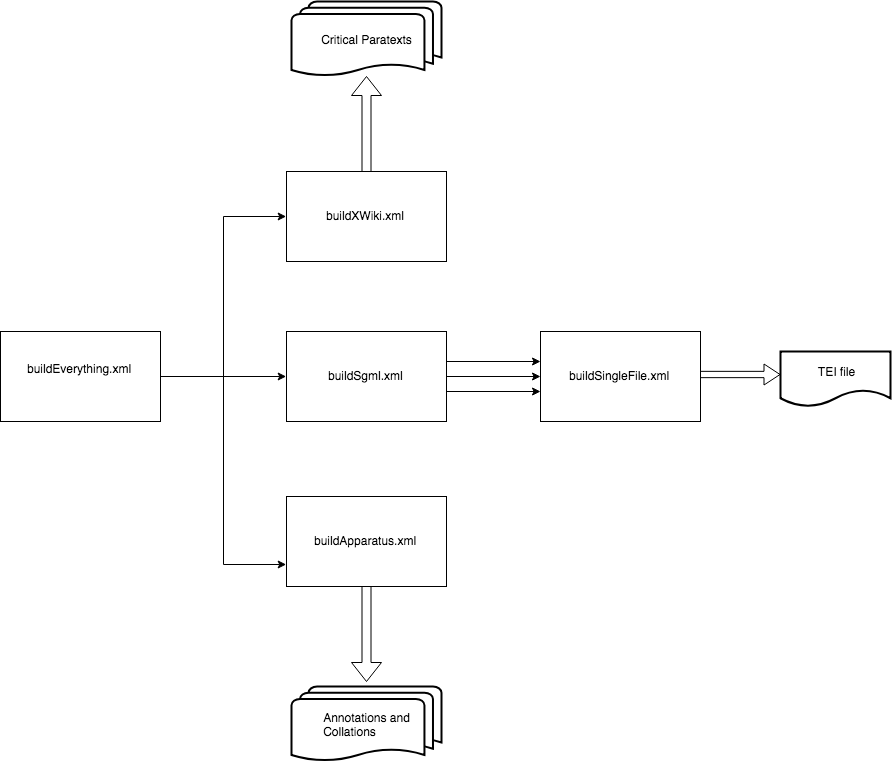
The IML to TEI conversion is set up in modules, which call each other. It can be represented
like so:
Flowchart representing the SGML conversion.
What this means is that you can convert the following to TEI:
A single IML playtext (buildSingleFile.xml)
A collection of IML playtexts (buildSgml.xml)
One or more apparatus files (buildApparatus.xml)
A collection of critical paratexts (buildXWiki.xml)
An entire edition, which includes all playtexts, apparatus, and critical paratext documents (buildEverything.xml)
Each step of this process is described in detail below.
Practice: Convert a Single File
In Oxygen
Open code/conversion/sgml/buildSingleFile.xml
Press the Apply Transformation Scenario button.
Oxygen will ask you to provide two properties:
The full path to the input IML file on your system (for example, /home/mholmes/lemdo/folder/doc_AYL_M.txt)
The work identifier (e.g. AYL, Leir, 1H4).
In Terminal
Change directories into the project directory: cd path/to/lemdo
Call the ant transformation using the ant command and supply the lib, thisWork, and sgml.file properties: ant -f code/conversion/sgml/buildSingleFile.xml -lib lib -DthisWork=AYL -Dsgml.file=/the/path/to/eg/doc_AYL_M.txt
Apparatus
There is currently no way to create a single apparatus file.
XWiki
There is currently no way to create a single XWiki file.
Practice: Convert a Work
In the IML, documents were organized by work, which referred to the abstract idea of a text. For example, the work Hamlet refers to the material books of Hamlet, the scanned facsimiles, the edited texts, a production of the work, source materials,
and adaptations. For the purposes of the conversion, the concept of a work helps to provide a set of files for conversion. For example, converting the IML for
the work of As You Like It means to convert all of the IML files related to As You Like It (e.g. the folio, quarto, and modern files).
Note that converting a work requires the files to exist in the pre-existing ISE Subversion
repository, and for that repository to be checked out on your computer. If the files
for that work do not exist in the repository (i.e., it is a work whose files were
not added to the ISE repository before the move to TEI), then you will need to convert
each file individually.2
In Oxygen
Before you start, make sure you know the full path to the ISE repository checkout
on your computer. For example, it may be something like /home/you/ise2. Inside that directory, you’ll need to find the content folder, which will be somewhere
like /home/you/ise2/trunk/eXist/db/apps/iseapp/content. You will need to supply this path to the transformation.
Open lemdo/code/conversion/sgml/buildSgml.xml
Press the Apply Transformation Scenario button.
When Oxygen asks, supply the identifier for the work you want to convert, and the
path to the content folder.
In Terminal
Change directories into the project directory: cd path/to/lemdo
Call the ant transformation using the ant command and supply the lib and thisWork properties: ant -f code/conversion/sgml/buildSgml.xml -lib lib -DthisWork=AYL -Dcontent.path=/path/to/ise/content
Practice: Convert a Collection
In Oxygen
Before you start, make sure you know the full path to the ISE repository checkout
on your computer. For example, it may be something like /home/you/ise2. Inside that directory, you’ll need to find the content folder, which will be somewhere
like /home/you/ise2/trunk/eXist/db/apps/iseapp/content. You will need to supply this path to the transformation.
Open lemdo/code/conversion/buildEverything.xml
Identify the set of work identifiers you would like to convert. You will need to supply
these in comma-separated form (for example, AYL,1H4).
Press the Apply Transformation Scenario button.
Supply the parameter values when Oxygen requests them.
In Terminal
Change directories into the project directory: cd path/to/lemdo
Call the ant transformation using the ant command and supply the lib, worksToBuild, and content.path properties: ant -f code/conversion/buildEverything.xml -lib lib -DthisWork=AYL,MV,H5 -Dcontent.path=/path/to/ise/content
Post-Conversion
If everything goes okay, then the result files should be placed in the location code/out/{$thisWork}/main/emd{$thisWork}_M.xml. The files should be valid TEI, but they are not necessarily valid LEMDO TEI. Since
the IML is differently structured than standard TEI, there are often errors in the
document that need to be resolved by hand before they can go into the LEMDO repository.
Open the file in Oxygen and check the file’s validity. If the file is valid, then
you can move the file into its proper place within data/texts/ (remember to svn add it to the LEMDO repository). If it is invalid, then you will need to resolve the
invalidities. In all cases, if you are unsure as to how best to fix the file, consult
with the project director, Janelle Jenstad. Mostly, the invalidities are as follows:
Schematron Error
Cause
Possible Solutions
Modern verse lines should be capitalized
This is an issue with how the flat structure of lineation in the IML is converted
to the TEI. Occasionally, editor line beginnings (the IML’s <ln> element) were added to the middle of lines accidently.
This usually involves moving words into the preceding or following line, so it must
be done with caution.
Do not use square brackets for editorially supplied segments
The practice in the IML files was to place editorial additions in square brackets;
this error should only be raised in modernized texts almost exclusively within act
or scene headings as well as stage directions.
Any text that is contained with a square bracket should be replaced with a TEI
<supplied>
tag.
Do not tag stage directions as verse lines
This occurs when stage directions are tagged as a
<l>
element, usually with no surrounding context.
In most cases, the wrapping
<l>
can be removed.
Do not use explicit angle brackets in text. If you want to reference an element, use
the
<gi>
element or the
<code>
element.
Angle brackets (i.e. < and >) primarily occur only in instances where an IML file had incorrectly added an additional
angle bracket to a tag (something like <</L>).
These can almost certainly be removed in the texts; however, it might also indicate
that an element was incorrectly typed in the source and has thus been dropped from
the TEI encoding. Instances where these symbols occur must be checked against the
original IML file to ensure that nothing has been lost in the conversion.
Use the em dash character (—), not double hyphens or en dashes.
The IML Editorial Guidelines allowed for the use of double-hyphens or en dashes in modernized texts.
As per the DRE Editorial Guidelines, all double dashes should be converted to em dashes in modernized texts.
This
<l>
has part value I but no following M or F.3
This happens when part verse lines have been tagged as an initial line, but has no
medial or final line. Usually, this is a case where the medial or final line (i.e.,
@part=F) has been erroneously omitted in the encoding. (For information on tagging shared
verse lines, see Lineation in Modernized Texts.)
Usually the next line is a medial or final line, and thus you can add a
@part=F to the following line, but you may need to consult with the Coordinating Editor to
determine the proper solution.
Troubleshooting
While the IML to TEI conversion is fairly robust, IML files can differ in subtle ways
that may cause the build to fail. Below are some common errors that might occur and
the steps that a programmer or encoder can take to resolve any issues.
Problem
Cause
Possible Solution
The build broke because the source file was invalid
Usually this means that there was something wrong in the source file itself. Sometimes
the IML files are missing a closing <L> tag or an incorrectly nested <SP>.
Investigate the source file by cross-referencing the TLN where the invalidity occurs
with the source IML file. If it is clear that it is a simple wrapping error, then
resolve the problematic tagging; otherwise, consult with the editor.
The build says that /db/apps/iseapp/content/documents/iml does not exist
The build cannot find the ISE Subversion repository.
First check that you have a local copy of the ISE2 repository. If you do, then check
that the path to the SVN repository as declared in the ANT property content.path correctly points to your copy. If it does, then check whether or not your local file
structure is different (i.e., you have checked out only /documents/iml rather than the entire repository).
Remediate Semi-Diplomatic Transcriptions
Disambiguation
The documentation on this page is intended for those remediating semi-diplomatic transcriptions
from IML. For those remediating from EEBO-TCP texts, see the documentation in Chapter 12. Semi-Diplomatic Transcriptions.
Many of our editions began as ISE texts encoded in IML. To turn those IML documents
into LEMDO files, we convert them into a base version of LEMDO’s TEI. From there,
the files must be remediated so that they fit LEMDO’s encoding standards for semi-diplomatic
transcriptions.
This documentation will guide you through the process of remediating a semi-diplomatic
transcription that has been converted from IML into LEMDO TEI. Follow the steps listed
in this documentation in order. For an overview of the process of remediating a converted
semi-diplomatic transcription, see the table of contents in the hamburger menu in
the top left corner of this page.
Give Credit in the Metadata
Semi-diplomatic transcriptions typically give credit to the following roles using
the
<respStmt>
element:
Author
Transcriber
Encoder
Batch Changes and Metadata
Proofreader
Peer Reviewer
Copyright Holder (Content)
Copyright Holder (XML and interface)
You will update the
<respStmt>
elements for the encoder and batch changes and metadata roles as you begin remediating your semi-diplomatic transcription.
Give credit to yourself as an encoder in a
<respStmt>
element. Add a
<respStmt>
element after the ones for author and transcriber. As a child of
<respStmt>
, add a
<resp>
element with a
@ref attribute with the value resp:edt_mrk. In the text node of the
<resp>
element, type Encoder. Following the
<resp>
element, add a
<persName>
element. Give the
<persName>
element a
@ref attribute with a value of pers: followed by your xml:id. Type your name as you wish for it to appear in the credits
for the file in the text node of the
<persName>
element.
Your encoder
<respStmt>
should be formatted as follows:
Note that each person who does significant remediation or encoding work in the file
will get a
<respStmt>
element crediting them as an encoder.
After the encoder
<respStmt>
elements, add a
<respStmt>
element to credit the LEMDO team for work doing conversions, batch changes, and metadata.
As a child of
<respStmt>
, add a
<resp>
element with a
@ref attribute with the value resp:edt_mrk. In the text node of the
<resp>
element, type Batch Changes and Metadata. Following the
<resp>
element, add a
<orgName>
element. Give the
<orgName>
element a
@ref attribute with a value of org:LEMD1. Type LEMDO Team in the text node of the
<orgName>
element.
The LEMDO team
<respStmt>
should be formatted as follows:
<respStmt> <resp ref="resp:edt_mrk">Batch Changes and Metadata</resp> <orgName ref="org:LEMD1">LEMDO Team</orgName> </respStmt>
Note: LEMDO Director Janelle Jenstad is responsible for liaising with the editor and/or
anthology lead to ensure that the rest of the metadata in the
<titleStmt>
is correct. However, if you notice anything that is obviously missing or problematic,
leave an XML comment.
Update Document Status: In Progress
Each time you begin remediating a file, you must change its status to reflect this.
To change the status of a semi-diplomatic transcription file that you are remediating,
do the following:
Change the value of
@status on
<revisionDesc>
to IML-TEI_INP.
Add a new
<change>
element as a child of
<revisionDesc>
.
Write the substantive change in the text node (i.e., “Began remediating document”).
Add a
@who, a
@when, and a
@status attribute to the
<change>
element.
Add the prefix pers: followed by your xml:id to the
@who attribute.
Add the date you began the remediation to the
@when attribute.
Add the the new status (i.e., IML-TEI_INP) as the value of the
@status attribute. Note that if you did not change the
@status of the file you do not need to add a
@status attribute to your
<change>
element.
If there is vertical space between lines of type, previous editors will often have
encoded two or more ISE L elements, which we convert to
<lb>
elements. If this occurred, you will get a Schematron error saying that strings of
<lb>
elements are not allowed. To make your file valid so that you can begin remediating,
comment out any strings of
<lb>
elements. You will later decide whether or not these represent genuine white space
in the source material. If they do, follow the procedure given in Encode Vertical and Horizontal White Space. If they do not represent genuine white space, delete extra
<lb>
elements.
Update the Source Description
Add the following information to the
<sourceDesc>
:
Which edition you are transcribing and the year that it was published.
The URI of the semi-diplomatic transcription on the old ISE site, if available.
The URI of the library or organization that owns the copy that you are transcribing.
Which facsimile you are using for your transcription.
Note that you may use more than one copy for transcription if there are no complete
facsimile copies available. In that case, include the information for each of the
copies that you use, as well as a note on which sections you transcribed from which
copy.
<sourceDesc> <p>Quarto 1, 1622</p> <p>Old URI: <idno type="oldURI">https://internetshakespeare.uvic.ca/doc/Oth_Q1/complete</idno> </p> <p>Facsimile from Boston Public Library</p> </sourceDesc>
<sourceDesc> <p> <ref type="bibl" target="bibl:ANON21">Quarto 1, 1598.</ref> </p> <p>Old URI: <idno type="URI">https://qme.internetshakespeare.uvic.ca/doc/FV_Q1/scene/Titlepage/index.html</idno> </p> <p>Witness used for the LEMDO transcription is the Huntington Library copy. Call number
<idno type="call">61389</idno>; catalogue entry <idno type="call">https://catalog.huntington.org/record=b1498768</idno>. The Huntington Library copy is available in a print surrogate from the <ref type="bibl" target="bibl:FARM1"> <title level="s">The Tudor Facsimile Texts</title> </ref>, in microfilm from the <title level="s">Early English Books</title> microfilm series, and in a digitization of the microfilm from <title level="s">Early English Books Online</title>.</p> <p>Facsimile used for transcription of E3v-F1r from the Widener Library at Harvard University.
Catalogue entry <idno type="URI">https://hollis.harvard.edu/permalink/f/1mdq5o5/TN_cdi_globaltitleindex_catalog_133993555</idno>.</p> <p>.</p> </sourceDesc>
If LEMDO does not have a source copy of the text that you are remediating saved to
our facsimile storage database, you may need to search for a digitized copy. Follow
the steps provided in Find a Digital Surrogate.
Comment out the Participation Description
The
<particDesc>
element contains the
<listPerson>
element and individual xml:ids for all the speakers. We do not supply which character
delivers each speech or add a
@who attribute on the
<sp>
element in semi-diplomatic transcriptions. Comment out the entire
<particDesc>
.
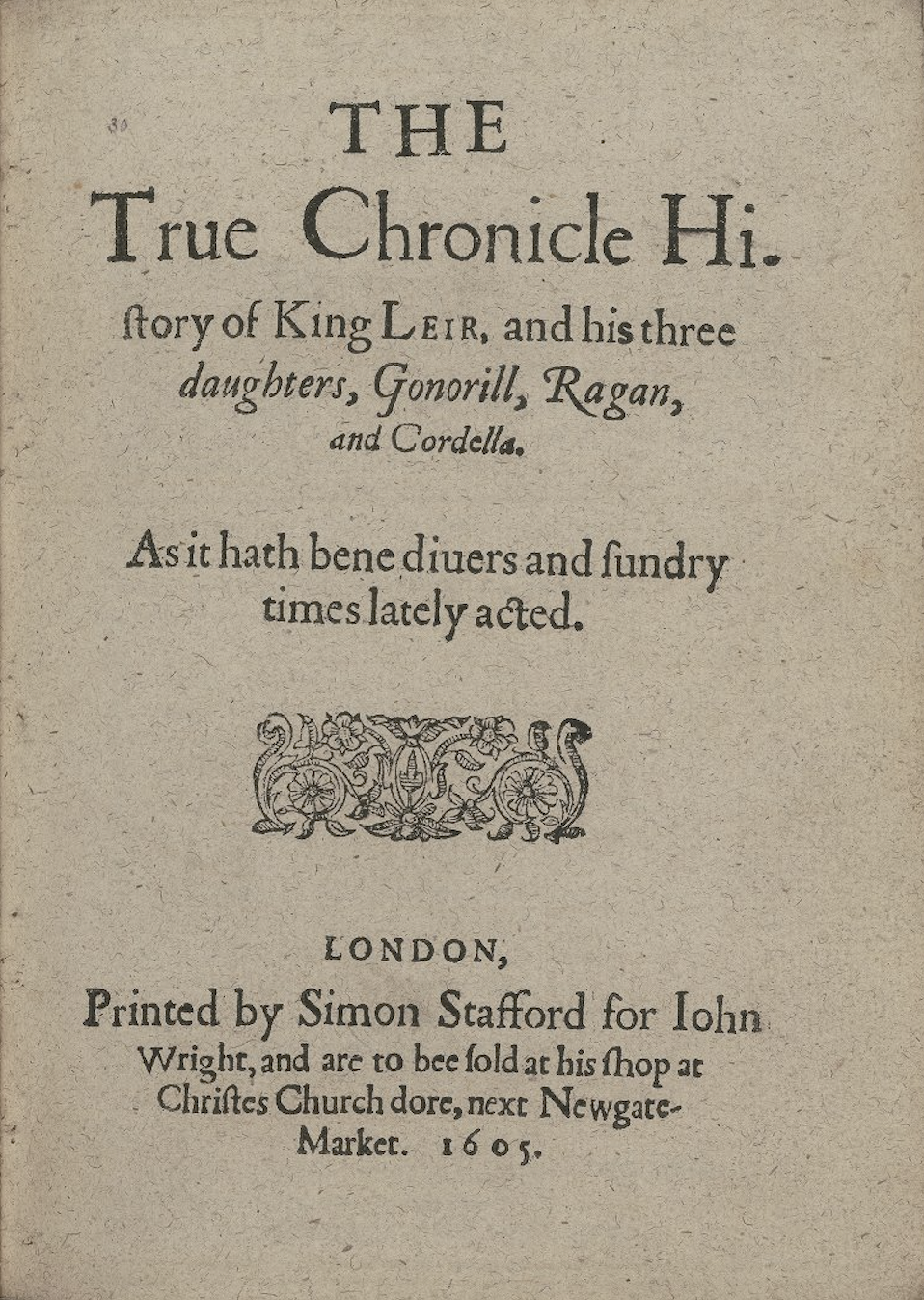
Below is an example of an early modern title page and how it was encoded following
LEMDO protocol.
Title page of The True Chronicle History of King Leir (1605). Folger STC 15343. Courtesy of the Folger Shakespeare Library.
<front> <titlePage> <titlePart type="main"> <lb/>THE
<lb/>True Chronicle Hi<pc force="weak">-</pc> <lb/>storie of King Leir and his three
<lb/> <hi rendition="rnd:italic">daughters, Gonorill, Ragan,
<lb/>and Cordella</hi> </titlePart> <titlePart type="desc"> <lb/>As it hath bene diuers and sundry
<lb/>times lately acted.
</titlePart> <figure type="device"/> <docImprint> <lb/> <pubPlace rendition="rnd:letterspace">LONDON</pubPlace>,
<lb/>Printed by Simon Stafford for <publisher>Iohn
<lb/>Wright</publisher>, and are to bee sold at his shop at
<lb/> <pubPlace>Christes Church dore, next Newgate-
<lb/>Market.</pubPlace> <docDate rendition="rnd:letterspace">1605</docDate>.
</docImprint> </titlePage> </front>
Remove Text Division and Heading Division Elements
Often, early modern playbooks do not contain consistent act or scene numbers. Even
if the source text you are working on does have act and scene numbers at the beginning
of the playbook, they may not be consistent throughout the play.
We do not use the
<div>
element in our semi-diplomatic transcriptions. Instead, editorial act and scene divisions
are marked with the
<milestone>
element. Until the modern file of the edition that you are working on is ready to
be published, comment out any
<milestone>
elements. If the modern file of the edition that you are working on is ready to be
published, then follow this procedure:
For act divisions, use the
<milestone>
element with an
@unit attribute and act value.
For scene divisions, use the
<milestone>
element with an
@unit attribute and scene value.
When your modernized text is ready to publish, we can link between the act and scene
divisions in the modernized text and the
<milestone>
elements in the semi-diplomatic transcription so that readers can easily go between
the two and compare the two texts.
Replace all
<head>
elements with the
<label>
element. Add the
@type attribute and heading value to the
<label>
element if the label is working as a heading.
If act and scene numbers are in your XML file but not in the original text, comment
out
<div>
act and scene numbers. You must delete closing
<div>
tags, not comment them out. It is possible for the editor to add
<milestone>
elements pointing to the modernized text later, so it is important to keep these
commented out
<div>
elements.
Conversion yields:
<div type="scene" n="2"> <lb/> <head>The Second Acte.</head> </div>
Amend to:
<!-- <div type="scene" n="2"> --> <lb/> <label type="heading">The Second Acte.</label>
Replace all
<closer>
elements with the
<label>
element.
Encode Speaker Elements
Remove all instances of <hi rendition="rnd:italic"> on the
<speaker>
element because speaker will render as italic by default. For more information about
our default styling for semi-diplomatic transcriptions, see Default Style in Semi-Diplomatic Transcriptions.
Special case: there may be instances wherein the first letter of the speaker’s name
appears in roman type rather than italic. If this occurs, wrap the first letter in
hi rendition="rnd:normal". Wrapping the first letter in hi rendition="rnd:normal" isolates this letter and ensures that it will appear in roman type while the rest
of the name will remain italicized.
If the entirety of the speaker’s name appears in roman type, simply put the
@rendition attribute with a value of rnd:normal on the
<speaker>
element.
<speaker rendition="rnd:normal">King.</speaker>
LEMDO has pre-formed regular expressions that will remove the majority of cases of <hi rendition="rnd:italic"> in the
<speaker>
element.
If there is no speech prefix at the beginning of a speech in your source text, do
not encode a
<speaker>
tag.
Remove
@who Attributes
We do not state who delivers a speech in semi-diplomatic transcriptions—it is the
editor’s job to assign these attributes in the modernized text only. If there are
@who attributes in the semi-diplomatic transcription you are remediating, then remove
them.
In early modern playbooks, instances of Latin and other languages may be indicated
through italic type. These languages are likely wrapped in the
<foreign>
element, which is inherited from IML. In LEMDO’s remediation of semi-diplomatic transcriptions,
we do not make decisions about language type or use. As remediators, we simply note
whether the text on the page is italicized.
Remove all instances of
<foreign>
language tags. Use inline styling if the text previously wrapped in
<foreign>
is in italic type in your source text. Add the
@rendition attribute with a value of rnd:italic to the largest container of completely italicized text (e.g., if an entire speech
is italicized, add rendition="rnd:italic" to
<sp>
). If there are no container elements that have text completely in italic type, wrap
the italic section in the
<hi>
element and add a
@rendition attribute with a value of rnd:italic.
Special case: there may be instances where a character or a word appears in roman
type rather than italic. If this occurs, wrap that text in <hi rendition="rnd:normal">. This isolates that text and ensures that it will appear in roman type while the
rest of the stage direction will remain italicized. If the entire stage direction
appears in roman type, simply put the
@rendition attribute with a value of rnd:normal on the
<stage>
element. See also Encode Inline Style Using Pre-Formed Values in Semi-Diplomatic Transcriptions.
IML had fewer options for encoding the placement of stage directions than LEMDO does.
As a remediator, you will use LEMDO’s more precise vocabulary. LEMDO accounts for
the fact that stage directions sometimes appear in the margin area (especially in
early sixteenth-century playbooks) and sometimes within the compositorial line in
the text block.
To encode placement of stage directions, add a
@place attribute to the
<stage>
element. Oxygen offers the possible
@place values in a drop-down menu. For complete practice of encoding
@place attributes in the
<stage>
element, see Encode Stage Directions in Semi-Diplomatic Transcriptions. For a complete list of placement values, see Placement Taxonomy.
Usually the unremediated texts will have stage directions tagged with the
<stage>
element already. They may have a
@type attribute with a value indicating what kind of stage direction they are (entrance,
exit, etc.). Make sure these type values are accurate and correct them if necessary.
We retain them in anticipation of making a future dictionary of stage directions.
For a list of
@type values, see Practice: Encode
@type Values.
Sometimes stage directions are unusual and inconsistent in early modern playbooks.
They may be off to the side, in the margins, seemingly added after initial printing,
etc. If you are unsure how to proceed with a stage direction, leave XML comments for
a project lead.
Remove g:zeroWidthSpace Values
Remove any
<g>
elements with the g:zeroWidthSpace value. We silently modernize spacing between words because it is too difficult to
exactly replicate the various spacing present in early modern playbooks.
You can use a find-and-replace to run this conversion. Follow these steps:
Go to Oxygen’s search function by clicking Ctrl+F.
Type the following into the search text boxes:
Find: <g ref="g:zeroWidthSpace"> </g>
Replace with: Leave Replace with empty.
Click Find All.
If there are instances found, click Replace All.
Validate your file.
Conversion yields:
<!-- ... --><ab> <g ref="g:zeroWidthSpace"></g>Woman,<g ref="g:zeroWidthSpace"></g>do what thou canst to saue our honors,
<lb/>Driue them from Orleance,<g ref="g:zeroWidthSpace"></g>and be immortaliz’d.</ab><!-- ... -->
Amend to:
<!-- ... --><ab>Woman, do what thou canst to saue our honors,
<lb/>Driue them from Orleance, and be immortaliz’d.</ab><!-- ... -->
Remove Tagging for Long S
Most semi-diplomatic transcriptions coming from the old ISE will have tagged the long
s. We do not retain this tagging. Remove any
<g>
elements tagging the long s, whether as a standalone glyph (i.e., <g ref="g:long">) or as a ligature (e.g., <g ref="lig:longS_t">).
Remove rnd:justify Values
Remove rnd:justify values. We do not capture justification in semi-diplomatic transcriptions. You can
do this step either as you go through the play (removing rnd:justify values one-by-one as you come across them) or by using our pre-formed regex to remove rnd:justify values.
Conversion yields:
<sp> <speaker rendition="rnd:justify rnd:italic">Par</speaker> <ab>There is none: Man setting downe before you,
<lb/>will vndermine you, and blow you vp.</ab> </sp>
Amend to:
<sp> <speaker rendition="rnd:italic">Par</speaker> <ab>There is none: Man setting downe before you,
<lb/>will vndermine you, and blow you vp.</ab> </sp>
Tidy Line Beginning Elements
Make sure there is an
<lb>
element to capture the beginning of every typographical line bearing inked type (including
before stage directions that appear on their own line).
Caution! Do not use
<lb>
elements to create white space. Many IML users added extra
<lb>
elements to indicate white spaces between lines of type. You need to remove these
extra
<lb>
elements as you go and replace them with
<space>
elements. See Remove Extra Line Beginnings.
Use a find-and-replace to convert the value tln inherited from IML to the LEMDO value wln (for Witness Line Number), including in the First Folio of Shakespeare’s plays.
Conversion yields:
<!-- ... --><lb type="tln" n="2"/><sp> <speaker>Lu.</speaker> <ab>Sir Valentines page: & sent I think from Protheus; <lb type="tln" n="192"/>He would haue giuen it you, but I being in the way, <lb type="tln" n="193"/>Did in your name receiue it: pardon the fault I pray.</ab> </sp><!-- ... -->
Amend to:
<!-- ... --><lb type="wln" n="2"/><sp> <speaker>Lu.</speaker> <ab>Sir Valentines page: & sent I think from Protheus; <lb/>He would haue giuen it you, but I being in the way, <lb/>Did in your name receiue it: pardon the fault I pray.</ab> </sp><!-- ... -->
If there is an end-of-line hyphen that is not a word separator, ensure that the hyphen
is tagged using the
<pc>
element with the
@force attribute and the value weak:
<ab>Then put your pipes in your bag, for I’le away; goe, va<pc force="weak">-</pc> <lb/>nish away.
</ab>
Remove all
<lb>
elements that denote a blank line. You will later use the
<space>
element to indicate where there is semantically significant white space.
Check Order Elements in Speeches and Stage Directions
Sometimes the elements as converted are out of order. IML was not rigidly hierarchical
the way XML is. You need to make the order of the tags consistent with LEMDO standards.
Make sure the line beginning (
<lb>
) comes before the speech and stage elements (
<sp>
and
<stage>
).
The correct order for speeches is as follows:
<lb/><sp> <speaker><!-- Character Name --></speaker> <ab> <lb/> <!-- First line of speech --> <lb/> <!-- Second line of speech --> <lb/> <!-- Third line of speech --> </ab> </sp>
The correct order for stage directions is as follows:
<lb/><stage><!-- First line of stage direction --> <lb/> <!-- Second line of stage direction --> </stage>
For example:
<lb type="wln" n="74"/><sp> <speaker>Eda.</speaker> <ab>
Ah Ned, but hadst thou watcht her as my self,
<lb type="wln" n="75"/>And seene the secret bewties of the maid,
<lb type="wln" n="76"/>Their courtly coinesse were but foolery.
</ab> </sp>
<lb type="wln" n="1"/><stage>
Enter King <hi rendition="rnd:normal">Henry, Exeter, 2.</hi> Bishops, <hi rendition="rnd:normal">Clarence,</hi> and other
<lb type="wln" n="2"/>Attendants.
</stage>
Encode Vertical and Horizontal White Space
We use the
<space>
elements in our semi-diplomatic transcriptions judiciously to capture vertical space
between printed units and to capture horizontal white space within lines if it is
semantically significant.
If there is white space with no type or ornaments between lines, use the
<space>
element. Add the
@dim attribute with the value vertical, the
@unit attribute with the value line, and the
@quantity attribute with the numerical value 1, 2, or more (equivalent to the number of compositorial lines that would fit in that
white space).
If there is horizontal white space, use the
<space>
element. Add the
@dim attribute with the value horizontal, the
@unit attribute with the value char, and the
@quantity attribute with a numerical value equivalent to the number of “em”s that are white
spaces. For example:
When encoding catchwords, remove rend:right. Catchwords will render on the right because of the file-wide styling that you added
in the
<tagsDecl>
element.
Special case: leave rendition="rnd:italic" when the catchword is italicized. This rendition may be on the
<fw>
element (if the entirety of the catchword is italicized) or on a
<hi>
element (if only part of the catchword is italicized). Stage directions and character
names are often italicized, thus catchwords that correspond with a stage direction
or character name on the next page are often italicized.
Running titles will render as roman font by default. If some of your running titles
are in italic font, put the
@rendition attribute with a value of rnd:italic on those that are in italic. If all of your running titles are in italic font, add
a
<rendition>
element to the
<tagsDecl>
in the
<teiHeader>
of your file. See Encode File-Wide Style in Semi-Diplomatic Transcriptions for information about the
<tagsDecl>
.
When encoding signature marks, remove spaces between the letter and the number. By
default, LEMDO renders signature numbers as letterspaced. You can remove the space
using a pre-formed regular expression.
For more information on signature marks, see Signed Leaves.
Proof Transcription
Checking the transcription of the main text involves reading the facsimile alongside
the XML file and resolving any differences. This means correcting any transcription
errors, adding tags, and making sure the XML offers a truthful description of the
source text.
Some glyphs: follow the instructions in Encode Glyphs and Ligatures in Semi-Diplomatic Transcriptions. While most ligatures will already be tagged, digraphs (æ, œ, etc.) will need to be
added to your file to replace separated letters (ae, oe, etc.). Also try to remedy
all occurrences of
<g>
elements with UNKNOWN values. Some previous transcribers replaced unknown glyphs with question marks. Most
instances of unknown glyphs can be remedied by checking the facsimile.
Foreign words: follow the instructions in Encode Foreign Languages. We do not use the
<foreign>
element in semi-diplomatic transcriptions. Some foreign words will be tagged with
the
@rendition attribute and rnd:italic value.
Encode Style
Our generic CSS for semi-diplomatic transcriptions should work to automatically style
most of your text. We capture minimal styling in semi-diplomatic transcriptions because
facsimiles are readily available. Importantly, we capture:
Decorative letters
Printer’s ornaments and ruled lines
Drop caps
Indentation (including hanging indents)
We also capture:
Italicization: Use the
<hi>
element,
@rendition attribute, and rnd:italic value to capture italicization. Note that the
@rendition attribute and rnd:italic value can be added directly to other elements such as
<speaker>
and
<stage>
.
Centre or right alignment: Use the
@place attribute on the
<label>
element or
<stage>
element to describe where text is. See Practice: Encode Placement for information on LEMDO’s practice for encoding placement. Note that if the text
is somewhere in between the areas described by our placement taxonomy, align to the nearest side.
How the page is typeset: Use the
<hi>
element,
@rendition attribute, and rnd:letterspace value to capture letterspacing. Note that the
@rendition attribute and rnd:letterspace value can be added directly to other elements such as
<fw>
.
We do not capture:
Font size.
Type (beyond roman, italic, and English type).
Precise spacing between words (or lack thereof).
Exact size of drop caps, figures, and ornaments.
Update the Tagging Declaration: Final Styling
If there is styling that is consistent throughout your source material that is not
included in LEMDO’s default semi-diplomatic transcription CSS (see Default Style in Semi-Diplomatic Transcriptions), create a
<tagsDecl>
element as a child of the
<encodingDesc>
in the
<teiHeader>
of your file. You can add document-specific CSS here. For information on how to add
styling using the
<tagsDecl>
, see Encode File-Wide Style in Semi-Diplomatic Transcriptions.
Number Speeches
The next step in remediating semi-diplomatic transcriptions is to number speeches.
To do this, run the XSLT that we have created to number speeches. See Practice: Number Speeches
For example:
<sp xml:id="emdEdw_Q1_sp1"> <speaker>King.</speaker> <ab> <lb type="wln" n="6"/> <hi rendition="rnd:dropcap">R</hi>Obert of Artoys banisht though thou be, <!-- ... --></ab> </sp>
Number Lines
The final step in remediating semi-diplomatic transcriptions is numbering
<lb>
elements. The LEMDO schema does not yet catch out of order
@n values on
<lb>
elements in semi-diplomatic transcriptions. Some files may already have the
@type and
@n attributes numbering
<lb>
elements while others do not.
Even if your file already has numbered
<lb>
elements, it is important to renumber them at the end of remediation. How they are
numbered may not align with current LEMDO practice. Additionally,
<lb>
elements are often added, removed, and/or rearranged during the remediation process.
Consequently, ensuring that
<lb>
elements are numbered correctly is one of the final steps of remediating your semi-diplomatic
transcription. For LEMDO’s current practice on numbering
<lb>
elements, see Practice: Which Lines to Number.
Update Document Status: Proofing
When you have completed your work with your semi-diplomatic transcription, change
the document status. Follow these steps:
Change the value of
@status on
<revisionDesc>
to IML-TEI_proofing.
Add a new
<change>
element as a child of
<revisionDesc>
.
Write the substantive change in the text node (i.e. Finished remediating document).
Add a
@who, a
@when, and a
@status attribute to the
<change>
element.
Add the prefix pers: followed by your xml:id to the
@who attribute.
Add the date you finished the remediation to the
@when attribute.
This document covers a necessary process in the conversion of modernized IML files
over to TEI. This process would normally be run by a programmer, but it can be run
by any research assistant who is fully conversant with the way annotations and collation work in LEMDO. The system used to link annotations and collations into modernized
texts in the ISE made use of the Through Line System, where every line in a text was given a canonical number. To point to a line using the TLN, you could
simply use the TLN number, and to point to specific text within a line, you could
supply the TLN number and then the text you wanted to point to, and a rendering algorithm
was meant to identify the target text. (The fragility of this system will be apparent;
if a change was made to the target text but not carried over to the link pointing
at it, the link would then fail.)
In LEMDO, we use a more precise and flexible system based on TEI
<anchor>
elements in the text. This system enables us to point to a specific location in the
text using one anchor, or to a span of text using two anchors. In the process of remediating
old IML files, we need to look at each of the old TLN references, which are found
in the *_M_annotation.xml and *_M_collation.xml file, identify the locations to which they are supposed to be pointing in the modernized
text itself, then insert appropriate
<anchor>
elements in the modernized text and rewrite the pointers so that they point to those
anchors.
This procedure is done using an ant build file found in code/link_apparatus/build.xml. The process is only partially automated; normally, you will need to run it repeatedly
and fix errors that show up until all the links are converted, so it can be time-consuming.
You will need to have ant and ant-contrib installed, and be running Linux or MacOS.
Run the Process
First, identify the files that you need to convert. These will normally consist of
a modernized text converted from IML to TEI, and its associated annotation and collation
files, also converted to TEI. For the purpose of this example, we’ll assume that the
work identifier for your text is WWWW.
In the Terminal, move to the code/link_apparatus folder, and then run: ant -Dwork=WWWW -DpersId=HOLM1 -DmainDoc=/[the path to your lemdo directory]/data/texts/WWWW/main/emdWWWW_M.xml
So if your LEMDO project directory is in /home/mholmes, you would type: ant -Dwork=WWWW -DpersId=HOLM1 -DmainDoc=/home/mholmes/lemdo/data/texts/WWWW/main/emdWWWW_M.xml
This command assumes that the modernized text is called emdWWWW_M.xml, and the process will search for associated files in /data/texts/WWWW/app/emdWWWW_M_annotation.xml and /data/texts/WWWW/app/emdWWWW_M_collation.xml. If you don’t know what the full path to your directory is, you can type pwd at the command line to find the path to the folder you’re currently in, then deduce
the path to the main document based on that. For the person ID, use your own LEMDO
xml:id. This is used to create a
<change>
entry in
<revisionDesc>
explaining that the process has been run.
The process will locate links from annotations or collations into the text, and attempt
to find their target locations based on the TLN
<lb>
elements; where target text is also available, it should find that text and place
anchors around it, then link to those anchors.
The final results will be saved in code/link_apparatus/temp, and will include not only new versions of the original files, but also the interim
products used in the process, which can be used for debugging.
The output from the process will most likely include a series of error messages for
cases where the original links could not be resolved, either due to errors in the
original IML encoding, or some other unexpected problem. Each of these issues should
be addressed manually, as detailed in the next section.
Fix Problems and Run Repeatedly
Running the process for the first time will most likely only result in partial success.
To address the errors:
Copy any errors from the Terminal into a text editor so you don’t lose them.
Validate the files in the temp folder against our project schema, to make sure no
invalidities have been created.
If they’re valid, copy them back over the originals in the data/texts directory.
Look at the list of errors, and go back to the original texts to identify what the
problem is, and try to fix it. The most common source of errors is that the text supplied
in the collation or annotation file does not exactly match the text in the modernized
text; in this case, fix it so that it does match.
After fixing everything you can, run the process again.
Repeat until all errors are fixed, or until any remaining errors can only be dealt
with by manual intervention (by creating anchors in the text manually and creating
pointers to them).
This document deals with the remediation of collations that were prepared for the
ISE platform and need to be reworked for the LEMDO platform. Collations track variations
in a text both as it differs between copies of an early edition and as it changes
in later editions because of editorial interventions. The work of remediating collations
entails fixing inconsistencies within the edition and bringing it into alignment with
DRE guidelines and LEMDO encoding practices.
Check Anchors and Pointers
Check that no collations are missing or misplaced on the LEMDO site before you begin
remediating them. Compare collated words on the staticized DRE, ISE, or QME website
against your modern edition and the collations file. Read each collation to ensure
it is anchored to the correct word or phrase. See also Create Anchors.
Do not delete anchors in the modern file. There may be an annotation or collation
that you do not know about that is pointing to those anchors. If you need to anchor
a collation to a different word, add new anchors to the word and point the collation
to the newly anchored word.
Note that the programmatic addition of anchors and targets to the modernized text
and collation file (respectively) does not always work. This is because the conversion
removes square brackets, which means lemmas no longer match what is in the modernized
text. In these cases, the conversion makes the TLN the target instead and remediators
must add anchors in place of the TLN targets.
Add Anchors and Pointers
To add an anchor to a text, follow these steps:
Highlight the text around which you want to place an anchor.
Hit Ctrl+shift+a on a PC or Cmd+shift+a on a Mac to add numbered anchors.
Return to the collation file and change the TLN targets to the anchors you just made.
Keyboard shortcuts for adding anchors and pointers:
Add anchor: ctrl+shift+a
Add pointer: ctrl+shift+p
Replace Ellipses
The lemmas of converted collations will contain instances of three spaced periods
( . . . ) used as an ellipsis. We never want three spaced periods to be used as ellipses,
so you must replace them with an ellipsis character ( … ) from the character map on
your computer or from LEMDO’s pre-mapped characters. See Practice: Insert an Ellipsis Character.
Note that the
<rdg>
elements may contain editorial elisions that are indicated by ellipses (either three
spaced periods or the ellipsis character, whichever the editor used in the original
file). You need to determine if the ellipsis occurred in the witness (i.e., the editor
is quoting an ellipsis character) or if the editor is omitting material from a long
reading and indicating the fact of omission with their own ellipsis character:
If the ellipsis occurs in the witness, type an ellipsis character and wrap it in the
<pc>
element.
If the ellipsis indicates an editorial omission, replace it with the
<gap>
element, the
@reason attribute, and the sampling value.
Shorten Lemmas
Shorten lemmas that are more than three words long. Always keep at least the first
and last words of the lemma. Remove any words that will not help readers identify
the passage that is being annotated (e.g., “the,” “a,” “my,” “with,” “it”).
Get xml:ids
Get xml:ids for the substantive variants in your collation file. First, find the editions
and witnesses pointed to in your document. If the editions and witnesses are already
in the LEMDO ecosystem, they can be found in LEMDO’s bibliographic database (BIBL1). Each entry contains the available authority identifier information (e.g.,
DEEP number, STC number, etc.), which will help you cross-reference and ensure that
you are selecting the right edition from BIBL1. We include the xml:id of the entry
on the BIBL1 page, in the column on the right. For example, the first edition of The Honest Whore is listed in BIBL1 as: Dekker, Thomas, and Thomas Middleton. The Converted Courtesan. London: Valentine Simmes, 1604. STC 6501. DEEP 362. The xml:id of this edition in
LEMDO is DEKK5.
If the edition you want to collate is not yet in BIBL1, send all the bibliographical
information for the edition (including the DEEP number) to the LEMDO team at UVic
(lemdo@uvic.ca). For more information on necessary bibliographical details, see Secondary Sources Overview and Primary Sources Overview.
Create Your List of Witnesses
Once you have xml:ids for all of the editions you wish to include in your stemma,
you will make a witness list in your XML file. This is a list of witnesses collated,
each with their edition-specific sigla. LEMDO uses the TEI
<listWit>
element to capture this list in the
<teiHeader>
of the collation file. Each witness is listed in a
<witness>
element in the
<listWit>
parent element. See 12.1.4.3 The Witness List in the TEI Guidelines.
The
<witness>
element has two required attributes:
@xml:id and
@n. There is one optional attribute,
@corresp, as explained below:
You will create the xml:id of the witness in your witness list. It will necessarily
be unique in the overall LEMDO project because the xml:id includes the unique string
of characters that make up the xml:id of your collation file.
The
@n attribute allows you to assign an edition-level siglum for the witness. Sigla for
your edition are defined in your witness list. The sigla for your witnesses do not
have to be unique across LEMDO, but they do need to be unique in the context of your
edition.
There are two possible ways to provide information about your witness. If the relevant
entry in BIBL1 provides all the required information, then you can simply point to
it from the
<witness>
element using the
@corresp attribute. In this case, the
<witness>
element itself must be empty. You will notice in the example of a
<listWit>
element below that the witness list consists mainly of a list of empty witness elements
that have attributes and values but no content.
In some cases, however, you may need to provide a more detailed explanation of a witness
which is somehow more complex or problematic. In this case, do not use
@corresp; instead, provide your explanation inside the
<witness>
element, making sure to include links to any relevant items in BIBL1 using the
<ref>
element, as shown below.
Attribute
Value
Example
@xml:id
Must be unique to the LEMDO project. Make sure it is unique by using the already-unique
name of the file, then adding your siglum.
emd1HW_M_collation_Q1
@corresp
If the entry is in BIBL1, use the bibl: prefix plus the unique xml:id of the entry
in BIBL1.
bibl:DEKK14 (to point to an entry in the LEMDO bibliography)
@n
Your siglum, which must be unique to your edition but not to the whole project.
Q1 Dodsley
For empty
<witness>
elements with the
@corresp attribute, LEMDO processing will pull in the information from BIBL1 to populate the
element:
If you add content to the text node, the LEMDO processor will not pull in the data
from BIBL1; instead, your own content will be used, but any links you have created
in that content will function to retrieve BIBL1 entries:
<witness xml:id="emd1HW_M_collation_Q2S" n="Q2S"> <ref type="bibl" target="bibl:DEKK4">The second quarto of <title level="m">The Honest Whore</title> </ref> was partially set from <soCalled>standing type</soCalled> that was never distributed back into the cases after Q1 was printed. Q2S refers to
the pages that were printed from the standing type.</witness>
Replace LEWs
In the process of converting old IML collations, LEMDO has created a lazy editor witness (LEW). As a remediator, you need to relplace these LEWs with a proper pointer to
an xml:id in the
<listWit>
. Note that some editors can use the lew: prefix while they are collating, in order
to save time. We can easily convert their lew: prefixes to pointers.
Witnesses are under the
<app>
parent element. The source reading will be wrapped in the
<lem>
element with the attribute
@source. Other witnesses will be wrapped in the
<rdg>
element with the attribute
@wit. In both cases, you will give the value of a hash character followed by the xml:id
of your witness as defined in your
<listWit>
. See the example below from Timon of Athens.
<app from="doc:emdTim_M#emdTim_M_anc_698" to="doc:emdTim_M#emdTim_M_anc_699"> <lem source="#emdTim_M_collation_F1">as a cantherizing</lem> <rdg wit="#emdTim_M_collation_Rowe1709">as a Cauterizing</rdg> <rdg wit="#emdTim_M_collation_Capell1768">cancerizing</rdg> </app>
Point to Multiple Sources for a Reading
Sometimes more than one source will have the exact same reading. If this is the case:
Create a
<lem>
or
<rdg>
element as described above.
Provide the xml:id of your first witness as described above.
Provide the xml:id of successive witnesses in the same element with one space between
each witness.
<rdg wit="#emd1HW_M_collation_Q1 #emd1HW_M_collation_Q2S">others at an other doore. Enter</rdg>
Replace Any Lingering IML Braces
Use the find function (ctrl+f or cmd+f) to search for glyphs that are represented
by curly brackets. Remove the curly brackets. Tag the glyphs using the
<g>
element and
@ref attribute. The value of
@ref is the g: prefix and the xml:id of the glyph. Glyph xml:ids are listed in Typographical Glyphs Taxonomy.
Editors may collate stage directions to indicate supplied materials, note differences
between the modernized text and early modern editions, and give credit where credit
is due to their editorial predecessors. In this case, you will need to ensure that
supplied materials are correctly encoded in your collation. Note that anthologies
approach encoding supplied material in different ways. QME requires editors to wrap
any supplied materials in the
<supplied>
element in the modernized text, a practice that needs to be carried over into the
<lem>
element. DRE and NISE do not note supplied materials in modernized texts. If you
are remediating collations and come across square brackets in a DRE or NISE text,
remove the square brackets. If you are remediating QME texts and need to encode supplied
materials, follow these steps:
Identify supplied material in the lemma (the text node of the
<lem>
element) that have not been encoded. These are indicated with square brackets.
Wrap the supplied material in the
<supplied>
element.
Remove the lingering square brackets.
Note that you will leave any square brackets in the
<rdg>
elements as we consider them part of a quotation. See the example below from Friar Bacon and Friar Bungay:
This document deals with the remediation of annotations that were prepared for the
ISE platform and need to be reworked for the LEMDO platform. The work of remediating
annotations entails taxonomic assessment and recategorization, plus fixing inconsistencies
within the edition and bringing it into alignment with the DRE guidelines and LEMDO
encoding practices.
Check Anchors and Pointers
Check that no annotations are missing or misplaced on the LEMDO site before you begin
remediating them. Compare annotated words on the staticized DRE, ISE, or QME website
against your modern edition and the annotations file. Read each annotation to ensure
it is anchored to the correct word or phrase. See also Create Anchors.
Do not delete anchors. There may be an annotation or collation that you do not know
about that is pointing to those anchors. If you need to anchor an annotation to a
different word, then leave the anchors on the incorrect word, add new anchors to the
correct word, and point the annotation to the newly anchored word.
Note that the programmatic addition of anchors and targets to the modernized text
and annotation file (respectively) does not always work. This is because the conversion
removes square brackets, which means lemmas no longer match what is in the modernized
text. In these cases, the conversion makes the TLN the target instead and remediators
must go in and add anchors in place of the TLN targets.
Add Anchors and Pointers
To add an anchor to a text, follow these steps:
Highlight the text around which you want to place an anchor.
Hit Ctrl+Shift+A on a PC or Cmd+Shift+A on a Mac to add numbered anchors.
Return to the annotation files and change the TLN targets to the anchors that you
just made.
Converted texts will contain three spaced periods ( . . . ) used as ellipses. We never
want three spaced periods to be used as ellipses, so you must replace them with an
ellipsis character ( … ) from the character map on your computer. See Practice: Insert an Ellipsis Character for instructions on how to add ellipsis characters to your file from the character
map.
Note that some annotations contain editorial elisions that are indicated by ellipses
(either three spaced periods or the ellipsis character, whichever the editor used
in the original file). Replace these ellipses with the
<gap>
element, the
@reason attribute, and the sampling value.
Shorten Lemmas
Shorten lemmas that are more than three words long. Always keep at least the first
and last words of the lemma. Remove any words that will not help readers identify
the passage that is being annotated (e.g., “the,” “a,” “my,” “with,” “it”).
Conversion Yields:
<note type="label">mines my gentility with my education</note>
Amend to:
<note type="label">mines … education</note>
Note that converted files will have three spaced periods ( . . . ) in lemmas where
words have been left out to shorten the lemma. Replace these spaced periods with an
ellipsis character from the character map on your computer.
Conversion Yields:
<note type="label">mines . . . education</note>
Amend to:
<note type="label">mines … education</note>
Format In-text Citations
Citations for content in glosses often appear in subsequent commentary notes.
Cut and paste citations that appear in
<note>
elements with the value commentary into those with the value gloss. Wrap the citation in parentheses when you move it to the
<note>
element with the value gloss. Delete the
<note>
elements with the value commentary if they are now empty or only contain redundant words or punctuation.
Conversion Yields:
<note type="gloss">A mere sign of interrogation, introducing a question.</note>
<note type="gloss">A mere sign of interrogation, introducing a question (OED A.III.21).</note>
Format Multiple Citations
If an editor cites more than one source in their note, use a semicolon to separate
the citations in the parentheses.
Conversion Yields:
<note type="gloss">Enjoying grace or favor, winning goodwill; full of the graces.</note>
<note type="commentary">See <title level="m">OED</title> adj. 1 and Dusinberre.</note>
Amend to:
<note type="gloss">Enjoying grace or favor, winning goodwill; full of the graces (<title level="m">OED</title> adj. 1; Dusinberre).</note>
Choose Values for Note Types
LEMDO handles annotations quite differently than the ISE platform did. LEMDO organizes
annotations according to type rather than length. The ISE had three levels of annotation,
plus a performance level introduced specifically for QME’s needs.
Level 1 was for essential explanatory notes aimed at undergraduate readers. These
notes appeared in the print edition, which mean that ISE editors were invited to think
about the Broadview print editions as they prepared their notes.
Level 2 was for longer, more detailed notes. A selection of Level 2 notes went into
the Broadview text.
Level 3 was for lengthier discussions of interesting, controversial, or complex material. These notes, which were generally excluded entirely from the Broadview texts, often deal with textual problems.
LEMDO has more annotation types than the ISE platform offered. The table below explains
how the conversion process transforms the ISE levels into LEMDO types, with brief
commentary on what you may need to do with the converted notes.
IML Level Values Pre-Conversion
LEMDO’s Post-Conversion TEI Values on
<note>
Probable Remediation
1
gloss
gloss
2
commentary
commentary, textual, lexical, or performance
3
commentary
commentary, textual, lexical, performance
perf
performance
performance
video
video
video
The important thing for the electronic edition is to get the type of note right. All
level 2 and 3 annotations have been converted to
<note>
elements with an
@type value of commentary. We need to determine what they actually are (commentary, textual, performance, or
lexical), thereby bringing these remediated editions into line with born-LEMDO editions.
Editors often offered extended commentaries on the history and potential meaning of
a word, with quotations from the OED.
You will mainly encounter commentary notes that need to be changed to textual notes
and performance notes (and possibly lexical notes).
Gloss
All
<note>
elements that had the
@level value of 1
have been converted to
<note>
elements with the
@type value of gloss. In most cases, this conversion is correct.
You still need to check all annotations with the value gloss because you will have to change the type on some of them. The value gloss is for a single-word or short-phrase definition of a word or phrase in the text.
They are meant to facilitate comprehension for the average third-year student in Canada
(or college junior in America). Sometimes, the level 1 annotations in the electronic
editions went beyond the simply gloss and strayed into the zone of commentary. You
must check to ensure there is nothing wrapped in a
<note>
element with a
@type attribute and gloss value that is a commentary or a textual, lexical, or performance note.
If you notice something in these tags that is not a gloss, open a new note tag, paste
the material in it, and choose an appropriate type value.
Example showing how the
<note>
element with a
@type attribute and gloss value glosses the lemma:
<note type="label">breed me well</note>
<note type="gloss">Bring me up well, with a good education.</note>
Commentary
Commentary notes that only contain citations are redundant. Cut and paste citations
from elements with commentary values into the
<note>
element that contains the cited text.
Format the citations correctly by deleting any introductory words or phrases and wrapping
them in parentheses at the end of the sentence that glosses the term.
Conversion Yields:
<note type="gloss">Myself.</note>
<note type="commentary">See Abbott 223.</note>
Amend to:
<note type="gloss">Myself (Abbott 223).</note>
Performance
Only use this note type when the editor is discussing specific productions, performances,
or traditions. Do not use this type for notes in which the editor discusses early
modern theatrical conventions in general.
Conversion Yields:
<note type="commentary">The close friendship of Rosalind and Celia has been much studied in criticism and
in the theatre in light of the modern women’s movement. Cases in point include Dorothy
Tutin as Rosalind and Janet Suzman as Celia in David Jones’s 1967-8 RSC production,
Juliet Stevenson as Rosalind and Fiona Shaw as Celia in Adrian Noble’s 1985 RSC production,
and Elizabeth Laidlaw as Rosalind and Kate Fry as Celia in David H. Bell’s 2002 production
for Chicago Shakespeare Theater … </note>
Amend to:
<note type="performance">The close friendship of Rosalind and Celia has been much studied in criticism and
in the theatre in light of the modern women’s movement. Cases in point include Dorothy
Tutin as Rosalind and Janet Suzman as Celia in David Jones’s 1967-8 RSC production,
Juliet Stevenson as Rosalind and Fiona Shaw as Celia in Adrian Noble’s 1985 RSC production,
and Elizabeth Laidlaw as Rosalind and Kate Fry as Celia in David H. Bell’s 2002 production
for Chicago Shakespeare Theater … </note>
Example of a note that is not a performance note:
<note type="annotation"> <note type="label">at the door</note> <note type="commentary">This could be imagined to be the door of the walled garden on Oliver’s estate, but
the sense of space in the Elizabethan theatre is so fluid that this conversation can
also be imagined to take place indoors, in Oliver’s house.</note> </note>
Textual
Textual notes include anything regarding how editors have interacted with the text
from centuries ago until today. If an editor discusses their own edition, or the quartos,
folios, or octavos of plays, that is also a textual note.
Conversion Yields:
<note type="label">manège</note>
<note type="gloss"> <quote>The training, handling, and directing of a horse in its paces; a training to good
paces</quote> (OED). The Folio reads <quote>mannage</quote>.</note>
Amend to:
<note type="annotation"> <note type="label">manège</note> <note type="gloss"> <quote>The training, handling, and directing of a horse in its paces; a training to good
paces</quote> (<title level="m">OED</title>).</note> <note type="textual">The Folio reads <quote>mannage</quote>.</note> </note>
Conversion Yields:
<note type="commentary">Warburton’s proposed emendation of substituting <q>our</q> for <q>your</q> twice in this phrase has sometimes been adopted by editors, and <q>your</q> for <q>our</q> would be an easy typographical error, but the Folio reading makes sense as it stands.</note>
Amend to:
<note type="textual">Warburton’s proposed emendation of substituting <q>our</q> for <q>your</q> twice in this phrase has sometimes been adopted by editors, and <q>your</q> for <q>our</q> would be an easy typographical error, but the Folio reading makes sense as it stands.</note>
Lexical
Use this note type when the editor discusses at length the origin or meaning of a
word (or words). LEMDO also considers phrases like The OED cites this as its sole instance to be lexical notes.
When OED citations and phrases like The OED cites this as its sole instance appear in commentary notes, do the following:
Cut and paste the OED citation into parentheses at the end of the text node of the
<note>
element with
@type and gloss.
Add another note element with a
@type attribute and the value lexical.
Cut and paste the phrase into this lexical note (rephrase as necessary).
Tag OED as a title with the
@level attribute and the value m.
Conversion Yields:
<note type="gloss">Assignment of a share.</note>
<note type="commentary">The <title level="m">OED</title> cites this as its sole instance. To <q>allot</q> is to distribute by lot, or into lots.</note>
Amend to:
<note type="annotation"> <note type="gloss">Assignment of a share (<title level="m">OED</title> n).</note> <note type="commentary">To <term>allot</term> is to distribute by lot, or into lots.</note> <note type="lexical">The <title level="m">OED</title> cites this as its sole instance.</note> </note>
Conversion Yields:
<note type="gloss">Plot, conspire (OED 9, quoting this passage).</note>
Amend to:
<note type="annotation"> <note type="gloss">Plot, conspire (<title level="m">OED</title>)</note> <note type="lexical">The <title level="m">OED</title> quotes this passage under definition 9.</note> </note>
Conversion Yields:
<note type="gloss">Scurvy, rascally.</note>
<note type="commentary">From French <q>rogne</q>, scab, scurf; hence <q>rogneux</q>, mangy, scurvy. <title level="m">OED</title> quotes this line.</note>
Amend to:
<note type="annotation"> <note type="gloss">Scurvy, rascally (<title level="m">OED</title>).</note> <note type="lexical">From French <term xml:lang="fr">rogne</term>, scab, scurf; hence <term xml:lang="fr">rogneux</term>, mangy, scurvy (<title level="m">OED</title>). The <title level="m">OED</title> quotes this line.</note> </note>
Some annotations contain video clips. QME’s Performance-as-Research methodology means
that performance is a commentary on the text. There were only 61 instances in the
files in the ise-developers repo, all of them in just two QME files:
emdFBFB_M_annotation.xml
emdFV_M_annotation.xml
We can expect to see more such video notes in annotation files coming to us from
QME editors who are finishing their work in IML.
Classify Ambiguous Notes
Some notes do not fit easily into a single note type category. In these cases, you
must choose the note type that seems most appropriate.
The note in the example below could be considered both a textual note and a performance
note. We decided to tag it as a textual note because the editor is primarily talking
about editions, not performances.
Conversion Yields:
<note type="commentary">Capell, in his 1774 and 1779 editions, 1.60, relates the story of an old townsman
of Stratford, who, on being asked by his neighbors what he remembered of Shakespeare,
answered <quote>that he saw him once brought on the stage upon another man’s back; which answer was
applied by the hearers to his having seen him perform in this scene the part of Adam</quote>. Similarly, William Oldys (in Steevens’s 1778 edition, 1.204), tells of one of Shakespeare’s
younger brothers … </note>
Amend to:
<note type="textual">Capell, in his 1774 and 1779 editions, relates the story of an old townsman of Stratford,
who, on being asked by his neighbors what he remembered of Shakespeare, answered <quote>that he saw him once brought on the stage upon another man’s back; which answer was
applied by the hearers to his having seen him perform in this scene the part of Adam</quote> (Capell 1.60). Similarly, William Oldys (in Steevens’s 1778 edition, 1.204), tells
of one of Shakespeare’s younger brothers who … </note>
Differentiate Electronic and Print Annotations
LEMDO editions are designed to be electronic first. Neither remediators nor editors
should be thinking about the print edition while preparing annotations. But as remediator,
you will find it helpful to keep in mind that the editors whose work you are remediating
probably did think about the print edition. They were invited to classify as level
1 anything suitable for a classroom edition.
LEMDO turns its attention to a print edition only after the electronic edition is
published. We consider the print edition to be a remediated version of the electronic
edition. See also Prepare Annotations for Print.
When you are remediating a text, flag anything you think may be a mistake (typos,
misplaced punctuation, etc.) by adding an XML comment. Do not make changes to the
text without consulting an experienced team member first. Remember that it is not
our work to edit the play.
Give Credit in the Metadata
Add a
<respStmt>
element for the LEMDO team in the TEI Header of the document. For exact practice,
see Practice: Give Credit to the LEMDO Team. Record your particular contributions to the remediation of the edition by adding
<change>
elements under the
<revisionDesc>
.
Note: LEMDO Director Janelle Jenstad is responsible for liaising with the editor and/or anthology lead to ensure the rest
of the metadata in the
<teiHeader>
is correct. However, if you notice anything that is obviously missing or problematic,
leave an XML comment.
Update Document Status: In Progress
Each time you begin remediating a document, you must change the value of the
@status attribute on the
<revisionDesc>
element.
For documents that began life in IML, change the value to IML-TEI_INP.
For documents that began life as TCP files, change the value of TCP-TEI_INP.
For documents that began life in the CWBJO or DBF project, change the value to TEI_INP.
These values indicate that your remediations are in progress and trigger the full
schema and Schematron on your file. Given that it often takes multiple work sessions
to remediate a file to the point that it is fully valid by LEMDO standards, we have
a special interim status that allows us to commit an invalid file to the repository without breaking
the build. Interim status values are IML-TEI, TCP-TEI, and TEI_collating. Use the latter value for CWBJO and DBF files (and any other files that have come
to us in some flavour of TEI). You may save the file that you are working on with
an interim status value if your file is not valid at the end of a work session. Once
it is valid, save and commit your file with the IML-TEI_INP status.
Documents that have been converted from IML to TEI, TCP to TEI, or TEI to TEI using
the LEMDO programmatic conversions will have the
@status value of either prgGenerated or IML-TEI. In the latter case, there should be an earlier change element with the
@status value prgGenerated. Below is an example of a file that was converted by Joey Takeda in 2018. In 2020,
Janelle Jenstad began the remediation process by tidying the metadata before an RA
like you began to work on the file:
Note that the
@status attribute appears on the
<revisionDesc>
element and on the
<change>
element. This apparent redundancy allows us to keep a full history of the document’s
progress through the conversion and remediation process. Because the
<change>
element has the
@when attribute, we can determine exactly when the document passed from one status to the
next.
To change the status of the modernized text that you are remediating, do the following:
Change the value of the
@status attribute on the
<revisionDesc>
element to IML-TEI or IML-TEI_INP, TCP-TEI_INP, or TEI_collating.
Add a new
<change>
element as a child of
<revisionDesc>
.
Write a description of your change(s) in the text node (i.e., Began remediating document. Added space elements.).
Add a
@who, a
@when, and a
@status attribute to the
<change>
element.
Add the prefix pers: followed by your xml:id to the
@who attribute.
Add the date you began the remediation to the
@when attribute.
Add the new status as the value of the
@status attribute. Note that if you did not change the
@status of the file you do not need to add a
@status attribute to your
<change>
element.
Remove Square Brackets
Square brackets in converted files are left over from IML and must be deleted. Square
brackets will prevent files from rendering on the LEMDO site, so deleting them is
a top priority. Other remediation tasks will be easier to do if you can look at your
text rendered on the LEMDO site.
The DRE Editorial Guidelines, which LEMDO supports through encoding practices and which the NISE has adopted, does
not use square brackets to denote editorially supplied text in modern or born-digital
documents. DRE assumes that the entire modern text is effectively supplied.
In some of the files we are remediating, the
<supplied>
element has been programmatically added as a replacement for square brackets denoting
editorially supplied material. Only QME and MoMS allow the
<supplied>
tag in modernized texts; keep the
<supplied>
element if you are remediating a QME text. (All MoMS editions are born-LEMDO.) For
DRE and NISE files, ensure that the related collation file has a linked
<app>
indicating what the editor has supplied. Do not remove the supplied element until
there is a collation in place. If there is no
<app>
, leave a comment for the editor, Janelle, or a more experienced RA indicating that
the word or phrase needs to be collated.
If you encounter a
<supplied>
element without any attributes in a DRE or NISE modernized text, delete it. If you
encounter a stray
<supplied>
element with attributes in a DRE or NISE text, leave a comment in the file for the LEMDO Director
and let her know that the file needs her attention. Stray opening or closing square
brackets may not have been converted to
<supplied>
, and will generate a Schematron error until you delete them.
Remove Extraneous Line Beginnings
The TEI will contain leftover
<lb>
tags from the IML. There are two types of
<lb>
elements in the IML file:
Editorial line numbers (the
<lb>
element with the
@n attribute and a number as the value). Delete these immediately.
TLNs and/or QLNs (the
<lb>
element with the
@type attribute and the value tln, and the
@n attribute with a number as the value). Retain these until later.
LEMDO does not ultimately need or want any
<lb>
tags in modernized texts. However, you must retain TLNs/QLNs until the edition is
ready for publication as other remediation tasks require them to be in place.
There are two
<lb>
milestone elements for every single line beginning: one is the editorial line number
(n="2") and the other is the TLN corresponding to a compositorial line in the semi-diplomatic
transcription (type="tln" n="6").
Before you delete any of those numbers, check the converted annotations file. In this
case, the corresponding annotations file is keyed to the TLNs (
@target=tln:6).
Corresponding annotation:
<div type="annotations"><!-- … --> <note type="annotation" target="tln:6"> <note type="label">sweet</note> <note type="gloss">dear (not ‘sweet’); also often = pleasant, agreeable (as in <ref target="doc:2HW/M#tln-12-12">TLN 12</ref>).</note> </note> <!-- … --> </div>
With the knowledge that the annotations are pinned to TLNs, you can safely delete
the editorial line numbers right away. Keep the TLNs until the edition is ready for
pre-freeze.
LEMDO has developed a regular expression (regex) to programmatically delete editorial
line numbers en masse. If you have not used regex before, please read Introduction to Regular Expressions for information about regular expressions, tips to safely run regex operations, and
visual guides for how to run a regex. Once you are familiar with regular expressions,
follow these instructions to programmatically delete editorial line numbers:
Click Ctrl+F
Check the regular expression box
In the Find field, paste <lb\sn="\d*\.*\d*"/>
Click Find All and have a look at the results to ensure you are matching with exactly what you want
to match with
Leave the Replace field empty
Click Replace All
Validate your file
Remove Spaces
These
<space>
elements are left over from IML and can be deleted. We do not capture page layout
in modernized texts, so there is no need to indicate the presence of space between
blocks of text.
The
<space>
elements will most likely have the
@unit attribute with the value chars and the
@quantity attribute with a number as the value.
Replace Apostrophes
Convert straight apostrophes to right curly apostrophes. The easiest way to convert
apostrophes is to run a find-and-replace. Note that the keyboard shortcut for a curly apostrophe in our Oxygen project is Ctrl+Shift+' (Cmd+Shift+' on Mac).
The IML-TEI conversion will have created a
<listPerson>
(child of
<particDesc>
) in the
<teiHeader>
from the tagging in the IML modernized text. It generates the
<person>
elements, values for the
@xml:id attribute, and
<reg>
elements from
<speaker>
elements and the IDs on characters in the IML.
In IML, the character list was a separate .txt file and the annotations on the character
list (if any) were a separate .xml file from the modernized text. In LEMDO, the
<listPerson>
removes the need for the character list and its annotations to be in separate files.
However, our conversion does not take the old character list or annotations thereon
into account, so we have to ensure that the information in the IML character list
is included in the
<particDesc>
of our TEI file.
Note that the text node of the
<name>
element is what will appear in the finalized character list.
Check Character List Against IML Character List
The character list generated by the conversion may not match the IML character list
created by the editor because the conversion generates
<person>
elements from
<speaker>
elements in the text. Thus, a character that does not have any assigned lines (i.e.,
does not have at least one speech prefix) will not appear in the
<listPerson>
generated by the conversion. To create an accurate
<listPerson>
, you must check the
<listPerson>
against the IML list of characters to ensure all characters are included.
The character list generated by the conversion may also generate
<person>
elements for characters that are not listed on the IML list of characters. These
extra
<person>
elements arise in cases where editor has referred to a character by more than one
name (e.g., Prince Hal and King Henry). You will need to delete one of the
<person>
elements and give the remaining
<person>
elements two discrete
<reg>
elements, one for each speech prefix. You may also see extra person elements generated
because of inconsistency in the editor’s speech prefixes. For example, 1 Lord, First
Lord, and Lord 1 are probably the same character; you will need to merge these
<person>
elements into one and standardize the speech prefix. Check with the anthology lead,
play editor, or LEMDO director to decide on the standardized speech prefix.
If the editor is still working on the edition (i.e., we are doing a one-time IML-TEI
conversion so that the editor can continue working in TEI), the LEMDO director or
project manager will send an email and a .docx file to the editor(s) to give them
the opportunity to make decisions about their character list. The editor(s) will send
back a file with comments and corrections. You will need to incorporate those changes
into the
<listPerson>
of the file.
Remove Collective and Non-Character Speakers
The conversion produces spurious hybrid speakers (such as GloucesterandClarence or All in 2H4).
Delete any nonsensical hybrid persons from the
<listPerson>
. Add new values on
@who, which can take multiple values, one for each speaker who speaks simultaneously.
In this case, the
<speaker>
element does not have to match a
<reg>
element.
The text node of each
<speaker>
element in the modernized text must match with a
<reg>
element in the
<listPerson>
in order for the file to be valid. The conversion yields some incorrect
<reg>
elements (e.g., KingHenry), which will result in Oxygen flagging a correct speaker
as incorrect. Correct the text node of the
<reg>
element. If conversion yields
<reg>KingHenry</reg>
remediate to
<reg>King Henry</reg>
A character may have more than one speech prefix, usually in cases where the character’s
social status changes. In this case, add a
<reg>
element for each name so every
<speaker>
element has a corresponding
<reg>
element.
Example: Prince Hal in Henry IV Part 2, who is later crowned king. Conversion yields:
<listPerson><!-- … --> <person xml:id="emd2H4_M_Henry"> <persName> <name>Prince Henry, afterwards crowned King Henry the Fifth</name> <reg>Prince</reg> <reg>King Henry</reg> </persName> </person> <!-- … --> </listPerson>
Group Characters
We also want to group characters in one
<person>
element when it is logical to do so. For example, there are two lords in As You Like It, both of whom have speaking roles. Whether or not these are discrete characters with
distinct personalities or a dramatic convenience to facilitate dialogue is ultimately
the editor’s call. If the editor wants one entry, combine both into a single
<person>
element and add
<reg>
elements to capture the contents of all
<speaker>
elements related to the lords in the play.
Make the value of the
@xml:id attribute on the
<person>
element plural, along with the text node of the
<name>
element. Add whatever you enter as the text node of the
<name>
element as a
<reg>
element as well, because the
<reg>
element is what links to the
<speaker>
elements in the play. The example below shows each variant name of the lords in a
<reg>
element. Conversion yields:
Match Names in Character List to Unique IDs of Speakers
Our conversion gives each
<sp>
element in the modernized text a
@who attribute and a value that indicates the text it appears in and the character who
is speaking. For example, the
<sp>
element in Q1 of Romeo and Juliet for one of Romeo’s speeches has the
@who attribute with the value #emdRom_Q1_Romeo (with the hash tag indicating that the character’s xml:id is defined in the same
file).
The value for the
@who attribute must match an xml:id in the
<listPerson>
or the file will not be valid.
Note that the
@who attribute does not function as a speech prefix. A
<speaker>
tag with appropriate speech prefix is still necessary.
Fix Duplicate Entries for a Single Character
LEMDO does not give new
@xml:id values to characters if they change roles or names, so you may have to merge some
characters. Remember to change the
@xml:id values on the
<sp>
elements in the text as well.
<listPerson><!-- … --> <person xml:id="emd2H4_M_Bardolph"> <persName> <name>Bardolph, later Lord Bardolph</name> <reg>Bardolph</reg> <reg>Lord Bardolph</reg> </persName> </person> <!-- … --> </listPerson>
Add Names
The conversion auto-generates
<reg>
elements from the
<speaker>
elements in the file. You must add a
<name>
element for each
<person>
. The content of
<name>
is the information that will be displayed in the list of characters online and in
print.
For the content of the
<name>
element, follow the editor’s IML character list. The editor will give different (usually
longer) names for the characters therein, along with a brief explanation. These longer
names and explanations are the ones that the editor wants to have in the online and
print character list.
In some cases, the
<reg>
element (generated from the speakers in the IML file) will be the same as the
<name>
element. You need to add the
<name>
even if it seems redundant to do so. Conversion yields:
The
<listPerson>
arranges
<person>
elements in the order that the characters appear in the text. Reorder the
<person>
elements to match the order in which the editor lists them in the IML character list.
Add Notes to Character Entries
If the editor has prepared annotations on the characters, they will be in a separate
XML file in the ../app folder. The notes will have been converted from IML but not remediated. You have
to find that file and manually add those notes in a
<note>
element below
<persName>
on each
<person>
element. Add a
@type attribute with a value of editorial. Put the content of the note inside a
<p>
element.
<person xml:id="emd1H4_M_King"> <persName> <name>King Henry IV</name> <reg>King</reg> </persName> <note type="editorial"> <p>(1367-1413) Born in the same year as his cousin Richard II, Henry IV was eldest
son to John of Gaunt. Known as Bolingbroke after the castle where he was born (spelled
<mentioned>Bullingbrooke</mentioned> in Q0 and both <mentioned>Bullingbrooke</mentioned> and <mentioned>Bullenbrooke</mentioned> in Q1), he became Duke of Hereford in 1397, and Duke of Lancaster at his father’s
death in 1399. In 1398 Richard II banished Henry from England for ten years and when
Gaunt died the following year Richard seized his Lancastrian estates and declared
Henry a traitor, banished for life. Henry responded by returning to England in July
1399 to reclaim his inheritance. With Richard in Ireland, he gathered powerful support
and on Richard’s return was able to capture the king and dictate terms. By the end
of September 1399 Richard was forced to abdicate and Henry was acclaimed King. Richard
died while imprisoned at Pontrefract castle a few months later. Henry was well-traveled,
devout and a capable king. He was initially a popular monarch, but the fact that he
was a usurper and not Richard’s proclaimed heir meant that his reign was never secure.
His later years were marked by debilitating bouts of illness and he had to rely heavily
on his sons for support in both military and administrative affairs. He died in 1413.</p> </note> </person>
Once you have added all the notes, ask the LEMDO director or programmer to move the
character notes file to the lemdo/obsolete folder; most RAs do not have write permission on the lemdo/obsolete folder, which lives outside the data folder.
If the editor had not prepared character annotations, the LEMDO director or their
anthology lead will liaise with the editor about annotations at the same time that
the editor is given a chance to update the character list.
Link Citations in Character Notes to Entries in BIBL1.xml
If the character notes for your modernized text contain citations to external sources,
you will need to check if these works are cited in our bibliography, stored in the
BIBL1 folder. If the citations are not already in our bibliography, then you will need
to create a new BIBL entry. If the work is cited in our bibliography, then you need
to add a
<ref>
tag to the in-text citation to link it to the BIBL entry.
<person xml:id="emd1H4_M_Blunt"> <persName> <name>Sir Walter Blunt</name> <reg>Blunt</reg> </persName> <note type="editorial"> <p>(d.1403) Sir Walter Blount (spelled <mentioned>Blunt</mentioned> in QF) was a nobleman who had been a
loyal Lancaster family retainer for many years before the events in this play. He
accompanied John of Gaunt on several military expeditions abroad and was named an
executor
on his will (<ref type="bibl" target="bibl:OXFO2">DNB</ref>). He joined Henry Bolingbroke when he landed at Ravenspur in 1399 and later served
him as an ambassador and diplomat. Blount was the bearer of the royal
standard at the battle of Shrewsbury and was one of the men wearing the king’s armour.
He
died in the battle.</p> </note> </person>
If the source is not yet in the LEMDO site-wide bibliography (BIBL1), you will need to add the source or ask another RA to do so.
Check Tagging of Verse and Prose
Milestones are a holdover from the IML way of indicating prose and verse. In IML,
the editor inserted a
<mode>
tag whenever a verse or prose passage began. There was no closing
<mode>
tag. One mode was considered to end when another mode began. Our conversion supplies
a
<milestone>
tag where the first
<mode>
tag was. It adds a
@subtype to indicate whether the mode is verse or prose. Our conversion supplies a second
<milestone>
element with
@subtype=end immediately before the new milestone with its
@subtype value of verse or prose.
Our conversion takes those
<milestone>
elements (which sort of stand in for XML’s container structure) and adds
<p>
elements in the speeches that are now contained between two kinds of
<milestone>
elements:
<milestone>
elements with the
@unit attribute and the value nonstructural,
@type attributes with the value mode, and
@subtype attributes with the value prose.
<milestone>
elements with the
@unit attribute and the value nonstructural,
@type attributes with the value mode, and
@subtype attributes with the value end.
LEMDO’s conversion does the same to
<milestone>
elements with the value verse on the
@subtype attribute instead of prose, but replaces them with
<lg>
and
<l>
elements instead of
<p>
elements.
If the
<mode>
tags were encoded correctly in the IML, then our conversion will be correct. But
if the
<mode>
tags were incorrect by IML standards, then it’s possible that our conversion has
not correctly wrapped prose in
<p>
tags and verse in
<lg>
and
<l>
tags. Your job is to ensure that the
<lg>
,
<l>
, and
<p>
elements are in place. If they are, then you can delete all the milestones with
@unit=nonstructural and
@type=mode.
It should be obvious when a verse passage tagged with
<p>
is actually verse. You will notice capitalization in the middle of sentences (usually
corresponding to the placement of one or both sets of
<lb>
elements). If you notice capitalization in the middle of sentences in passages wrapped
in
<p>
tags, it’s very likely meant to be verse. Leave an XML comment and check with the
LEMDO director, who will make a judgement call or confer with the anthology lead and/or
play editor.
Example of mode milestones in AYL:
<div><!-- … --> <milestone unit="nonstructural" type="mode" subtype="verse"/> <quote type="verse">Wind away, Begone, I say, I will not to wedding with thee.</quote> <milestone unit="nonstructural" type="mode" subtype="end"/> <!-- … --> </div>
Note that our more recent conversions will have deleted those milestones before you
begin remediating the file. We periodically update the conversions to obviate the
labour of hand remediation.
We also (as of 2026) have an Oxygen Quickfix that allows you to change a speech encoded as verse lines into prose. It works by
removed all the opening and close
<l>
tags int the speech and wrapping the whole speech in a single
<p>
element. There is no easy way to convert prose to verse, however; as remediator,
you will have to scan the lines, look for capitalization marking the beginning of
verse lines, consult a standard edition, and/or ask for help to identify the verse
lines.
Remove Mode Milestones
The remediator must confirm that the verse and prose in the text are tagged correctly
using
<l>
and
<p>
tags. Once you have confirmed that verse and prose are tagged correctly with
<l>
and
<p>
tags, you can delete the
<mode>
milestone tags. Multiple find-and-replace operations will suffice (i.e., replace with nothing).
LEMDO adds the
@part attribute to the opening
<l>
tag of a partial verse line that is completed by another partial verse line.
The allowed values on
@part are I, M, and F, for initial, medial, and final. This tagging is how we indicate that two or more
characters share a single verse line.
This tagging should have been added during the conversion, so you just have to check
its accuracy. As long as this tagging is in place, you can delete elements that are
IML holdovers. The IML holdovers will be
<milestone>
elements with the
@unit attribute and the value linepart, and the
@n attribute with the value i, m, or f. Conversion yields:
<sp> <milestone unit="linepart" n="i"/> <speaker>Hippolito</speaker> <l part="I">Your business, sir? To me?</l> <milestone unit="linepart" n="f"/> <speaker>Antonio</speaker> <l part="F">Yes, my good lord.</l> </sp>
Amend to:
<div> <sp who="#emd2HW_M_Hippolito"> <speaker>Hippolito</speaker> <l part="I"> <stage type="delivery">To Antonio</stage> Your business, sir? To me?</l> </sp> <sp who="#emd2HW_M_Antonio"> <speaker>Antonio</speaker> <l part="F">Yes, my good lord.</l> </sp> </div>
Check In-Line Stage Directions
Ensure that in-line stage directions are encoded in the correct line. Stage directions
that state who is being addressed should appear before the corresponding line of dialogue.
In the following example, To Silvius is incorrectly encoded at the end of the first line (Foul is most foul, being foul to be a scoffer), but it should appear in the second line (So take her to thee, shepherd. Fare you well). Conversion yields:
<l>Foul is most foul, being foul to be a scoffer. <stage type="delivery">To Silvius</stage> </l><l>So take her to thee, shepherd. Fare you well.</l>
Amend to:
<sp> <l>Foul is most foul, being foul to be a scoffer.</l> <l> <stage type="delivery">To Silvius</stage>So take her to thee, shepherd. Fare you well.</l> </sp>
For quotations that extend over two or more lines of verse, assign each quotation
element a unique value on the
@xml:id attribute and add
@next and/or
@prev attributes as needed to link the lines together. See Encode Split Elements.
Encode Songs
In IML, songs were usually encoded as quotations. LEMDO does not want songs wrapped
in quotation tags unless the song contains explicitly quoted material. Delete any
quotation marks or quotation tags that are not surrounding quoted material. Make sure
that songs are wrapped in an
<lg>
element with a
@type value of song. See Encode Letters and Songs in Modernized Texts.
Encode Foreign Words
Tag foreign words with the
<foreign>
element, the
@xml:lang attribute, and a standardized BCP 47 value from the list in IANA Values for Specific Languages:
<p> <term>Accommodated</term>—it comes of <foreign xml:lang="la">accommodo</foreign>—very good, a good phrase.
</p>
Check the Text for Accuracy
Make sure that the text is complete and correct. Do this by reading the text in your
file against a version of the text published elsewhere. You can check as you go or
do a final check at the end.
If the text was peer-reviewed and published on one of the sibling sites (ISE, QME,
or DRE), compare your file to the online rendering of the original IML. Make sure
that we did not accidentally delete a passage while the IML was being run through
the various conversions, which always entails some clean-up of the IML. (Note that
the old QME website has now been replaced by the new LEMDO-created website. All of
the QME files have been remediated.)
Keep in mind that the Broadview texts (ISE only) went through an additional phase
of copyediting, and those copy edits did not always make it back into the digital
editions.
We have found that some
<speaker>
elements seem to be missing. If you check against the ISE, DRE, or QME site, add
in the intended speakers.
When you are looking at the ISE, DRE, and QME sites, make sure you are looking at
the desktop view. Some editions seem to be defaulting to the mobile view, in which
lines are repeated.
Copyedit the Text
It is not your job as remediator to copyedit the editor’s work, but if you notice
things that you can easily fix (like missing serial commas) and you are confident
in your knowledge of the LEMDO Style Guidelines and anthology’s style guide, then go ahead and implement the change. If you are unsure,
always check with the LEMDO director (or the play editor/anthology lead, if you have
been authorized to correspond directly with them).
Add Anchors
When you start remediating the annotations, collation, and critical paratexts, you
will revisit the modernized text and add anchors to which other files can point.
Some texts being remediated are converted into PDF files in preparation for publishing.
Proofread the PDF after you have completed this remediation process to check for mistakes
in your encoding. Ask a developer for a link to the PDF copy of your text.
Remove Lingering TLNs
We leave the TLNs on
<lb>
elements during the IML-TEI remediation process because the remediator needs to consult
them to confirm that annotations are linked to the correct strings in the modern text.
TLNs were the glue that allowed for the string-matching that IML used to tie the lemma in the annotation
to the string in the modernized text.
The final task in modernized texts (to be done during pre-freeze after the annotation, collation, and critical paratext files have all been completed and
the links checked in all edition files) is to remove the lingering TLNs. Removal is
typically done by a senior member of the LEMDO team.
To remove lingering TLNs, run the following regex:
Find: <lb type="tln" n="\d*\.*\d*"/>
Replace with: Leave Replace with empty.
Update Document Status: Proofing
Once all remediation work is done in the modernized file, update the status of the
document once more. Change the value of the
@status attribute to IML-TEI_proofing. Add a
<change>
element with a
@status value of IML-TEI_proofing to leave a record of when the remediation work was completed.
This documentation deals with critical paratexts that had been published on the DRE,
ISE, and QME websites hosted by the ISE platform. These paratexts were prepared in
(or moved to) the ISE’s XWiki platform. Joey Takeda converted critical paratexts to TEI as a batch in 2018 and
saved them to the LEMDO repository. We work on the remediations as time permits and
as demand dictates. You can view these paratexts on the old staticized DRE, ISE, and
QME sites, for as long as those sites continue to work.
Suggested Workflow
You can take the following remediation steps immediately, even if none of the other
files in the edition have been remediated:
Update metadata
Replace straight apostrophes
Encode quotation marks and block quotations
Tidy
<div>
xml:ids
Add
<p>
xml:ids
Tag italics
Add ellipsis characters
After the other files in the edition have been remediated, you can proceed to the
following steps:
Link to the modernized text
Link to the bibliography
Update the document status to proofing
Practice: Give Credit in the Metadata
Add a
<respStmt>
element for the LEMDO team in the TEI Header (
<teiHeader>
) of the document. See also Encode Responsibility Statements. Record your particular contributions to the remediation of the edition by adding
<change>
elements under the
<revisionDesc>
. Some RAs who have done additional work on an edition have a respStmt for Remediating Editor. The LEMDO director and/or anthology lead will let you know if your contributions
to the edition have moved into the remit of Remediating Editor.
Note: LEMDO Director Janelle Jenstad is responsible for liaising with the editor and/or anthology lead to ensure that
the rest of the metadata in the
<teiHeader>
is correct. However, if you notice anything that is obviously missing or problematic,
leave an XML comment.
Practice: Update Document Status: In Progress
Each time you begin remediating a new document, you must change its status to reflect
this. To change the status of a critical paratext you are remediating, do the following:
Change the value of
@status on
<revisionDesc>
to IML-TEI_INP.
Add a new
<change>
element as a child of
<revisionDesc>
.
Write the substantive change in the text node (i.e. “Began remediating document”).
Add a
@who, a
@when, and a
@status attribute to the
<change>
element.
Add the prefix pers: followed by your xml:id to the
@who attribute.
Add the date you began the remediation to the
@when attribute.
Paste a curly apostrophe into the Replace with space.
Click Find All to see all instances of straight apostrophes in your file.
Click Replace All to replace all instances of straight apostrophes with curly apostrophes.
If you are remediating a new submission, it may be quicker to do a find-and-replace
for straight apostrophe in the .docx file before you copy it into your XML file.
Anything that the author had italicized has been wrapped in a
<hi>
element with a
@rendition attribute and the value rnd:italic. Use contextual clues to figure out why the original text was italicized and tag
it appropriately. Add
<title>
elements with the
@level value of m (if the italics mark a title of a monograph) or appropriate tagging if the italics
mean something else (like a foreign word). See Encode Titles,Encode Foreign Languages, and Encode Emphasis.
Practice: Add Ellipsis Characters
Convert three spaced dots to the ellipsis character (if they are in the source) or
<gap reason="sampling"> if the editor is omitting material to keep things short. See Practice: Insert an Ellipsis Character.
Practice: Link to Modernized Text
Once the modernized text has been remediated, you can turn the editor’s TLN references
into pointers that point to anchors in the modernized text.
To point to specific words or passages of text, you will need to:
Add anchors around the passages in the modernized text. If the modernized text already
has anchors in the right place (added when the annotations and/or collations were
pinned to the modernized text), use the pre-existing anchors. See Create Anchors.
Create pointers in the critical paratext and point them to the anchors you just made.
See Encode Pointer Links.
Practice: Link to Bibliography
Once the edition bibliography has been added to our shared bibliography (BIBL1) and
the edition bibliography has been created, you can tag the editor’s parenthetical
citations so that they become pop-up references when the edition is rendered. See
Chapter 9. Bibliography and Citation Guidelines.
If the editor cites productions that have been added to PROD1, follow the procedure for linking to PROD1.xml entries (see Production Entries). Note that these productions will also need to be added to the edition bibligraphy
if they have not already been added.
Practice: Update Document Status: Proofing
When you have completed your work, change the document status. Follow these steps:
Change the value of
@status on
<revisionDesc>
to IML-TEI_proofing.
Add a new
<change>
element as a child of
<revisionDesc>
.
Write the substantive change in the text node (i.e. Finished remediating document).
Add a
@who, a
@when, and a
@status attribute to the
<change>
element.
Add the prefix pers: followed by your xml:id to the
@who attribute.
Add the date you finished the remediation to the
@when attribute.
Supplementary texts occupy a middle zone between primary texts and critical paratexts.
They are inherited entirely from the legacy projects and from in-progress editions.
The supplementary texts that were published on the ISE Platform were, like the critical
paratexts, prepared in the markdown language of the ISE’s XWiki installation, which
was not subject to the same rules as the modernized texts prepared in IML. But the
editors also provided light annotation of the text to help the reader.
Supplementary texts were required by Broadview Press (the ISE print publishing partner).
LEMDO and DRE do not generally encourage the creation of new supplementary texts within
digital editions. LEMDO recommends that any ancillary primary texts be treated as
primary texts and given full editorial treatment in their own right. Passages that
are central to the critical introduction ought to be quoted in the critical introduction.
Given the limited value of these texts to LEMDO, remediation of them will be done
at the discretion of the Director of LEMDO, in conversation with the anthology leads.
Validation of Supplementary Texts
Supplementary texts are validated against a subset of rules in the schema that is
used only for these texts:
Square brackets are allowed in supplementary texts.
Inline authorial notes are allowed in order to distinguish between notes from the
original source and notes added by the editor.
<gap>
element is allowed.
<gap>
is the preferred solution for omitted material in the middle of a passage.
Ellipses are allowed but not recommended. We allow them simply because we as remediators
cannot always tell if the ellipses are part of the original source or indicate omitted
material.
1.Note that Oxygen, Ant, Ant-contrib, and OSX should be available on all HCMC machines.
The easiest way to install these on a Mac is to use Homebrew, which is a command line open-source package manager. The packages for ant and ant-contrib
are their names (i.e. brew install ant and brew install ant-contrib; OSX is part of open-sp: brew install open-sp.↑
2.A simple bash script would probably do the trick: for s in sgmlFiles; do ant -lib lib code/conversion/buildSingleFile.xml -DthisWork=work
-Dsgml.file=$s; done.↑
3.Note that there are a few variations of this error (e.g. This
<l>
has a part M but no following F or preceding I), which all require similar a similar approach.↑
Prosopography
Chloe Mee
Chloe Mee (she/her) worked as a research assistant with the LEMDO team over several
periods from 2022 to 2025. She graduated from the University of Victoria in 2025 with
a BA (Hons with distinction) in English. She will be studying at the University of
British Columbia to complete her MA in English. Chloe collaborated with the LEMDO
team on a VKURA internship in summer 2022, mainly focusing on Hamlet quartos. Following
her internship, she also worked as a research assistant in 2022–23 and 2025.
Illya
Illya has a BA in English and Sociocultural Anthropology and an MA in English. Prior
to joining the HCMC, he was a PhD candidate in English and Book History at the University
of Toronto and worked on Records of Early English Drama and on the Modernist Archives Publishing Project. His work at the HCMC focuses on creating web-based applications for research projects
led by members of the faculty of Humanities at the University of Victoria. This involves
creating schemas for new and existing datasets, writing XSLT and build files to transform
datasets into structured TEI and HTML formats, implementing staticSearch, and ensuring
that new projects are Endings Principles compliant.
Isabella Seales
Isabella Seales is a fourth year undergraduate completing her Bachelor of Arts in
English at the University of Victoria. She has a special interest in Renaissance and
Metaphysical Literature. She is assisting Dr. Jenstad with the MoEML Mayoral Shows
anthology as part of the Undergraduate Student Research Award program.
Janelle Jenstad
Janelle Jenstad is a Professor of English at the University of Victoria, Director
of The Map of Early Modern London, and Director of Linked Early Modern Drama Online. With Jennifer Roberts-Smith and Mark Beatrice Kaethler, she co-edited Shakespeare’s Language in Digital Media: Old Words, New Tools (Routledge). She has edited John Stow’s A Survey of London (1598 text) for MoEML and is currently editing The Merchant of Venice (with Stephen Wittek) and Heywood’s 2 If You Know Not Me You Know Nobody for DRE. Her articles have appeared in Digital Humanities Quarterly, Elizabethan Theatre, Early Modern Literary Studies, Shakespeare Bulletin, Renaissance and Reformation, and The Journal of Medieval and Early Modern Studies. She contributed chapters to Approaches to Teaching Othello (MLA); Teaching Early Modern Literature from the Archives (MLA); Institutional Culture in Early Modern England (Brill); Shakespeare, Language, and the Stage (Arden); Performing Maternity in Early Modern England (Ashgate); New Directions in the Geohumanities (Routledge); Early Modern Studies and the Digital Turn (Iter); Placing Names: Enriching and Integrating Gazetteers (Indiana); Making Things and Drawing Boundaries (Minnesota); Rethinking Shakespeare Source Study: Audiences, Authors, and Digital Technologies (Routledge); and Civic Performance: Pageantry and Entertainments in Early Modern London (Routledge). For more details, see janellejenstad.com.
Joey Takeda
Joey Takeda is LEMDO’s Consulting Programmer and Designer, a role he assumed in 2020
after three years as the Lead Developer on LEMDO.
Kate LeBere
Project Manager, 2020–2021. Assistant Project Manager, 2019–2020. Textual Remediator
and Encoder, 2019–2021. Kate LeBere completed her BA (Hons.) in History and English
at the University of Victoria in 2020. During her degree she published papers in The Corvette (2018), The Albatross (2019), and PLVS VLTRA (2020) and presented at the English Undergraduate Conference (2019), Qualicum History
Conference (2020), and the Digital Humanities Summer Institute’s Project Management
in the Humanities Conference (2021). While her primary research focus was sixteenth
and seventeenth century England, she completed her honours thesis on Soviet ballet
during the Russian Cultural Revolution. She is currently a student at the University
of British Columbia’s iSchool, working on her masters in library and information science.
Mahayla Galliford
Project Manager, 2025-present; Assistant Project Manager, 2024-2025; Research Assistant,
2021-present. Mahayla Galliford (she/her) graduated from the University of Victoria
with a BA (honours with distinction) in 2024, and an MA English in 2026. Mahayla’s
undergraduate research explored early modern stage directions and civic water pageantry.
Her SSHRC-funded MA thesis project focuses on transcribing, editing, and encoding
early modern girls’ manuscripts, specifically Lady Rachel Fane’s May Masque in collaboration with LEMDO.
Martin Holmes
Martin Holmes has worked as a developer in the UVic’s Humanities Computing and Media
Centre for over two decades, and has been involved with dozens of Digital Humanities
projects. He has served on the TEI Technical Council and as Managing Editor of the
Journal of the TEI. He took over from Joey Takeda as lead developer on LEMDO in 2020.
He is a collaborator on the SSHRC Partnership Grant led by Janelle Jenstad.
Navarra Houldin
Training and Documentation Lead 2025–present. LEMDO project manager 2022–2025. Textual
remediator 2021–present. Navarra Houldin (they/them) completed their BA with a major
in history and minor in Spanish at the University of Victoria in 2022. Their primary
research was on gender and sexuality in early modern Europe and Latin America. They
are continuing their education through an MA program in Gender and Social Justice
Studies at the University of Alberta where they will specialize in Digital Humanities.
Nicole Vatcher
Technical Documentation Writer, 2020–2022. Nicole Vatcher completed her BA (Hons.)
in English at the University of Victoria in 2021. Her primary research focus was women’s
writing in the modernist period.
PLACEHOLDER PERSON
Rylyn Christensen
Rylyn Christensen is an English major at the University of Victoria.
Samuel Seaberg
Samuel Seaberg, a University of Victoria English undergrad, enjoys riding his bike.
During the summer of 2025, he began working with LEMDO as a recipient of the Valerie
Kuehne Undergraduate Research Award (VKURA). Unfortunately, due to his summer being
spent primarily in working to establish an edition of Thomas Heywood’s If You Know Not Me, You Know Nobody, Part 2 and consequently working out how to represent multi-text works in a digital space,
his bike has suffered severely of sheltered seclusion from the sun. Note: Samuel now
works for LEMDO as the Assistant Project Manager, much to his bike’s chagrin.
Tracey El Hajj
Junior Programmer 2019–2020. Research Associate 2020–2021. Tracey received her PhD
from the Department of English at the University of Victoria in the field of Science
and Technology Studies. Her research focuses on the algorhythmics of networked communications. She was a 2019–2020 President’s Fellow in Research-Enriched
Teaching at UVic, where she taught an advanced course on Artificial Intelligence and Everyday Life. Tracey was also a member of the Map of Early Modern London team, between 2018 and 2021. Between 2020 and 2021, she was a fellow in residence
at the Praxis Studio for Comparative Media Studies, where she investigated the relationships
between artificial intelligence, creativity, health, and justice. As of July 2021,
Tracey has moved into the alt-ac world for a term position, while also teaching in
the English Department at the University of Victoria.
Bibliography
Dekker, Thomas, and Thomas Middleton. The converted curtezan with, the humours of the patient man, and the longing wife. London: Valentine Simmes for John Hodgets, 1604. STC 6501.5. DEEP 363. ESTC S120001. Greg 204b.
Drake, Nathan. Shakespeare and His Times. 2 vols.
London,
1817.
Farmer, John S., ed. The Famous Victories of Henry the Fifth 1598. The Tudor Facsimile Texts, 1912.
Oxford Dictionary of National Biography. Oxford University Press, 2004–2013. http://www.oxforddnb.com/.
The famous victories of Henry the fifth. Thomas Creede, 1598. STC 13072. Queen’s Men Editions. ESTC S106379. DEEP 252.
Orgography
LEMDO Team (LEMD1)
The LEMDO Team is based at the University of Victoria and normally comprises the project
director, the lead developer, project manager, junior developers(s), remediators,
encoders, and remediating editors.