In the process of remediating a file, you may be able to run additional conversions
using regular expressions. Generally, you will want to use a regular expression when
you find yourself repeating the same remediating action multiple times but cannot
use a simple find-and-replace because a key piece of information is unique in each
case (an
@n value, for example), or because you want to delete or replace something only when it meets certain conditions.
Introduction to Regular Expressions
A regular expression (regex) is a special text string for describing a search pattern (Goyvaerts, https://www.regular-expressions.info/). A regex helps you find all the strings in your text (or collection of texts) that
match the search pattern. Regular expressions have been around since the 1950s and
will work in almost every search environment. In fact, most of the searches that you
do online or in library catalogues are converted to regular expressions behind the
scenes. So are the find-and-replace operations that you run in Oxygen or in a word processing environment. Learning the
syntax of regular expressions will give you a great deal of control and nuance in
your searches.
Looks for any of the individual characters specified inside the square brackets
[IJ]ohn finds Iohn and John
[a-z]
Looks for any lower case letters
c[a-z]ll finds call,cell,cull and non-words such as cbll or ccll
[A-Z]
Looks for any upper case letters
[A-Z]all finds Fall,Call, and Ball.
[a-zA-Z]
Looks for any lower case or upper case letters
[a-zA-Z]ame finds fame,same,Fame, and Same.
[0-9]
Looks for any number between zero and nine. See also \d
[0-9]A finds 0A,1A,2A,3A,4A,5A,6A,7A,8A, and 9A.
\d
Looks for any digit (short form of [0-9])
14\d\d finds numbers from 1400 to 1499
*
Looks for zero or more of the previous character(s)
Hal* finds Ha,Hal, and Hall
?
Looks for zero or one instance of the previous character
Crosse? finds Cross and Crosse
+
Looks for one or more of the previous character(s)
Cros+e finds Crose and Crosse
\s
Looks for any white space (tab, space, em space, hairline space, line break)
Learn\sregex finds Learn regex
\s+
Looks for a sequence of one or more space characters
<lb/>\s+<sp> finds <lb/> <sp> and the string <lb/><sp> if the two elements are on different lines
\s*
Looks for a sequence of zero or more space characters
Learn\sregex finds Learnregex,Learn regex and the string if Learn and regex are on different lines
.
Looks for any single character
Tree. finds Trees,Tree7,Tree!, etc.
.*
Looks for zero or more characters
<ab.*> finds all
<ab>
elements with or without attributes on them
.+
Looks for one or more characters
type=".+" finds the type attribute with any value on it
\w
Looks for any word character (alphanumeric characters and underscores). See regular-expressions.info for a full explanation.
A \w finds A 1–9,A _,A a–z, and A A–Z
\b
Matches a word-boundary. This is an anchor, not a character. This means that it matches
before the first character in a string of word characters, after the last character
in a string of word characters, and between two characters in a string where one character
is a word character and the other is not.
\b4\b matches 4, but not the 4 in 45 or 64
|
Looks for all instances of the thing before the pipe and the thing after the pipe
(big)|(small) matches either big or small.
^ (at the beginning of a character class)
Negates the character class. Note that the same symbol outside a character class has a different function (see below).
[^AB] matches any character that is not A or B
\[
Looks for an opening square bracket. Because square brackets are used to define character
classes, if you are looking for a literal square bracket you must escape it with a
backslash.
\[pg. 9 finds [pg. 9
\]
Looks for a closing square bracket
pg. 9\] finds pg. 9]
^
An anchor for the beginning of the string
^A finds an A at the beginning of a string
$
An anchor for the end of the string
thing$ finds the word thing at the very end of the string.
()
Creates a backreference group and allows you to apply special characters (e.g., + or *) to a string of characters. A backreference group is essentially a group that you
mark to keep as-in during the conversion. See Practice: Use Backreference Groups.
Replace With Mnemonic
Syntax
What it does
Example
$ followed by a number
Keeps a backreference group
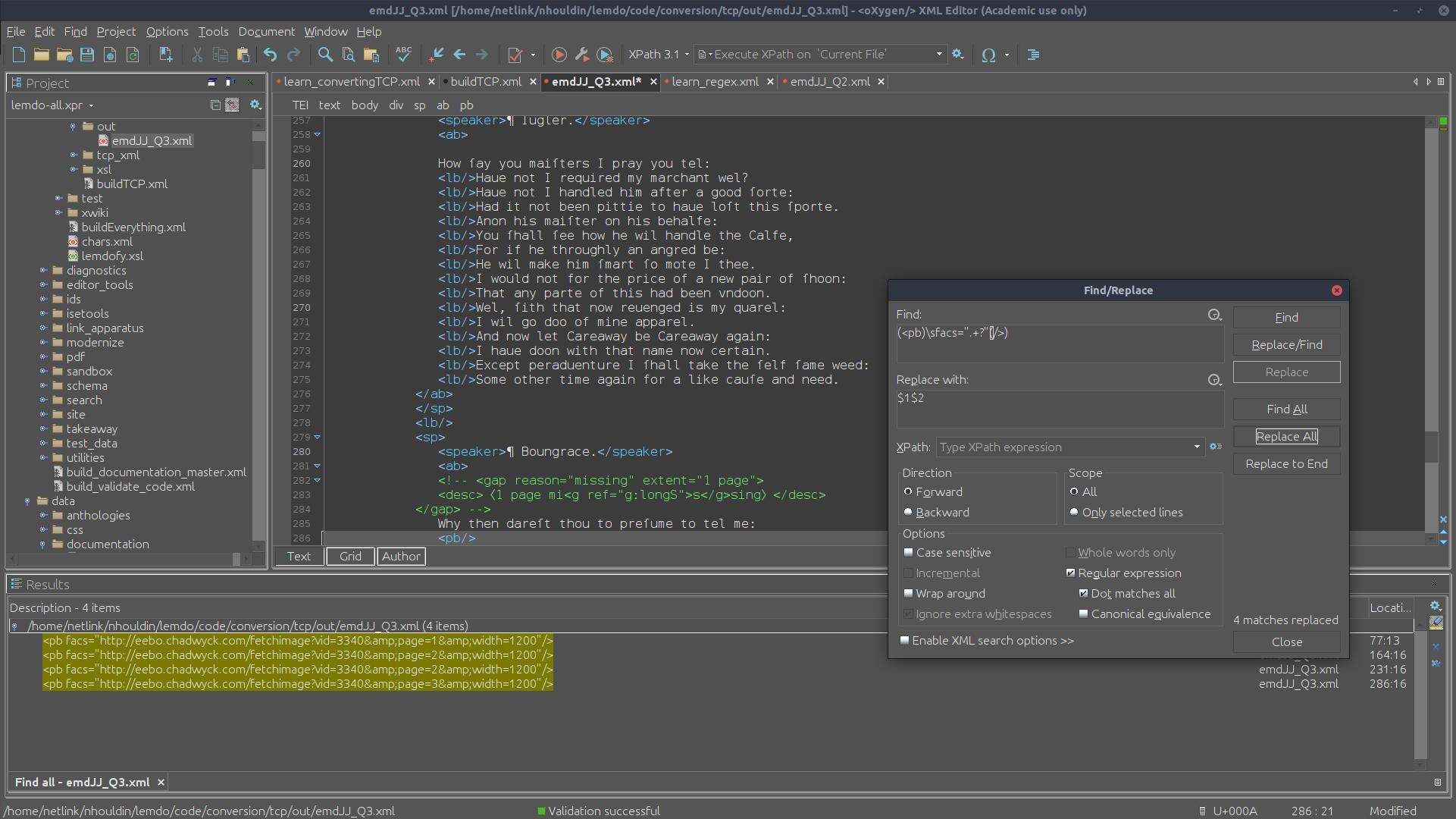
$1$2 keeps the first and second backreference groups that you created in a find (e.g.,
if your find was ([a-zA-Z]+)\s+(\d+), this would keep [a-z]+ and \d+, but not any spaces between the two).
Practice: Use Backreference Groups
Backreference groups mark sections of text that you wish to keep during the conversion
process. They are created in the Find by wrapping the section that you wish to keep in parentheses. Each set of parentheses
is automatically numbered (the first set is “1,” the second set is “2,” etc.). This
includes sets of parentheses that are nested within other parentheses. For example:
If you have this regex: ([a-zA-Z]+)\s(\d)
The set of parentheses around [a-zA-Z]+ is 1
The set of parentheses around (\d) is 2
If you have this regex: (\srendition="\w+:\w+(\s\w+:\w+)*")(\stype="[a-zA-Z]+")
The set of parentheses around \srendition="\w+:\w+ … *" is 1
The set of parentheses around \s\w+:\w+ is 2
The set of parentheses around \stype="[a-zA-Z]+" is 3
To use backreference groups in the Replace With use the $ character. This shows that we are keeping a section marked out in a backreference
group. Then, type the number given to the backreference group that you wish to keep
in the order that you want them to appear in after the conversion. Each number must
be prefixed by the $ character. For example:
Note that nested parentheses are included in the backreference group of the largest
container set of parentheses. In the final example above, there are three sets of
parentheses, but we only have two numbers in the Replace With. This is because the second set of parentheses is nested in the first set, meaning
that it is included in $1.
Practice: Run a Regex Conversion Safely
Once you have written the regular expressions you need both to find the problematic
passages and to replace those passages, then you need to scaffold out the conversion
carefully. If you are new to writing regular expressions, ask a developer to check
both of your regular expressions (input search and output result).
Here is a suggested workflow for running a conversion:
Before you run a regex conversion across the whole collection or a significant subset
thereof (e.g., lemdo/data/texts), pick a single directory (e.g., an edition directory, such as lemdo/data/texts/Leir. Make sure that no one is working in the directory right now.
Use your Find regular expression to see if there are any instances in this directory of the content
or encoding you wish to convert. You can do this by right clicking on the directory
and then clicking on Find/Replace in Files.... Once you have put your regular expression in the Find box, make sure you click on
Find All (not Replace All). Make a note of the number of instances.
Validate all the files in the directory. You can do this by right clicking on the
directory and selecting Validate. If the files are valid, proceed to the next step. If they are not, bring them into
compliance with the schema and revalidate.
Now you are ready to run your conversion. Right click on the directory and select
Find/Replace in Files ....
Make sure that you have a regular expression in the Find filter box and a regular expression in the Replace filter box.
Check the box for Regular expression.
Check the box for Dot matches all. This means that the the generic dot character will match even end-of-line characters.
If you are changing content only in the text nodes (not in the markup), type text() in the Restrict to path filter box. This will prevent changes to attribute values or element names, for example.
If you are doing a search-and-replace inside an attribute value, then you don’t need
to do this; instead, you might use the attribute name with a leading @, so that (for example) @corresp will search-and-replace only in
@corresp attributes.
Click Find and replace and watch the changes fly by.
Validate the files in the directory again. If they are not valid, check the invalid
files to see what your regex has done. If the files are valid, proceed to the next
step. If they are not valid, fix the files.
Now run a search again for your input regex string. You should get zero results.
Now run a find for your output regex string. You should get at least as many results
as your search in Step 2. You may have more results if the files already contained
instances of the correct encoding or wording.
Commit the files.
Ensure that no one is working in the files on which you want to run the mass conversion.
If you are proposing to run a conversion at the level of the entire collection or
the lemdo/data/texts directory, then you must send out an email to all LEMDO repo users and wait at least
two hours for users to see your email, commit their files, and cease working.
Run your conversion on the larger number of files, following the instructions above.
Once you are sure that the conversion has run as expected and confirmed that the files
are valid, commit them to the repository.
Inform LEMDO repository users that they may get back to work. Remind them to do an
SVN up.
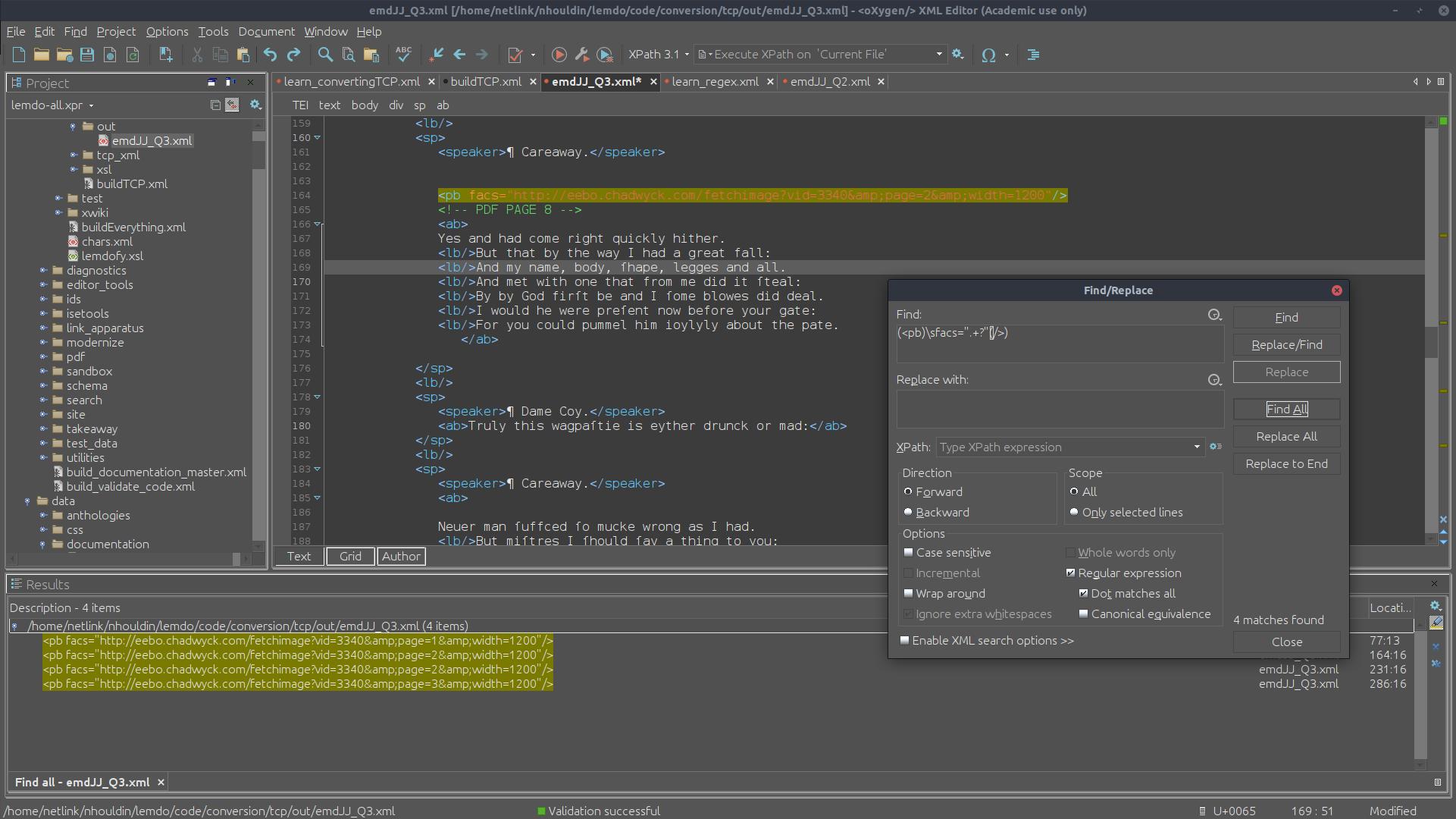
Example Regex
The following images show what running a regex looks like.
Illya has a BA in English and Sociocultural Anthropology and an MA in English. Prior
to joining the HCMC, he was a PhD candidate in English and Book History at the University
of Toronto and worked on Records of Early English Drama and on the Modernist Archives Publishing Project. His work at the HCMC focuses on creating web-based applications for research projects
led by members of the faculty of Humanities at the University of Victoria. This involves
creating schemas for new and existing datasets, writing XSLT and build files to transform
datasets into structured TEI and HTML formats, implementing staticSearch, and ensuring
that new projects are Endings Principles compliant.
Isabella Seales
Isabella Seales is a fourth year undergraduate completing her Bachelor of Arts in
English at the University of Victoria. She has a special interest in Renaissance and
Metaphysical Literature. She is assisting Dr. Jenstad with the MoEML Mayoral Shows
anthology as part of the Undergraduate Student Research Award program.
Janelle Jenstad
Janelle Jenstad is a Professor of English at the University of Victoria, Director
of The Map of Early Modern London, and Director of Linked Early Modern Drama Online. With Jennifer Roberts-Smith and Mark Beatrice Kaethler, she co-edited Shakespeare’s Language in Digital Media: Old Words, New Tools (Routledge). She has edited John Stow’s A Survey of London (1598 text) for MoEML and is currently editing The Merchant of Venice (with Stephen Wittek) and Heywood’s 2 If You Know Not Me You Know Nobody for DRE. Her articles have appeared in Digital Humanities Quarterly, Elizabethan Theatre, Early Modern Literary Studies, Shakespeare Bulletin, Renaissance and Reformation, and The Journal of Medieval and Early Modern Studies. She contributed chapters to Approaches to Teaching Othello (MLA); Teaching Early Modern Literature from the Archives (MLA); Institutional Culture in Early Modern England (Brill); Shakespeare, Language, and the Stage (Arden); Performing Maternity in Early Modern England (Ashgate); New Directions in the Geohumanities (Routledge); Early Modern Studies and the Digital Turn (Iter); Placing Names: Enriching and Integrating Gazetteers (Indiana); Making Things and Drawing Boundaries (Minnesota); Rethinking Shakespeare Source Study: Audiences, Authors, and Digital Technologies (Routledge); and Civic Performance: Pageantry and Entertainments in Early Modern London (Routledge). For more details, see janellejenstad.com.
Joey Takeda
Joey Takeda is LEMDO’s Consulting Programmer and Designer, a role he assumed in 2020
after three years as the Lead Developer on LEMDO.
Mahayla Galliford
Project Manager, 2025-present; Assistant Project Manager, 2024-2025; Research Assistant,
2021-present. Mahayla Galliford (she/her) graduated from the University of Victoria
with a BA (honours with distinction) in 2024, and an MA English in 2026. Mahayla’s
undergraduate research explored early modern stage directions and civic water pageantry.
Her SSHRC-funded MA thesis project focuses on transcribing, editing, and encoding
early modern girls’ manuscripts, specifically Lady Rachel Fane’s May Masque in collaboration with LEMDO.
Martin Holmes
Martin Holmes has worked as a developer in the UVic’s Humanities Computing and Media
Centre for over two decades, and has been involved with dozens of Digital Humanities
projects. He has served on the TEI Technical Council and as Managing Editor of the
Journal of the TEI. He took over from Joey Takeda as lead developer on LEMDO in 2020.
He is a collaborator on the SSHRC Partnership Grant led by Janelle Jenstad.
Navarra Houldin
Training and Documentation Lead 2025–present. LEMDO project manager 2022–2025. Textual
remediator 2021–present. Navarra Houldin (they/them) completed their BA with a major
in history and minor in Spanish at the University of Victoria in 2022. Their primary
research was on gender and sexuality in early modern Europe and Latin America. They
are continuing their education through an MA program in Gender and Social Justice
Studies at the University of Alberta where they will specialize in Digital Humanities.
Nicole Vatcher
Technical Documentation Writer, 2020–2022. Nicole Vatcher completed her BA (Hons.)
in English at the University of Victoria in 2021. Her primary research focus was women’s
writing in the modernist period.
Samuel Seaberg
Samuel Seaberg, a University of Victoria English undergrad, enjoys riding his bike.
During the summer of 2025, he began working with LEMDO as a recipient of the Valerie
Kuehne Undergraduate Research Award (VKURA). Unfortunately, due to his summer being
spent primarily in working to establish an edition of Thomas Heywood’s If You Know Not Me, You Know Nobody, Part 2 and consequently working out how to represent multi-text works in a digital space,
his bike has suffered severely of sheltered seclusion from the sun. Note: Samuel now
works for LEMDO as the Assistant Project Manager, much to his bike’s chagrin.
Tracey El Hajj
Junior Programmer 2019–2020. Research Associate 2020–2021. Tracey received her PhD
from the Department of English at the University of Victoria in the field of Science
and Technology Studies. Her research focuses on the algorhythmics of networked communications. She was a 2019–2020 President’s Fellow in Research-Enriched
Teaching at UVic, where she taught an advanced course on Artificial Intelligence and Everyday Life. Tracey was also a member of the Map of Early Modern London team, between 2018 and 2021. Between 2020 and 2021, she was a fellow in residence
at the Praxis Studio for Comparative Media Studies, where she investigated the relationships
between artificial intelligence, creativity, health, and justice. As of July 2021,
Tracey has moved into the alt-ac world for a term position, while also teaching in
the English Department at the University of Victoria.
Orgography
LEMDO Team (LEMD1)
The LEMDO Team is based at the University of Victoria and normally comprises the project
director, the lead developer, project manager, junior developers(s), remediators,
encoders, and remediating editors.
Metadata
Authority title
Introduction to Regular Expressions
Type of text
Documentation
Publisher
University of Victoria on the Linked Early Modern Drama Online Platform
Released with Linked Early Modern Drama Online 1.0
Encoding description
Encoded in TEI P5 according to the LEMDO Customization and Encoding Guidelines
Document status
prgGenerated
Funder(s)
Social Sciences and Humanities Research Council of Canada
License/availability
This file is licensed under a CC BY-NC_ND 4.0 license, which means that it is freely downloadable without permission under the following
conditions: (1) credit must be given to the author and LEMDO in any subsequent use
of the files and/or data; (2) the content cannot be adapted or repurposed (except
in quotations for the purposes of academic review and citation); and (3) commercial
uses are not permitted without the knowledge and consent of the editor and LEMDO.
This license allows for pedagogical use of the documentation in the classroom.