The documentation in this chapter is for LEMDO team members who write and encode technical
documentation. It will guide you through the process of creating and encoding documentation
for the LEMDO project.
LEMDO’s technical documentation contains all of the information that our editors and
encoders need to encode a LEMDO edition. It also contains information directed towards
developers and remediators. It is important that our documentation meets the needs
of each audience by being clear, consistent, and correct. The documentation in this
chapter will support you to write and encode documentation that aligns with our overall
style and provide accurate instructions for correctly-encoded editions.
Learning Outcomes
This chapter gives you all the information you need to encode technical documentation
for the LEMDO project. By the time you have worked through every section of this chapter,
you will:
Understand the principles underlying how we write documentation.
Be familiar with the relationship between our documentation pages and the ODD file.
Be familiar with the structure of our documentation and the rationale behind it and
know how to make changes to our documentation structure from the ODD file.
Know about our specific structure for chapter introduction pages.
Be able to follow our style guidelines for documentation.
Know how to encode documentation files, including how to give credit to the people
who work on them and how to add sample code.
Do not duplicate information across our documentation. Document and prescribe practices
in the files that will be the most useful to the greatest number of users. Check the
Documentation Index to make sure that a topic has not been covered before.
Decide where your file will fit into the rest of LEMDO’s documentation. Without this
information, developers will not be able to process your documentation file. Consider
whether the documentation you are writing should be a standalone section or if it
could be added to an existing section. Talk to a developer about your documentation
files if you think they should be in an entirely new section. See LEMDO’s Documentation Index for a bird’s-eye view of the documentation chapters and sections. See General Documentation Structure for information on how to add your new section to the Documentation Index.
Divide General from Specific
Do not overwhelm users with information they don’t need about highly specialized editorial
or encoding challenges. From the main documents, point to other documents with more
specific information, solutions to unusual problems, and special cases. Point back
to the general documentation from this more specialized documentation, in case users
needing more general information land in specialized documentation through a search.
The exception to the rule about general and specific documentation is documentation
for remediators. Remediation is a specialized activity that presupposes a good knowledge
of our editorial and encoding procedures; however, our remediators are generally not
editors, and tend to learn encoding by remediating. So our documentation for remediators
has to point back to the more general information. However, we do not want to point
from the general documentation to the remediation documentation, which regular users
of the LEMDO guidelines will not need.
For example, you will want to create one piece of documentation explaining how to
create a bibliography (for editors) and one explaining how to remediate a bibliography
(for remediator-encoders). You will want to link from the latter to the former, but
not from the former to the latter.
Validity of Example
All sample XML tagged with
<egXML>
needs to be clearly flagged as valid or invalid, using the
@valid attribute and the values of true or false. Create valid examples as much as possible so that editors and encoders can copy
the sample XML into their own files as a template. We check the validity of all examples
tagged with
<egXML>
and given the value true. Checking the validity of supposedly valid examples means that we are prompted to
update our examples if the schema changes. That means that valid examples must be
wrapped in their parent element to be valid and contain all of the child elements
required to complete the parent element. When this principle conflicts with the principle
of Economy of Example, use your judgement to decide whether validity or economy is most helpful to the editor
or encoder. (Note that LEMDO does not use the feasible value on the
@valid attribute, even though it is an allowed value in the tei-all schema. Our constrained schema disallows feasible. See Encode egXMLs.)
Economy of Example
Remove any tags from sample XML that are not relevant to the example, with the caveat
that the sample XML should still aim to be valid as often as possible. If the example
becomes unnecessarily complex in the service of achieving validity, then consider
offering a bare-bones example and giving the
@valid attribute the value of false. If the value is false, we will be able to add a note or flag at rendering time noting that the example
is incomplete and will require additional elements to be complete and valid. When
this principle conflicts with the principle of Validity of Example, use your judgement to decide whether validity or economy is most helpful to the editor
or encoder.
Standalone Pages
Each page must stand alone, even though we have structured the documentation as a
book with chapters and sections. There is no guarantee that a user will have read
an earlier page, and the generous linking within our documentation means that a user
may have directed to a page from a variety of other pages. Furthermore, users may
stumble across a page via a search of either the site or of the internet. Landing
in the middle of a book is disorienting. Try to direct readers back to general pages.
If a page presupposes knowledge, be explicit that the instructions assume knowledge
of X, Y, and Z (and point to those pages or chapters).
Consistent Encoding Across Project
We use TEI-XML across the project so that documentation can be processed in the same
way as other born-digital files. This principle means that the most meta aspects of
our documentation need to be presented as images (for example, documentation on how
to encode examples in documentation, a problem which even the TEI Guidelines have not resolved well).
The Relationship between Documentation and the ODD File
Disambiguation
This documentation page is designed for documenters and does not explain the processing
that includes documentation in the ODD file. For developers looking for documentation
on code files and processing relevant to documentation, see Documentation and the ODD File.
Rationale
Unlike our XML files for editions and anthology About pages which are rooted on the
<TEI>
element, our documentation files are rooted on the
<div>
element. We root documentation pages on
<div>
because the content from each documentation file is compiled into one page via processing instructions in the ODD file. Processing documentation in this way
allows us to display all of the contents of a single documentation chapter on one
HTML page on our rendered website, which some people find useful when searching for
specific content in a chapter.
The Documentation Index
All of our documentation files are compiled in one place in the documentation index.
Our readers see the documentation index as the the HTML documentation landing page
on our rendered website. As documenters, we also get to see the documentation index
in the LEMDO ODD file (data/sch/lemdo.odd).
Our documentation is the content that makes up the
<body>
element of the ODD file; our schema specification lives in the
<back>
element.
In the
<body>
of the ODD file, each documentation chapter gets a
<div>
with a unique xml:id. Each
<div>
contains a
<head>
element which contains the chapter number and title that appear in the rendered documentation
index. The documentation pages in each chapter are added using inline processing instructions
that link to the individual documentation files. Prior to the processing instructions,
chapters that are not yet completed and published have a single
<p>
element that contains the following sentence:
This chapter of our documentation is still in beta. We welcome feedback, corrections,
and questions while we finalize the page in our 2024–2025 work cycle.
Once each chapter is completed, a member of the LEMDO team must remove the draft
paragraph from the
<div>
for the chapter.
Note that the draft paragraph is not visible from the online documentation index page.
It is only visible from the full chapter view that people can reach by clicking on
the title for each chapter.
Processing Instructions
LEMDO’s developers have written a processing instruction to include documentation
pages in our documentation index. For each documentation file that you wish to include
in a documentation chapter, you must add a lemdo-include processing instruction. Doing so will add the documentation page to the next build
and add a link to the documentation page from the documentation index. To add the
processing instruction:
Copy this instruction into the text node of the
<div>
for the chapter that you wish to add it to in the ODD file, placing it in the position
in the chapter that you want it to be in: <?lemdo-include href="doc:[documentation xml:id]"?>.
Replace [documentation xml:id] with the xml:id for the documentation file that you wish to add.
For more information on the lemdo-include processing instruction, see lemdo-include.
Giving Credit in Documentation
Rooting documentation files on the
<div>
element means that documentation pages are unique in the LEMDO XML ecosystem in how
we give credit to those who worked on files. While in most TEI files we give credit
to contributors in
<respStmt>
elements in the
<titleStmt>
of the
<teiHeader>
, we are unable to do so in each documentation file as there is no
<teiHeader>
. Instead, we list all contributors to LEMDO documentation in the
<teiHeader>
of the ODD file and link to the relevant contributors’ xml:ids from the root
<div>
element of each individual documentation file using the
@resp attribute.
Note that because the responsibility statements that are shown on the rendered Web
pages for documentation come from the ODD file rather than the documentation file
itself, the order of contributors shown online follows the order that contributors
are listed in the ODD file. Despite this, we do link to the xml:ids of contributors
in the order of their contributions from the root
<div>
element of each documentation file (i.e., primary author of the file first, subsequent
authors after). Following this practice ensures our underlying XML truthfully captures
the contributions of each person to the extent possible.
Structure of Responsibility Statements in the ODD File
Because our ODD file contains both our documentation and our schema specification,
there are responsibility statements for both the entire LEMDO project and for the
LEMDO Encoding Guidelines in the
<teiHeader>
of the ODD file. The
<respStmt>
elements giving credit for the entire project to the project director, project manager(s),
and developers are listed first, followed by the
<respStmt>
elements for technical writers of documentation, documentation compilers, encoders,
copyeditors, and finally proofreaders. Each group is separated by an XML comment.
In the section for technical writers, the order of
<respStmt>
elements (and thus the order that names are listed in on the Credits pane on rendered documentation pages) puts lead documenters and major contributors
first (given in the order of Janelle Jenstad, Navarra Houldin, Mahayla Galliford, Laura Estill, Martin Holmes) followed by all of our contributing authors. Contributing authors are listed in
alphabetical order by surname.
Names in all other sections are given in alphabetical order by surname.
LEMDO’s documentation is intended to guide a variety of audiences through the process
of encoding a LEMDO edition and publishing an anthology with LEMDO. For many of our
readers, their LEMDO edition is their first foray into TEI, encoding, and the digital
humanities. With new encoders in mind, we need to ensure that the information provided
in our Encoding Guidelines is accessible, accurate, and clear. The first step in making the Encoding Guidelines meet those requirements is to ensure user-friendly and intuitive navigation that
breaks information into managable chunks and makes it simple to find any necessary
information.
This documentation page will introduce you to the principles that we follow when structuring
our documentation and will describe the current structure of the LEMDO documentation
index.
Principles for Structuring Documentation
LEMDO follows specific principles for determining when to make new documentation pages
and deciding where documentation pages should be placed in the documentation index:
Web pages should be short and relevant.
Provide foundational information before complex information.
Information that is relevant to a large audience comes before information that is
relevant to only a small audience.
When related information is split between two pages, link those pages.
Do not deeply nest sections of documentation (
<div>
elements).
When we follow these principles, readers are able to learn and understand fundamental
concepts before reading Web pages with information that requires those fundamental
concepts. They also are more likely to read through a full documentation page because
the pages are manageable sizes.
Practice: Determine When to Create a New Documentation Page
Generally, it is better to have many short inter-linked pages than a few very long
documentation pages. However, there are many cases where closely-related information
should be in a single page. When you need to determine if you should create a single
new documentation page, create multiple new documentation pages, or add to an existing
documentation page, follow these guidelines:
If the content is not replicating obsolete information (i.e., this is entirely new
information), create a new documentation page.
If the content is replacing obsolete information (e.g., we have new encoding practice and you need
to rewrite existing documentation that is no longer accurate), replace the old information
in the existing file. Do not create a new documentation page.
If the content explains two encoding options, keep both options in a single file.
You may simply introduce both along with a decision process in one file and create
additional files explaining the practice of encoding each option. In those cases,
ensure that you link to the encoding practice files from the further reading section of the introductory file.
If a page is overly long and there is a logical division (or multiple logical divisions),
divide the file. Link between them in their further reading and prior reading sections.
If you are adding short supplementary information, add it to an existing file. Do
not create a new documentation page.
When you create new documentation pages, it is important to create links to other
relevant pages. This process of pointing to related files allows us to keep our documentation
pages concise while supporting readers to find the information that they need. For
information about the practice of linking between documentation pages, see Make Links to and from Documentation.
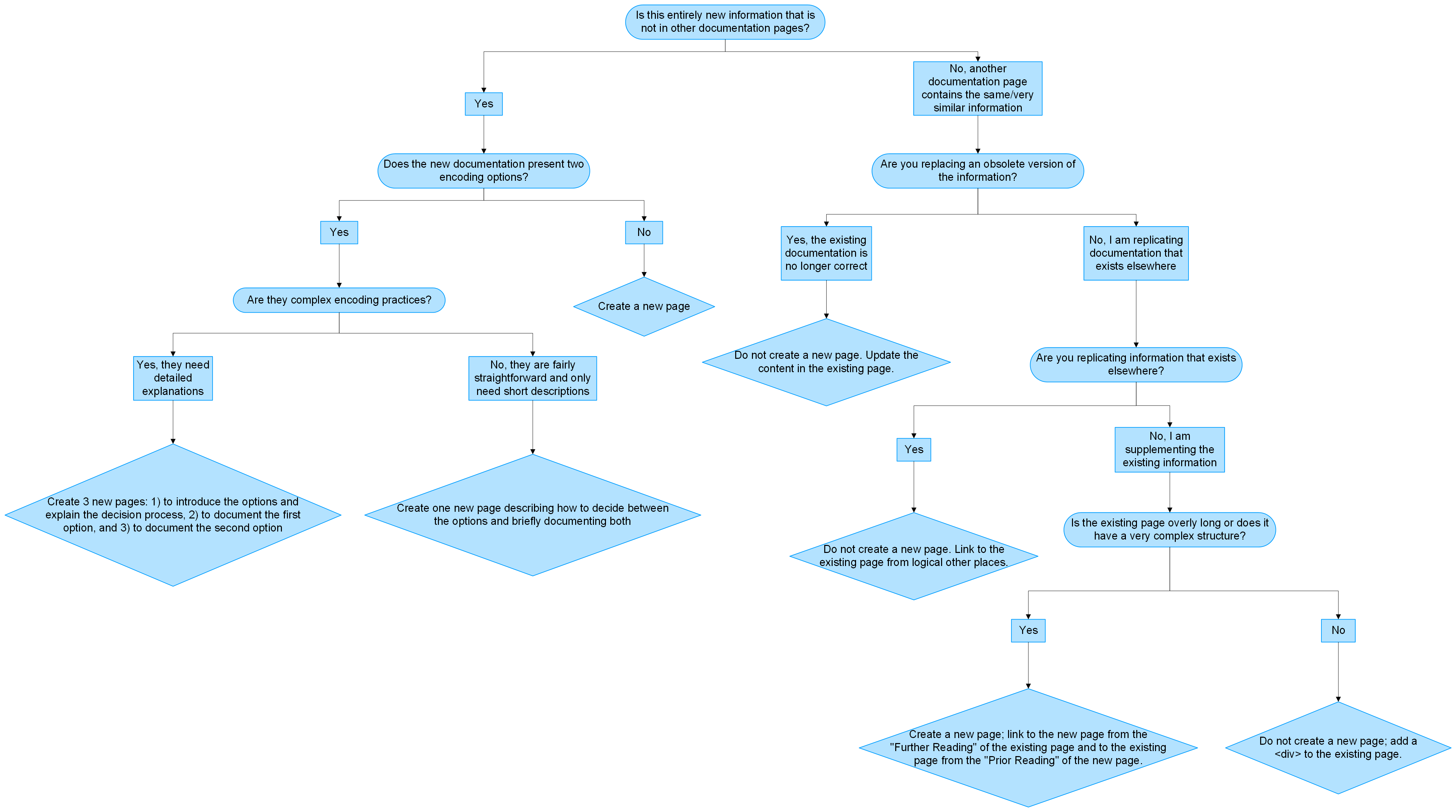
Decision Tree
The following decision tree graphically lays out the scenarios for deciding when to
create a single new documentation page, create multiple new documentation pages, or
add to an existing documentation page.
Documentation in the LEMDO Repository
The documentation folder in the LEMDO repository consists of discrete files, each of which has a file
name beginning with learn_. Each file is meant to function as a discrete section of documentation, with links
to other sections or subsections (i.e.,
<div>
elements within those files) as necessary. Each file is rooted on a
<div>
element and ought to contain an independently understandable section of a chapter
(as much as anything is independently understandable). See Structure of a Single Documentation File for more information on how single files are structured.
Structure of the Online Documentation Index
We process our documentation at rendering time into chapters. We have grouped these
chapters into chunks so that related chapters are near each other. We have ordered the chapters to reflect
the workflow of a new editor or encoder following the practice outlined in the DRE Editorial Guidelines. The following paragraphs explain the order of the chunks of documentation as of July 2026.
The documentation in these chapters are the starting point for any new LEMDO contributor.
They explain how to use LEMDO documentation, how to get set up in the repo, and the
basic workflow based on the contributor’s specific role.
The documentation in these chapters provide information that all of LEMDO contributors
should have some base knowledge as well as the shared resources and practices that
are essential to LEMDO’s function.
The documentation in these chapters outline the basic expectations that LEMDO has
for style and valid encoding. This documentation also explains the tools and practices
that LEMDO implements to ensure readers follow our encoding guidelines.
The documentation in these chapters explains how to give credit where it is due by
adding to our shared bibliography (BIBL1), curating an edition bibliography, and using semantic tagging for quotation marks.
Documentation related to semi-diplomatic transcriptions:
The documentation in these chapters provide instructions on each step of preparing
and encoding a semi-diplomatic transcription. Information that is relevant to all
encoders of semi-diplomatic transcriptions are given in earlier chapters (Facsimiles and Semi-Diplomatic Transcriptions) while information that is needed by only some encoders is given in subsequent chapters
(Semi-Diplomatic Transcriptions: Features Unique to Print Playbooks and Semi-Diplomatic Transcriptions: Features Unique to Manuscript Playbooks). Documentation on how to prepare a semi-diplomatic transcription is the first of
the chunks related to preparing a specific edition component because semi-diplomatic transcriptions
are the recommended first stage in preparing a LEMDO edition.
The documentation in these chapters explains to editors the final steps of preparing
their edition for publication. The documentation introduces LEMDO’s practices for
updating metadata and the relationship between anthology and edition that allows for
our handshake model of inclusion.
The documentation in these chapters is for readers with specific roles in the LEMDO
project. The anthology development chapter is for anthology leads and developers customizing
anthologies. The documentation chapter provides the style guide and encoding practices
that LEMDO documenters follow. The conversion and remediation chapter documents the
work that has been done in the process of remediating IML editions to LEMDO’s TEI.
The documentation in these appendices is used by a small number of readers. It documents
the processing for the LEMDO project, guides people to TEI specs for elements and
attributes, documents practices for doing specific types of remediation, and describes
encoding practices that are not typically desirable in LEMDO editions that may still
be used by editors working on legacy editions coming from the ISE platform.
Note that chapter numbers are defined only in the ODD file. Chapter numbers are not
part of the XML files that constitute chapter introductions and sections, which makes
it simple to move sections and reorder chapters if it seems beneficial to do so.
Documentation Chapter Introductions
Each chapter begins with a short introduction. The introduction is a discrete XML
file. It is meant to say something about the learning outcomes of the chapter. The
introduction ends with a table of contents linking to all the other files in the chapter.
If the chapter is written for a particular type of LEMDO user, the introduction will
need to indicate the intended audience (anthology leads, editors, encoders, remediators,
and/or developers). If the chapter presupposes certain knowledge or experience, the
introduction will also need make suggestions about what the user should already know
(with links to relevant chapters and sections as necessary), and/or refer the user
to the anthology leads or to a particular team for further direction.
The recommended structure for each chapter introduction is as follows:
Audience (if applicable; put this section in a
<p>
element without a parent
<div>
at the beginning of the file)
Prior Reading (if applicable)
Learning Outcomes
Contents
Start the Learning Outcomes section with a brief statement of the content of the chapter. Introduce the list
of learning outcomes with the phrase “By the time you have worked through every section
of this chapter, you will,” followed by a colon. Begin each list item with a verb.
Encode the table of contents as a
<table>
with two cells in each row. Give the columns the labels “Section” and “Description.”
Start the description with a verb.
Example
<div xml:id="learn_gettingStartedIntro_prior"> <head>Prior Reading</head> <p>This chapter presupposes that you have read the Quickstart(s) appropriate to your
role with LEMDO and that you either already know TEI-XML or have read <ptr target="doc:learn_quickStartTEI"/>.</p> </div><div xml:id="learn_gettingStartedIntro_learningOutcomes"> <head>Learning Outcomes</head> <p>This chapter gives you all the information you need to get started on your edition.
By the time you have worked through every section of this chapter, you will:
<list rend="bulleted"> <item>have affiliate status at UVic</item> <item>have a NetLink Id and password that gives you access to your files in the LEMDO repository</item> <!-- list continues --> </list> </p> </div><div xml:id="learn_gettingStartedIntro_TOC"> <head>Contents</head> <table> <row role="label"> <cell>Section</cell> <cell>Description</cell> </row> <row> <cell> <ptr target="doc:learn_getNetlink"/> </cell> <cell>Learn how to obtain affiliate status at UVic and set up a NetLink ID</cell> </row> <row> <cell> <ptr target="doc:learn_technicalRequirements"/> </cell> <cell>Learn what you need to have on your computer in order to work in the LEMDO
repository</cell> </row> <!-- rows continue --> </table> </div>
Documentation Style Guidelines
Disambiguation
Consult this style guide for rules specific to documentation, otherwise, follow the
LEMDO Style Guidelines.
Voice and Pronouns
Keep voice, diction, pronouns, and other elements of language consistent across the
documentation. Always write in the active voice.
Use imperative second-person verbs at the beginning of headings whenever possible
(e.g. Create a New File).
Write documentation in first-person plural (we, our) to describe what we did in a particular case or what we do on the project in general;
the verb tense can be past or present depending on what we are describing.
Use second person (you) and imperative verbs when giving instructions to contributors and team members.
For third-person pronouns, do not use gendered pronouns unless you are referring to
a specific person and you know the person’s pronouns. Otherwise, use the gender-neutral
singular pronoun they or phrase the entire sentence in the plural. Do not use he/she or s/he, which, in addition to being awkward, reinforce an outdated binary notion of gender.
Standard Diction for Headings
Use LEMDO’s standard diction to help readers understand the purpose of each section
of a documentation file. Users will quickly begin to understand how the documentation
is organized if we use these terms consistently. If all a user needs is a refresher
on the steps, they will know to look for the section with the term Step-by-Step. These are the terms we use:
Rationale sections explain why we follow the encoding practice being described in a particular
documentation file.
Principles sections outline the project principles that we follow when developing encoding practices.
Principles give us a set of rules by which to make encoding decisions in cases where
we cannot outline every possible use case or example.
Practice sections explain specific encoding practices and often include both prose and lists.
Workflow sections are usually lists and outline the steps required to complete a particular
encoding project and the order in which users typically undertake those tasks.
Step-by-Step sections are numbered lists designed to be skimmed quickly with short instructions
on how to complete a certain encoding task.
At a Glance sections often include tables with just the information the user is most likely to
need, such a quick visual of the pattern for making xml:ids.
Examples sections include examples of the encoding described in the documentation file.
Special Cases sections include examples that are atypical but still appear in encoding and must
be taken into account.
Tips sections include non-essential but helpful information, such as strategies that allow
users to work more efficiently.
Optional sections include encoding practices that are not relevant to some users or in specific
scenarios.
Rendering Note sections give information on how the encoded material will look on the LEMDO site
or how the encoding practice will affect rendering.
Disambiguation sections distinguish between similar things that users may assume are the same. They
usually include links to other documentation pages with information on the thing being
disambiguated.
Prior Reading sections include links to documentation pages that should be read before reading
the current page.
Further Reading sections include links to documentation pages that should be read after reading the
current page.
Use these terms in the
<head>
elements of documentation
<div>
elements and wherever it seems appropriate to repeat the terms in the running text.
If you need to write two sets of instructions of varying complexity, use the headings
Step-by-Step: Basic and Step-by-Step: Advanced. If you are only writing one set of instructions, use the heading Step-by-Step.
Special Case: Category References
Chapters that deal with a specific type of document will have a file that discusses
the
<catRef>
elements (category references) that are required for the document. Give the file
a title as follows: Encode File Categories in Topic (where Topic = the standard term that we are using in file titles throughout that chapter). Examples:
Encode File Categories in Semi-Diplomatic Transcriptions.
Diction in Running Text
Use plain language in your writing. Link to GLOSS1 if users require knowledge of technical terms and provide an explanation of concepts
that require specialist knowledge to understand your documentation.
Consider your audience and try to judge their familiarity with technical terms. On
one hand, you may use editorial terminology in the editorial guidelines because the
audience for that documentation are editors who will be comfortable with it. On the
other hand, do not use programming jargon in an encoding Quickstart guide unless you
provide explanations that are accessible to the audience of beginner encoders.
Modal verbs have particular meanings in the world of documentation. RFC 2119 (1997) sets out rules for the use of must, must not, required, shall, shall not, should, should not, recommended, may, and optional in documentation. The TEI Guidelines, which we quote from and link to in our guidelines, use a subset of these modal verbs.
RFC 2119, point 6 argues against the use of imperatives. However, we are writing documentation primarily
for editors, encoders, and LEMDO team members, most of whom need clear, simple instructions.
We tend to write our documentation in the imperative second-person, mainly to avoid
repeating the implied modal verb must. If something is truly optional or recommended, say so.
Consider audience when writing headings in documentation files. Editors are more likely
to go to documentation looking for the solution to an editorial problem, not looking
for a description of an encoding protocol. Write headings like Encode Element Names instead of headings like Use
<gi>
. Remember that the text nodes of
<head>
elements will be generated into a table of contents later, and write headings that
will direct readers to the solution they need.
Use consistent language across the documentation. Occasionally we will recommend wording
for phrases or sentences that will be used often across our documentation.
We anticipate that readers will go to certain pages looking for information that is
actually on another page. You may also want to direct a reader to a more in-depth
explanation of a concept. Always link to the page that you mention. Choose a phrase
from the list below to recommend further reading to users:
<p>If you are looking for information on encoding foreign languages, go to <ptr target="doc:learn_encodeForeignLanguages"/>.</p>
<p>See also <ptr target="doc:learn_encodeForeignLanguages"/>.</p>
Be clear when you are talking about specific elements, attributes, and values. Note
that when you are encoding elements, attributes, and values, you will wrap them in
the elements
<gi>
,
<att>
, and
<val>
, but you also want to add clarifying words (see Encode Sample XML for encoding instructions):
Add the word element after the name of the element so it is clear that you are referring to the element.
Example:
“LEMDO uses the
<title>
element to tag the titles of written works”
Add the word attribute after the @name of the attribute. Example:
“Add a
@ref attribute to the
<name>
element.”
Add the word value before or after the name of the value. Examples:
“Give the
@corresp attribute the value of the xml:id in our shared bibliography.”
“If the stage direction describes an action, add the action value to the
@type attribute on the
<stage>
element.”
Do not use the phrase as such in documentation.
Spelling and Terminology
Write our shared bibliography when referring to BIBL1_A.xml-BIBL1_Z.xml in running prose, but sitewide bibliography in
<table>
elements.
Write Quickstart (e.g., Quickstart guide), not Quick start, QuickStart, or Quick-start.
Write ODD file in full capital letters, but write .odd when referring to the file extension.
Write Web page with Web capitalized and page not capitalized when you are referring to a specific page on a website.
Write website when you are referring to a full website (rather than an individual page). Do not
write Web site.
Write file name, not filename.
Write checkout, not check out when using the noun form.
Write screenshot, not screen shot, or screen-shot.
Write hash character, not hashtag, when referring to the following character: #.
When using born digital as a phrasal adjective (e.g., in the phrase born-digital text), write born-digital text, not born digital text.
Write work session as two words, not as a single word.
Write tagset, not tag set.
Write workflow, not work flow.
Write sitewide, not site-wide.
When referring to hungwords, write turnover, not turn-over. Also write turnunder, not turn-under.
Write forme work, not formework.
Write markup, not mark up or mark-up when you are referring to markup as a noun. Reserve mark up for the action of adding markup.
Write A.S.Sp. not A.S.SP when referring to our system of canonical references.
Write multivolume, not multi-volume.
Write shelfmark, not shelf-mark.
Write semi-diplomatic transcription, not semi-diplomatic text.
In titles and headings, capitalize both elements in hyphenated words, unless the first
element cannot stand alone as a word (e.g., anti-). For example, write Previously-Encoded and Anti-climactic, not Previously-encoded and Anti-Climactic. The exception is Semi-Diplomatic, in which both elements should be hyphenated.
Write roman, not Roman when discussing roman type.
Write LEMDO team (lower case “t”) in running prose, but LEMDO Team (capitalized “T”) in
<respStmt>
elements.
Write back-end as the adjective in back-end server.Backend is the noun.
Write in addition rather than additionally.Additionally should only be used to modify verbs.
Write
“About” page rather than
“about” page when referring to anthology About pages. Wrap the work About in the
<soCalled>
element.
Punctuation
Do not use two hyphens or two en dashes in place of an em dash ( — ) in documentation.
You can insert an em dash using LEMDO’s list of special characters. See Practice: Bring Up a List of Special Characters.
Use a period at the end of each item in a list unless every item in the list is a
link with no other text.
Capitalization
Use lower case for roles such as anthology lead and editor except in
<respStmt>
elements or credit pages.
Write xml:id in lower case, not in partial or full capital letters (i.e. not XML:id or XML:ID), but write XML in capital letters when referring to the encoding language.
Write ID (e.g., NetLink ID), not id or Id, when not referring to xml:id.
Write Oxygen, not oXygen when referring to the encoding software we use (the company that makes Oxygen uses
both spellings).
Write TEI P5 without a hyphen.
Write affiliate identity, not Affiliate Identity.
Capitalize Schematron.
Capitalize Subversion and SVN.
Capitalize Terminal.
Capitalize Quickstart.
Write regex in lower case.
Write NetLink, not Netlink or netlink.
Write drop-down, not dropdown or drop down when referring to drop-down menus.
Application Instructions
Use a Unicode arrow (U+2192) from the character map (i.e., →) to illustrate how to
find things in the menus of computer applications (e.g., Word, Teams, Oxygen).
Example showing a Unicode arrow used to give instructions:
Click Project → Open Project → lemdo-all.xpr.
Organization
Plan out the structure of your documentation before writing and encoding it. Consider
the users of the documentation and what they will expect from it. Encoding documentation
also becomes easier if you have a structure in mind beforehand.
Use point-first writing at the sentence, paragraph, and page level. Briefly outline
what you will be talking about at the beginning so users can quickly decide whether
it is relevant to them or not.
Order the options from most likely/advisable to least likely/advisable when we have
several possible encoding scenarios and solutions. Some scenarios are ubiquitous across
early modern drama, but given the type of material we edit and encode at LEMDO, others
are infrequent. However, we still have to imagine an encoding solution for the infrequent
scenarios.
Guide the encoder or editor by putting the most common scenario first. For example,
LEMDO uses several different elements to tag quoted and highlighted text. The element
with the least-specific use,
<q>
, is at the bottom of the list in the documentation for quotation elements because
we only want users to choose that element after they have tried all of the more specific
elements. The element that users will most likely need,
<quote>
, is at the top of the list.
Use
<div>
,
<head>
, and
<list>
elements whenever possible to make documentation easier to read and scan. However,
do not use
<list>
unless the material really is a list. Break up long blocks of text whenever possible.
See Structure of a Single Documentation File for more information.
Cite the TEI Guidelines
Name and link directly to relevant sections of TEI P5. Simply citing the TEI Guidelines with parenthetical references and links to our shared bibliography is not specific
enough for our purposes.
Note that anything tagged with
<gi>
will be automatically processed into a link to the relevant LEMDO element specification,
which in turn links to the element specification in the TEI Guidelines.
Treat the TEI Guidelines as a monograph and make a direct link to them. Encode TEI Guidelines with the
<title>
element, the
@level attribute and the value m.
Treat chapters of the TEI Guidelines as articles and make direct links to them. Encode the names chapters with the
<title>
element, the
@level attribute and the value a:
<p> <!-- ... --> See also <title level="a">Chapter 16: Linking, Segmentation, and Alignment</title> in the <title level="m">TEI Guidelines</title>. <!-- ... --></p>
LEMDO follows a set of standardized practices when creating and naming documentation
files. Following these practices ensures that our Encoding Guidelines are organized and easy for readers to use. The documentation on this page describes
how to create and name a file so that our documentation index is navigable and our
audience can find the information that they are looking for.
Practice: Create a New Documentation File
LEMDO has a template file for creating new documentation files. To use it:
Right click on the documentation folder in Oxygen’s project view.
Hover your mouse over “New.”
Select “File …”
Scroll down to Framework templates.
Click on the LEMDO folder
Select documentation_template.
Update the file name in the text box at the bottom of the window.
Click the “Create” button.
To add your new file to the shared LEMDO repository, use the svn add command followed by an svn commit. Ensure that you add it to the data/documentation folder. For detailed instructions, see Practice: Add Files to the Repository.
To build your new documentation file and add it to the documentation index, use the
lemdo-include processing instruction in the ODD file. For instructions on how to do so, see Processing Instructions.
Practice: Name Documentation Files
All documentation file names should begin with learn followed by an underscore and a descriptive identifier. The descriptive identifier
should be short and clearly relate to the content of the file. Typically, the file
name should be similar to the title of the documentation page (e.g., the page titled
Terminal Code for Naming Facsimiles has the file name learn_facsTerminalCode).
Use camelCase for file names with more than one word following the underscore. Never
put spaces in file names. If the name of your document contains an acronym (e.g.,
OED, TEI), keep the acronym in full capital letters in the file name. For example:
learn_encodeQuotations.xml
learn_remediateOED.xml
It is important that the file name matches the xml:id on the file’s root
<div>
element. If the file name does not match the file’s xml:id, Oxygen will give you
a validation error. Do not commit files whose file names do not match their file xml:id.
Practice: Update Metadata in Documentation Files
When you create a new documentation file, you must update the metadata housed in the
attributes on the root
<div>
element.
First, give credit to yourself and any co-authors of the documentation file as writers
of technical materials in the
@resp attribute. See Give Credit for Documentation Files for instructions.
Next, specify the audience that the content of the documentation file is aimed towards
in the
@ana attribute. See Encode Intended Audience for Documentation for instructions.
We often only need to make minor edits to existing documentation files. In some cases,
new practices means that we need to make more significant changes to the content of
a documentation file by adding, removing, or significantly rewriting sections.
If you significantly modify a documentation file, give yourself credit as a writer
of technical material in the
@resp attribute on the root
<div>
element of the file. If you are adding material or modifying only some parts of the
file, do not remove the other values on the
@resp attribute. If you completely rewrite the file and none of the original file remains,
remove the old values on the
@resp attribute.
We very rarely want to change the xml:id and file name of a file. When we do so, any
existing links to the file break and we must make updates across the repo.
Give Credit for Documentation Files
Documentation files do not contain a
<teiHeader>
and thus cannot have the
<respStmt>
elements that are required in all other files. Instead, the
<respStmt>
elements for writers and encoders of documentation are captured in the ODD file.
In the documentation files, which are rooted on the
<div>
element, we point to the
<respStmt>
elements in the ODD file.
Add
@resp attributes to this root
<div>
element. Use the or: pointer to point to the ODD file. The rest of the value is the
@xml:id for the specific person and role defined in the ODD file.
Examples of
<respStmt>
elements in the ODD file for the two roles that one person can play with respect
to documentation:
Example of a documentation
<div>
element with the value of a
@resp attribute pointing to the
<respStmt>
element in the ODD file:
<div resp="or:odd_VATC1_wtm"/>
These
@resp attributes can be added to the root
<div>
element and/or to any child
<div>
elements. You may choose to give credit at the level of child
<div>
elements if you want to highly granular credit for particular parts of a single documentation
file. Ideally, documentation is collaboratively written and the voices in any one
document should sound alike after iterative revisions by various team members. In
this case, it is best to capture all the contributors and their respective roles on
the root
<div>
element.
Add as many values as are required to capture all the roles played by various people
in the writing and encoding of a documentation file. The following captures the fact
that both Nicole Vatcher and Janelle Jenstad wrote and encoded the documentation file
in question:
Documentation files are unique compared to other files in the LEMDO repository because
they are rooted on the
<div>
element rather than the
<TEI>
element. This structure allows us to compile entire documentation chapters into one
Web page as described in The Relationship between Documentation and the ODD File. Note that the structure of documentation files are slightly different from the other
TEI files that you may have worked on with LEMDO.
Unlike other TEI files, documentation files do not contain a
<teiHeader>
, a
<text>
element, or a
<body>
element. Instead, we provide metadata by linking to the ODD file (see The Relationship between Documentation and the ODD File and Give Credit for Documentation Files) and encode all of our documentation content in
<div>
elements nested inside the root
<div>
.
While you may nest
<div>
elements further to create a hierarchical structure in documentation files, LEMDO
advises against a deeply nested structure. If you find that you need to nest more
than sub-sections in a file, consider either reworking the content or, for complex
topics, dividing the content between multiple pages. If you do decide to make multiple
files rather than one very long file, remember that we can link between those files.
Other than the differences necessitated by being rooted on a
<div>
element, the structure that we use in our documentation files is very similar to
that of LEMDO’s critical paratexts (see Structure of Critical Paratexts). The elements that we use to organize content and create structure in documentation
files are:
<div>
(always with an
@xml:id attribute and a child
<head>
element)
<p>
<list>
<table>
Divisions
Sections (divisions) encoded using the
<div>
element are the highest-level structural unit of LEMDO documentation files. Each
documentation file is rooted on a
<div>
element that must contain a child
<head>
element1 and usually contains at least one child
<div>
element.
XML is hierarchical and works by nesting content in a series of containers. In LEMDO
documentation, those containers are
<div>
elements. It is important to understand how to nest
<div>
elements to create structure with subsections when writing and encoding documentation.
We recommend plotting the structure of your document prior to encoding it so that
you have a good idea of how to arrange your content into sections and subsections
using
<div>
elements.
Practice: Give xml:ids to Divisions in Documentation
Each
<div>
element must have an
@xml:id attribute with a logical value. As with all xml:ids in the LEMDO project, the xml:ids
on
<div>
elements in documentation must all start with the root xml:id for the file followed
by an underscore and then a unique value. Oxygen will give you a validation error
if an xml:id does not begin with the file’s xml:id. See Create a Unique Value for an xml:id Attribute.
If you have nested
<div>
elements, you may find it most clear to begin the xml:id for nested
<div>
elements with the xml:id of its predecessor, but this is not enforced with validation.
Note that following this practice quickly makes xml:ids unwieldy in deeply-nested
divisions. If you notice that your xml:ids are becoming overly long, it may be a sign
that you should reorganize the content in the file so that it does not contain deeply-nested
divisions.
It is important to keep xml:ids unique, short, and descriptive. We use xml:ids to
create stable URLs for entities and to link to those entities. By keeping them short
and descriptive, we make it easier to link between documentation files.
Follow these principles to keep xml:ids short:
Think carefully about nesting
<div>
elements within
<div>
elements. Do you need deeply nested divisions? Is the content actually a set of paragraphs
or a list? One advantage of creating a new
<div>
is that we can link to it from elsewhere, but think about whether we really need
to link to the very specific information that would be contained within a deeply nested
<div>
or if users might more profitably be pointed to a higher level in the hierarchy.
Be economical in the wording of the xml:id.
The final part of the xml:id on a
<div>
needs to be similar to the text node of the
<head>
element but does not have to replicate it. If possible, choose a single representative
word from the heading.
The following example shows the xml:ids for a documentation file with the xml:id learn_encodeTerm. Note that each xml:id begins with the root
<div>
’s xml:id and ends with a short and unique descriptor:
Every section of a documentation file must have a heading, tagged with the
<head>
element. Add an appropriate heading for that section of the document in the text
node of the
<head>
element.
At processing time, the division heading is turned into the section heading on the
Web page and is added to the page’s table of contents. In addition, it is added as
hyperlinked text everywhere that the section is linked to using a
<ptr>
element.
On the Web page, the hierarchy of
<div>
elements determines the level of heading for each section. Functionally, the hierarchy
impacts the formatting of the headings. Headings that are higher in the hierarchy
(e.g., the heading for the root
<div>
element) are displayed in a larger font while headings that are lower in the hierarchy
(e.g., the heading for a
<div>
element that is nested inside another
<div>
) are displayed in a smaller font.
Tips for Encoding Divisions
You must close the
<div>
elements in your documents in the same order that you opened them. Since the first
<div>
element is the largest container, its opening and closing tags must enclose all the
other
<div>
elements. Be careful when closing
<div>
elements because a misplaced closing
<div>
tag can, in rare cases, disrupt the content hierarchy without being invalid. Furthermore,
it is easy to lose sight of your opening
<div>
tag in a long, complex document. Errors are most likely to occur when you are moving
<div>
elements and their contents to new places in your document. When moving elements
and their contents, you may well accidentally disrupt your document hierarchy.
Strategies you can use to avoid misplaced closing tags:
Add tags by using the Ctrl+E (Cmd+E on Mac) keyboard shortcut rather than manually typing in each opening and closing
tag.
Use the Outline view in Oxygen (Window → Show View → Outline) and filter for
<div>
elements (by typing div in the filter box).
Paragraphs
The basic structural unit within the
<div>
element is the paragraph, wrapped in the
<p>
element. Three paragraphs will often suffice instead of three divisions with headings,
especially if the paragraphs convey information that an editor or encoder is likely
to read as a unit. In other words, paragraphs are the obvious way of organizing information
when you do not want to split the information across multiple
<div>
elements.
Prose is the default mode of writing documentation, but do think carefully about how
people will need to receive the information. You are not writing an argument. You
are giving explanations and instructions. Instructions are often for step-by-step
procedures and often include forks in the road where an editor has to make a forced choice between options. Step-by-step procedures
lend themselves to numbered lists. Forced choices lend themselves to nested lists.
A paragraph may contain a list and/or nested lists. A paragraph may be used to introduce
or comment on a list.
Lists
Lists are an excellent way to organize information in documentation. They are highly
readable on screen and make it easy for readers scanning for a solution to find what
they need. If you find that you are creating comma-separated prose lists, consider
turning them into formal lists, wrapped in the
<list>
element with each item wrapped in the
<item>
element.
Conversely, do not encode as lists long blocks of text that are really paragraphs.
If you find that your list items are becoming long, then consider converting the list
back to paragraphs or even to small
<div>
elements with
<head>
elements to guide the reader to the right information.
Decide whether your list should be independent of a paragraph or embedded within a
paragraph. Consider the information in this table when deciding whether to embed a
list in a paragraph or keep it separate:
Lists Independent of Paragraphs
Lists Embedded in Paragraphs
Usually longer
Usually shorter
Extrinsic to the paragraph in terms of content
Intrinsic to the paragraph in terms of content
Probably not discussed in the next paragraph
Discussed in the remainder of the paragraph
Example: List independent of paragraph
<div> <!-- ... -->
<p>Running prose about something.</p> <list rend="bulleted"> <item>Item</item> <item>Item</item> </list> <p>Running prose about something.</p> <!-- ... --> </div>
Example: List embedded in paragraph
<div> <!-- ... -->
<p>Running prose introducing the list:
<list rend="bulleted"> <item>Item</item> <item>Item</item> </list>
Running prose commenting on the list.</p> <!-- ... --> </div>
Types of Lists
LEMDO permits numbered, bulleted, and simple lists. All
<list>
elements should have a
@rend attribute specifying the type of list.
Use numbered as the value on the
@rend attribute if the items in the list are in a particular order (a step-by-step process
whereby one step must be completed before the next step) or if enumerating items is
important. In the latter case, there might be a preceding comment and an introductory
colon.
<div> <!-- ... -->
<p>Follow these three steps:
<list rend="numbered"> <item>Step One described.</item> <item>Step Two described.</item> <item>Step Three described.</item> </list> </p> <!-- ... --> </div>
Use bulleted as the value on the
@rend attribute if the items are not sequential or ordered in any particular way:
<div> <!-- ... -->
<p>Tips for Encoding:
<list rend="bulleted"> <item>Learn keyboard shortcuts to save time.</item> <item>Update (<code>svn up</code>) often.</item> <item>Use the outline view in Oxygen to quickly see the structure of your file.</item> </list> </p> <!-- ... --> </div>
Simple lists have neither numbers nor bullets. We generally discourage the use of
simple lists because they have no distinguishing feature that marks them as a list
in the HTML output, other than indentation and a new line beginning. They are less
useful for the scanning reader than the two other types of lists.
Tables
Tables are an excellent way to display information. Use tables to convey information
that requires the user to look up something in order to learn how to encode or edit
that particular thing. For example, the list of abbreviations for various bibliographic
<idno>
elements lends itself to a two-column list with the name of the bibliographic resources
(e.g., Short Title Catalogue) in the first column and the abbreviation (STC) in the second.
Tables have the advantage of being sortable in alphabetical and reverse alphabetical
order on either column. The table foreseen in the preceding paragraph would give the
editor or encoder the ability to sort on the second column if they need to know the
details of the value on an
<idno>
, or to sort on the first column if they know the name of the resource and want to
discover its
<idno>
value.
Tables may have a
<head>
element. Use the first
<row>
element (with the
@role attribute and the label) to label the columns. Each subsequent
<row>
will have the data value and must have the same number of cells as the
<row>
with the label value.
Note that tables with more than four columns do not render well in our HTML output
and are therefore less usable to the editor/encoder.
To encode a table, use the following model:
<table> <head>Optional Head</head> <row role="label"> <cell>Head of first column</cell> <cell>Head of second column</cell> </row> <row role="data"> <cell>Data for first column of first row</cell> <cell>Data for second column of first row</cell> </row> <row role="data"> <cell>Data for first column of second row</cell> <cell>Data for second column of second row</cell> </row> </table>
Encode Intended Audience for Documentation
Rationale
Our documentation targets a number of different but intersecting user groups. To help
users filter the documentation and find the pages that are most relevant to them,
we have a created an taxonomy of audiences that corresponds to our Quickstarts:
@xml:id
Name
Description
audRemediator
Remediator
An encoder who has the responsibility of converting IML-encoded or TCP texts to the
LEMDO TEI P5 customization.
audEncoder
Encoder
Anyone who is encoding texts in the LEMDO TEI P5 customization.
audEditor
Editor
Anyone who is editing a play or related works for publication in a LEMDO anthology.
audAnthologyLead
Anthology Lead
Anyone who is responsible for a group of editors who are editing plays or related
works for publication in a LEMDO-generated anthology (e.g., the leads of MoMS, QME,
DRE, NISE).
audDeveloper
Developer
Anyone who is responsible for maintaining the repository, writing processing, running
builds, or customizing a CSS file for an anthology. Normally, developers are based
at UVic and work in the lemdo/code section of the repository. Anthology leads may
hire a developer/designer to customize a CSS file for an anthology.
audRepoUser
Repository User
Anyone who commits work to the LEMDO repository, including editors and RAs who have
write privileges on an edition portfolio.
audDocumenter
Documenter
Anyone who writes project documentation.
Principles
LEMDO follows a series of principles when determining the intended audience for documentation.
These principles work in tandem with the principles for organizing documentation in
general and structuring individual documentation files. Our principles, outlined in
greater detail in the sections below, are:
Think about your audience
Consider inheritence
Account for self-identification
Think about Your Audience
Consider the audience for whom a piece of documentation is intended. Do not add audiences
that the documentation is not truly intended for. We want our readers to find the
documentation that is most relevant to their role when searching using our audience-filtering
function in staticSearch.
Inheritance
The root div of a documentation file will bear all the audience types for which the
file is intended (e.g., editors and encoders).
While child divs of the root (i.e., the second level of the XML tree of the document)
may bear one of the values listed on the root div, we do not advise doing so.
Do not add audience types to third-level divs. If you find yourself nesting a div
that is pitched at a different audience, you probably want to place that div somewhere
else in the documentation where the intended audience will see it.
Self-Identification
We know that remediators are necessarily encoders, and that editors are also encoders
if they are encoding their own work, and that anthology leads are often also editors
(and therefore often also encoders). Instead of trying to imagine all of the roles
that one person might inhabit, let the individual identify their own role at any given
point.
Our Quickstart documents are designed to address roles rather than individuals. They
point users to other Quickstart documents that are likely going to be relevant to
them as they move through various roles.
Encoding Practice
We use the
@ana attribute on the root
<div>
element to indicate intended audiences of documentation. The value of
@ana is one of the values in the audiences taxonomy. The
@ana attribute with a value pointing to an audience type is required on the root
<div>
.
Multiple values of
@ana are space-separated.
The
@ana attribute is not allowed on grandchildren
<div>
elements of the root.
Examples
In the following example, the intended audiences for the document are encoders and
editors. The
@ana goes on the root
<div>
element. Note that our example omits the
@xmlns attribute that we normally have on the root
<div>
in documentation files.
<div xml:id="learn_HAND1" resp="or:odd_JENS1_wtm or:odd_VATC1_wtm" ana="audEncoder audEditor draft"> <head>Title of Page</head> <p><!-- Other divs, paragraphs, and examples follow. --></p> </div>
Encode Sample XML
Our documentation often includes sample XML that is not meant to be processed as part
of the XML encoding of the file, but rather to be rendered on the site with all of
its angle brackets visible to the reader who is trying to learn XML. We need a way
to talk about XML in the context of a document encoded in XML. Fortunately for us,
the XML specification has already forseen this need with
<egXML>
and other elements, which TEI has adopted.
This section enumerates the elements we use to encode sample XML and explains when
and how to use them. Read more about documentation elements in the TEI Guidelines.
LEMDO uses eight elements to wrap sample code and tags in running text:
Element
Purpose
<egXML>
Sets off complete (valid="true") or incomplete (valid="false") samples of TEI-XML
<gi>
Wraps element names
<att>
Wraps attribute names
<val>
Wraps values
<eg>
with CDATA
Wraps IML
<code>
For executable commands, including Terminal commands and SVN commands
<ident>
For file names, file paths, labels, and variables
<tag>
Wraps an opening (type="start") or closing (type="end") tag in running text
These will render inline by default. If any of these needs to be a block in the output,
wrap in an
<ab>
element.
We often include strings of XML in documentation as examples to illustrate processes
or concepts. Use the
<egXML>
element to tag sample XML code. Do not use
<egXML>
to tag non-XML code; use the
<eg>
element instead. For more information, see Encode Non-XML Markup.
Use the
<egXML>
element only to wrap sample XML outside of the context of a paragraph (running text).
Do not wrap XML that appears in running text in the
<egXML>
element; use the
<gi>
,
<att>
, and
<val>
elements instead to tag the elements, attributes, and values mentioned in running
text. The
<egXML>
element is strictly used for examples that are separate from running text. For information
on tagging sample XML in prose, see Encode Element Names,Encode Attribute Names, and Encode Value Names.
Practice: Encode Namespace for egXMLs
The
<egXML>
element has its own namespace. Give the
<egXML>
element the
@xmlns attribute and the value http://www.tei-c.org/ns/Examples. Typing
<egXML>
in Oxygen will generate a drop-down menu from which you can select the element with
the
@xmlns attribute and this value already added. This namespace ensures that the content of
the example is validated by a special process (if the sample has the
@valid value of true; see Practice: Indicate Validity of Sample XML).
Practice: Indicate Validity of Sample XML
All
<egXML>
elements must have the
@valid attribute. Allowed values are true and false. Unlike the tei-all.rng schema, the LEMDO schema does not allow the feasible value. Examples are true if they are complete and valid. Examples are false if they are deliberately incomplete. Avoid creating counter-examples or negative examples.
Occasionally, our sample XML is left incomplete so that we can demonstrate an aspect
of encoding procedure without cluttering up the example with other intersecting procedures.
See the principle of Economy of Example. Such sample XML must be given the
@valid value of false to avoid misleading the user.
Use the value true only if you are absolutely sure that the sample XML is complete and valid according
to the schema rules for the type of document in which it is meant to be used. See
Validity of Example.
The LEMDO build process will validate code wrapped in the
<egXML>
element if the
@valid attribute has the value true. This system will extract sample XML into a separate file and validate it against
our schema. The build will break if the schema finds an example that has the value
of true is invalid. In order for the system to work, all deliberately incomplete code must
be tagged as false so the system does not attempt to validate it. These values will also allow us to
render incomplete code differently from complete, valid code on the LEMDO site. In
order to be valid, an example must have a single root element which is a direct child
of the
<egXML>
element.
All
<egXML>
s with the true value are validated during the build process. If they are not valid, they will break
the build. They cannot be validated using our normal schema because they are in a
different namespace.
Practice: Validate EgXMLs
If you have ant commands installed on your own computer, you can run the following
ant command to ensure that your
<egXML>
s are valid before committing a file: ant validateEgXMLs. Ant commands will work on all the HCMC workstations.
Omission of Material from Sample XML
In many cases, we want to indicate that the parent element in the sample XML would
normally have additional child elements. For example, if
<list>
is the parent, one would normally have multiple child
<item>
elements. If
<listPerson>
is the parent element, one would normally have multiple child
<person>
elements. In these cases, we normally give just one sample child element but include
a commented-out ellipsis before and after this child element:
Special Case: Show Examples of
<egXML>
Elements
The
<egXML>
element itself cannot be wrapped in another
<egXML>
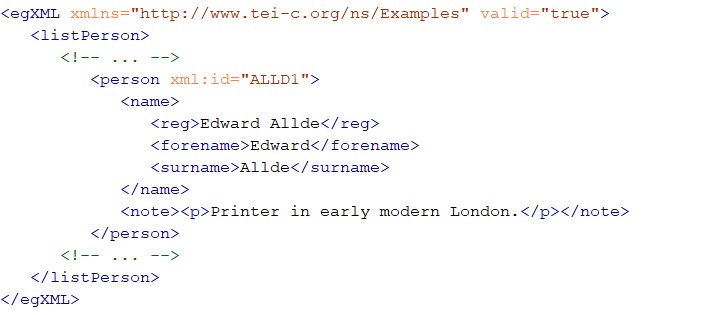
element. In this present documentation file, where we need to give examples of
<egXML>
, we have had to do a screen capture from Oxygen and insert an image in the file.
(Yes, writing documentation about writing documentation gets very meta. The TEI Guidelines have the same problem, so we are not alone.) For information on adding images to
the repository, see Choose Image Types and Sizes and Add Images to the Repository.
Counter-Examples and Negative Examples
Do not wrap deliberately wrong examples in
<egXML>
. Use the
<eg>
element in those rare cases where you want to give an example of something that needs
to be remediated after the conversion (see Encode Non-XML Markup). Thus far (in 2026), we give negative examples mainly in the Legacy Markup appendix.
Rendering Considerations
Anything tagged with
<egXML>
is rendered as an indented block with the default colours that Oxygen uses for elements
(blue), attributes (orange), values (brown), and text nodes (black). We have added
a background colour (currently light grey) to make the sample XML highly distinct.
This rendering means that you will not want to use
<egXML>
for short examples in running prose. It also means that you may want to include enough
running prose from your sample to make the sample encoding make sense.
For example, if you wanted to demonstrate how to use the
<quote>
element in a note, give enough of the note text for the example to make sense (the
actual note by David Bevington is longer):
Note that white space and carriage returns within the text nodes of elements affect
the rendering of the contents of
<egXML>
elements, unlike most other elements. Delete extra white space or carriage returns
in the text nodes of
<egXML>
elements so the examples render correctly.
LEMDO uses the
<gi>
element to wrap the name of any sample TEI or XML element in running prose. Do not
use the
<gi>
element to encode a closing tag in running prose, use the
<tag>
element. Do not use
<gi>
to tag non-XML elements, use the
<eg>
element. For more information, see Encode Closing Tags and Opening Tags with Attributes and Values and Encode Non-XML Markup.
Rendering Note
When the name of an element is wrapped in the
<gi>
element, the processor renders the element name with angle brackets. The schema does
not flag it as an orphaned opening tag. When LEMDO’s documentation is generated, elements
wrapped in the
<gi>
element also turn into links to that element specification in our Elements Index.
LEMDO uses the
<eg>
element to tag non-XML elements in running text (e.g., SGML and IML, the ISE Markup
Language). Do not use the
<gi>
element to tag non-XML elements.
Note that the rendering process will not add angle brackets around the text node of
the
<eg>
element the way it wraps angle brackets around the text node of a
<gi>
element. Note also that you cannot type angle brackets anywhere in the text node
of an element—including the
<eg>
element—unless it is wrapped in
<egXML>
, which you would not do unless you were trying to give an example of how to wrap
the XML element
<eg>
around SGML. If it is absolutely necessary to display the angle brackets, then you
must escape them using the standard escape sequence (see Encode Escaped Characters).
Note that IML tags are not valid in any LEMDO TEI-XML document. The processor does
not check the contents of the
<eg>
element if it is wrapped in an
<egXML>
element, which is how we encoded the first example below.
Examples
Example of non-XML element name in running text tagged with the
<eg>
element:
Note that the above example of IML would be extensively remediated upon conversion
into TEI. The TLN number would be replaced with anchors and pointers. We give it here
only as an example of IML in its pre-converted and pre-remediated state.
LEMDO uses the
<tag>
element in the rare case that we need to discuss a closing tag in running text or
we need to discuss an opening tag with an attribute and value. Note that the
<tag>
element should automatically supply opening and closing brackets, and a slash for an end tag, based
on the value of the
@type attribute, but it currently does not. There is a feature request on the TEI Stylesheets repository to address this. So at the moment, you will have
to insert slashes etc. manually.
Examples
Your encoding:
<p>The closing tag is <tag type="end">/title</tag>. An empty tag is <tag type="empty">lb/</tag>. A tag with attributes is <tag type="start">title level="m"</tag>.</p>
LEMDO rendering: The closing tag is </title>. An empty tag is <lb/>. A tag with attributes is <title level="m">.
Format Sample Encoding
Encode Examples of LEMDO Rendering
Sometimes we want to discuss in our documentation how our code renders on the LEMDO
site. This is helpful for showing users what their encoding will look like once it
has been rendered. When you wish to show how encoding renders, provide an
<egXML>
with an example of the desired encoding followed by a rendering note with the encoded
example (not in an
<egXML>
element). For example:
There are some symbols that you must escape in XML. Because these symbols are part of the code, you must differentiate them from
code when you are using them for another purpose. Read about escaped characters in
The World Wide Web Consortium.
Description
Original Character
Escaped Character
Quotation mark
"
"
Apostrophe
’
'
Opening angle bracket (less-than sign)
<
<
Closing angle bracket (greater-than sign)
>
>
Ampersand
&
&
Example showing how to encode escaped angle brackets if you want to talk about them
as characters in running text:
<p>This character is an opening angle bracket: <eg><</eg>. This character is a closing angle bracket: <eg>></eg>.</p>
LEMDO rendering:
This character is an opening angle bracket: <. This character is a closing angle bracket:
>.
LEMDO prefers a series of densely interlinked files and sections over a single linear
XML file (See Documentation Style Guidelines). This section explains the best practices for linking to sections within an XML
file from other parts of the same file or from other XML files, for linking to XML
files from other XML files, and for linking from our XML files to external sources.
Link a Documentation File
To link from one documentation file to another LEMDO documentation file:
Insert a
<ptr>
element where you would like the link to be.
Give the
<ptr>
element a
@target attribute.
Begin the value with the doc: prefix, followed by the name of the file you want to link to (excluding the file
extension).
Sample encoding of a link from one file to learn_encodeQuotations.xml:
<p>For more information, see <ptr target="doc:learn_encodeQuotations"/>.</p>
Note that the process is the same for linking from one section to another section
within the same file. Add the name of the file you are working on after the doc: prefix and add the xml:id of the section you want to link to after the hash character.
Link to Non-Documentation Sources
To link to an external web page (such as the TEI Guidelines) or to a LEMDO edition or anthology About page, you must:
Choose the word or phrase to bear the link
Wrap that word or phrase in a
<ref>
element
Add a
@target attribute to the
<ref>
element
Paste the full URL of the Web page into the value (including https://)
Sample encoding of a link from a LEMDO file to an element spec in the TEI Guidelines:
<p>See the <ref target="https://www.tei-c.org/release/doc/tei-p5-doc/en/html/ref-stage.html">element specification for the <gi>stage</gi> element in the <title level="m">TEI Guidelines</title> </ref>.</p>
For well designed Web pages, such as the TEI Guidelines, it is often possible to link to specific sections of the page. If you can click
on a pilcrow symbol or an anchor, check the URL to see if it changes from the page
URL to something more specific. If yes, you can use this URL to link directly to the
section in question.
<p>See <ref target="https://www.tei-c.org/release/doc/tei-p5-doc/en/html/DR.html#DRSTA"> <title level="a">7.2.4 Stage Directions</title> </ref> in the <title level="m">TEI Guidelines</title>.</p>
Link to Sources Outside of LEMDO that Have Pre-Defined LEMDO Pointers
A few websites to which we often link have been given prefixes in the LEMDO system
(e.g., MoEML, STC, EEBO, WSB, DEEP). These prefixes are all defined in TAXO1.xml.
Look for the
<listPrefixDef>
element in TAXO1.xml, where the complete list is given along with the URLs to which
the prefixes will point.
In documentation, we often point to the MoEML Praxis pages. Because we have a prefix
for MoEML (mol:), typing mol:praxis is a shorthand way of indicating https://mapoflondon.uvic.ca/praxis.htm.
<p>You’ll find <ref target="mol:subversion">full SVN instructions on the MoEML site</ref>.</p>
Rather than define technical terms repeatedly throughout the documentation, we link
to a central database file called GLOSS1.xml. This database contains technical terms and project-specific terms and definitions
thereof. Exclusions: this database does not contain definitions of bibliographical
or editorial terms. Those terms will be defined in a separate glossary or in EMEE.
Our practice is to make a link the first time a term appears in a single documentation file (i.e.,
an XML file in lemdo/data/documentation). The principle here is to ensure that definitions are available in the smallest chunk of documentation
that a user might access. This practice means that anyone reading through an entire
chapter (which stitches the XML files therein into one HTML page if one accesses chapters
from the documentation index) may encounter multiple links to a definition of a single
term over the course of the chapter. It is better to have the definition available
multiple times in one chapter than not available in any single piece of the chapter.
Documentation writers may add additional links at their discretion. For example, you
may wish to add a link to the definition of a term in a long piece of documentation
when the term has not been used for a while.
GLOSS1 Database Structure
The GLOSS1.xml database is organized alphabetically. Each item is structured as follows:
<item xml:id="OXYG1"> <label>Oxygen</label> <gloss>The XML document editor that we use to encode and edit LEMDO’s XML files.</gloss> </item>
Each item has an ID and a label, then a gloss definition. You can add to this whenever
you need to gloss a term in the documentation.
Link to Glossary Item
To link to the glossary, do this:
<term ref="gloss:OXYG1">Oxygen</term>
and the term will be converted into a link which creates a popup in the normal way.
Schematron
Do not tag terms in headings. We have a Schematron rule prohibiting the use of
<term>
inside
<head>
.
Do not tag terms within links to other documents. Doing so will break the build because
we cannot have two hyperlinks on a single string. We have a Schematron rule prohibiting
the use of
<term>
inside
<ref>
.
Include Automatically-Generated Content in Documentation
LEMDO documentation constitutes human-readable elucidation of specifications, structures,
and processes which are encoded in various programming languages behind the scenes.
For example, documentation may explain how and when to use a
<p>
element, but the
<p>
element itself is specified in the LEMDO ODD file and in the schemas generated from
it.
In the LEMDO taxonomies file (TAXO1) there are multiple TEI
<taxonomy>
elements in which we specify the various document types, work types, editorial treatments,
and so on. When explaining how to use the various categories in these taxonomies,
it is helpful to be able to provide a human-readable representation of the taxonomies
in the documentation page. You can do this very simply by including a single processing instruction (PI) like this: <?taxonomy-table ref="emdAudiences"?>
This tells the processor to find the
<taxonomy>
element in TAXO1 which whose
@xml:id=emdAudiences, and process it to create a TEI
<table>
element laying out all the categories and their definitions. That table is later
processed into an HTML table in the documentation page for the site.
Note that you should only include this PI in a context in which a TEI
<table>
element would be allowed by the schema. If you put it somewhere else, the source
document you are encoding will still be valid, but when the PI is expanded into a
table at processing time, that XML will be invalid and the build will fail. Check
whether a
<table>
element is allowed in the context before adding the PI.
Two other similar processing instructions exist. One is for including tables built
from character declarations (
<charDecl>
): <?charDecl-table ref="characters"?>
The other is for prefix definition lists (
<listPrefixDef>
): <?listPrefixDef-table ref="global_listPrefixDef"?>
One of the most useful forms of documentation is the XML template. These are files
containing the basic encoding structure for the target document along with extensive
XML comments offering instructions, advice, and links to documentation. Editors and
RAs can open a template from the Oxygen File menu and follow the instructions therein.
Practice: Organize and Name Template Files
All of our LEMDO templates are saved in the data/templates folder. We use file names to organize the templates and to make it easy for encoders
to find the template that they need to use.
As of 2026, we have decided to create a template file for each edition component for
each LEMDO anthology. This decision allows us to provide the appropriate metadata
in our templates, thus reducing our workload before an anthology release. However,
the template file structure necessitates very clear file naming practices to ensure
our templates are organized.
When you create a template file, follow this file naming practice:
Begin the file name with the anthology that it is relevant to followed by an underscore
(e.g., dre_).
Add the edition component that it is a template for followed by an underscore (e.g.,
annotations_).
Add the word “template” at the end of the file name followed by the file extension
.xml.
For example, the template for annotation files in DRE editions should be named dre_annotations_template.xml.
By following this naming practice, we ensure that all of the templates for a single
anthology are grouped together in the templates folder.
Practice: Create a New Template File
To make a new template, you must first create a new file:
Right-click on the templates folder in Oxygen’s project pane.
Hover your mouse over the “New” option.
Select “File…”
Select any LEMDO template (it does not matter which one as you will be removing all
of the content).
In the file name text box, give the new file a meaningful name following the practice
described above.
Having template files for each anthology allows us to customize the metadata in our
templates to match the anthology’s metadata needs and decisions. Adding anthology-specific
metadata is typically the first task when adding content to a new template file.
To add metadata to a template file, first check if the anthology has a metadata template
file in the LEMDO Google Drive. If you do not have access to the LEMDO Google Drive,
ask either Janelle Jenstad or the LEMDO project manager to check.
If the anthology does have an existing metadata template, migrate the contents for
the relevant edition component into your template file. Use caution when moving the
contents over—copy-and-pasting from Google Docs can inadvertently introduce unwanted
characters to your XML file.
If the anthology does not have an existing metadata template, use the contents from
the generic LEMDO metdata template, also saved in the LEMDO Google Drive. Consult
with Janelle Jenstad and the appropriate anthology lead(s) to update the metadata to match the anthology’s
metadata needs.
Practice: Add Content to Your Template File
The simplest way to add content to the
<text>
element in your template file is to copy-and-paste from a complete, valid file of
the type for which you are making a template. For example, if you are making a template
for annotations, you may copy the text from the annotations of a published edition.
Once you have copied the text over, remove most of the content. Retain only what is
required to give a good example of desired encoding and to make the file valid.
If you are making a template for a file type that we do not yet have a completed sample
of, you may need to work with LEMDO’s developers to ensure that your template file
is fully valid and meets the needs of the new file type.
Practice: Provide Guidance to Editors/RAs
Furnish the template with guidance and instructions in the form of XML comments. Here
are some tips:
Be generous and clear.
Give examples as often as possible.
Give the URIs of relevant documentation divisions, pages, or chapters.
Indicate clearly when the user of the template needs to change the information in
the text node of an element, or the value of an attribute. For example, the template
file has an xml:id matching the file name. The user of the template will need to change
that xml:id to match the name of the new file that is being created with the use of
this template.
Get a LEMDO team member to test your template. Use their feedback to improve the guidance.
Proofread the template carefully. Any errors we make in the template will proliferate
through the site as users create files from the template.
Tips for Writing Template Files
For the template file to be valid, we need to give xml:ids (e.g., to div elements
in templates, on the root element, etc). However, we cannot use an xml:id that already
appears elsewhere in the site. Reuse of an extant xml:id (even just to offer an example)
will break the build. Until a developer offers a different solution, we suggest creating
IDs with ABBR in lieu of the play ID: e.g., emdABBR_M_annotation.
We recommend consulting with existing templates when adding comments with guidance
for encoders. You can often modify comments from other template files and add them
to your new file. For example, we want to have a guidance comment explaining how to
name files in each of our templates. You can modify and re-use the same comment about
naming files in all new template files.
Notes
1.Note that the root
<div>
element’s child
<head>
provides the title for the entire documentation page. This is the name that will
be listed in the documentation index and that will be generated as hyperlinked text
when the page is linked to using a
<ptr>
element.↑
Prosopography
Illya
Illya has a BA in English and Sociocultural Anthropology and an MA in English. Prior
to joining the HCMC, he was a PhD candidate in English and Book History at the University
of Toronto and worked on Records of Early English Drama and on the Modernist Archives Publishing Project. His work at the HCMC focuses on creating web-based applications for research projects
led by members of the faculty of Humanities at the University of Victoria. This involves
creating schemas for new and existing datasets, writing XSLT and build files to transform
datasets into structured TEI and HTML formats, implementing staticSearch, and ensuring
that new projects are Endings Principles compliant.
Isabella Seales
Isabella Seales is a fourth year undergraduate completing her Bachelor of Arts in
English at the University of Victoria. She has a special interest in Renaissance and
Metaphysical Literature. She is assisting Dr. Jenstad with the MoEML Mayoral Shows
anthology as part of the Undergraduate Student Research Award program.
Janelle Jenstad
Janelle Jenstad is a Professor of English at the University of Victoria, Director
of The Map of Early Modern London, and Director of Linked Early Modern Drama Online. With Jennifer Roberts-Smith and Mark Beatrice Kaethler, she co-edited Shakespeare’s Language in Digital Media: Old Words, New Tools (Routledge). She has edited John Stow’s A Survey of London (1598 text) for MoEML and is currently editing The Merchant of Venice (with Stephen Wittek) and Heywood’s 2 If You Know Not Me You Know Nobody for DRE. Her articles have appeared in Digital Humanities Quarterly, Elizabethan Theatre, Early Modern Literary Studies, Shakespeare Bulletin, Renaissance and Reformation, and The Journal of Medieval and Early Modern Studies. She contributed chapters to Approaches to Teaching Othello (MLA); Teaching Early Modern Literature from the Archives (MLA); Institutional Culture in Early Modern England (Brill); Shakespeare, Language, and the Stage (Arden); Performing Maternity in Early Modern England (Ashgate); New Directions in the Geohumanities (Routledge); Early Modern Studies and the Digital Turn (Iter); Placing Names: Enriching and Integrating Gazetteers (Indiana); Making Things and Drawing Boundaries (Minnesota); Rethinking Shakespeare Source Study: Audiences, Authors, and Digital Technologies (Routledge); and Civic Performance: Pageantry and Entertainments in Early Modern London (Routledge). For more details, see janellejenstad.com.
Joey Takeda
Joey Takeda is LEMDO’s Consulting Programmer and Designer, a role he assumed in 2020
after three years as the Lead Developer on LEMDO.
Laura Estill
Laura Estill is a Canada Research Chair in Digital Humanities and Associate Professor
of English at St. Francis Xavier University in Nova Scotia, Canada, where she directs
the digital humanities centre. Her monograph (Dramatic Extracts in Seventeenth-Century English Manuscripts: Watching, Reading, Changing
Plays, 2015) and co-edited collections (Early Modern Studies after the Digital Turn, 2016 and Early British Drama in Manuscript, 2019) explore the reception history of drama by Shakespeare and his contemporaries
from their initial circulation in print, manuscript, and on stage to how we mediate
and understand these texts and performances online today. Her work has appeared in
journals including Shakespeare Quarterly, Papers of the Bibliographical Society of America, Digital Humanities Quarterly, Humanities, and The Seventeenth Century, as well as in collections such as Shakespeare’s Theatrical Documents, Shakespeare and Textual Studies, and The Shakespeare User. She is co-editor of Early Modern Digital Review.
Mahayla Galliford
Project Manager, 2025-present; Assistant Project Manager, 2024-2025; Research Assistant,
2021-present. Mahayla Galliford (she/her) graduated from the University of Victoria
with a BA (honours with distinction) in 2024, and an MA English in 2026. Mahayla’s
undergraduate research explored early modern stage directions and civic water pageantry.
Her SSHRC-funded MA thesis project focuses on transcribing, editing, and encoding
early modern girls’ manuscripts, specifically Lady Rachel Fane’s May Masque in collaboration with LEMDO.
Martin Holmes
Martin Holmes has worked as a developer in the UVic’s Humanities Computing and Media
Centre for over two decades, and has been involved with dozens of Digital Humanities
projects. He has served on the TEI Technical Council and as Managing Editor of the
Journal of the TEI. He took over from Joey Takeda as lead developer on LEMDO in 2020.
He is a collaborator on the SSHRC Partnership Grant led by Janelle Jenstad.
Navarra Houldin
Training and Documentation Lead 2025–present. LEMDO project manager 2022–2025. Textual
remediator 2021–present. Navarra Houldin (they/them) completed their BA with a major
in history and minor in Spanish at the University of Victoria in 2022. Their primary
research was on gender and sexuality in early modern Europe and Latin America. They
are continuing their education through an MA program in Gender and Social Justice
Studies at the University of Alberta where they will specialize in Digital Humanities.
Nicole Vatcher
Technical Documentation Writer, 2020–2022. Nicole Vatcher completed her BA (Hons.)
in English at the University of Victoria in 2021. Her primary research focus was women’s
writing in the modernist period.
Samuel Seaberg
Samuel Seaberg, a University of Victoria English undergrad, enjoys riding his bike.
During the summer of 2025, he began working with LEMDO as a recipient of the Valerie
Kuehne Undergraduate Research Award (VKURA). Unfortunately, due to his summer being
spent primarily in working to establish an edition of Thomas Heywood’s If You Know Not Me, You Know Nobody, Part 2 and consequently working out how to represent multi-text works in a digital space,
his bike has suffered severely of sheltered seclusion from the sun. Note: Samuel now
works for LEMDO as the Assistant Project Manager, much to his bike’s chagrin.
Tracey El Hajj
Junior Programmer 2019–2020. Research Associate 2020–2021. Tracey received her PhD
from the Department of English at the University of Victoria in the field of Science
and Technology Studies. Her research focuses on the algorhythmics of networked communications. She was a 2019–2020 President’s Fellow in Research-Enriched
Teaching at UVic, where she taught an advanced course on Artificial Intelligence and Everyday Life. Tracey was also a member of the Map of Early Modern London team, between 2018 and 2021. Between 2020 and 2021, she was a fellow in residence
at the Praxis Studio for Comparative Media Studies, where she investigated the relationships
between artificial intelligence, creativity, health, and justice. As of July 2021,
Tracey has moved into the alt-ac world for a term position, while also teaching in
the English Department at the University of Victoria.
Bibliography
TEI Consortium, The. TEI P5: Guidelines for Electronic Text Encoding and Interchange. Ed. C.M. Sperberg-McQueen and Lou Burnard. Revised and expanded under the supervision of the Technical Council of the TEI Consortium.
Text Encoding Initiative Consortium, 2020. https://tei-c.org/release/doc/tei-p5-doc/en/html/index.html.