
Chapter 24. Anthology Development
Introduction to Anthology Development
This chapter is for developers customizing a LEMDO anthology. It is relevant to those
working on an anthology’s HTML, JavaScript, and/or CSS. Those interested in development
for the LEMDO project as a whole can find information in Appendix 3. LEMDO Development. For anthology leads interested in the non-technical aspects of anthology customization,
see Chapter 22. Anthology Customization.
Rationale
LEMDO supports a number of anthology projects (DRE, EMEE, ISE, MoMS, NISE, QME, and
others). Each anthology may customize the look and feel of their own website. The
documentation in this chapter will guide you through the technical aspects of customizing
the HTML, JavaScript, and CSS for a LEMDO anthology while following LEMDO’s key principles
for development.
Learning Outcomes
This chapter will give you all of the information that you need to modify the look
and feel of a LEMDO anthology. By the time you have worked through every section of
this chapter, you will:
Be familiar with LEMDO’s principles for developing Endings-compliant websites.
Know how to run a local build of your anthology’s website.
Be familiar with LEMDO’s .scss files and know how to modify your own anthology’s styling.
Know how to modify your anthology’s HTML and JavaScript.
Contents
| Section | Description |
Development Principles |
Learn about the basic principles that we follow when working on XSLT, HTML, JavaScript, and CSS in the LEMDO project |
Static Build |
Learn about the build process championed by UVic’s Project Endings |
Run Local Builds |
Learn how to run a local build of your LEMDO anthology |
LEMDO’s Build Process |
Learn about LEMDO’s build process done by our continuous integration build server |
Introduction to LEMDO’s SCSS |
Learn about LEMDO’s default styling |
Customize Your Anthology’s CSS |
Learn how to modify the styling for your anthology |
Customize Your Anthology’s HTML Template |
Learn how to modify your anthology’s HTML template |
Customize Your Anthology’s JavaScript |
Learn how to modify your anthology’s JavaScript |
Development Principles
This document lays out basic development practices, style rules, and naming conventions
for developers working on the XSLT, HTML, JavaScript, and CSS in the LEMDO project.
We do not yet conform to these principles, but we are committed to doing so in time.
Names for Variables, Classes, and Other Identifiers
All LEMDO programming code identifiers and file names should be constrained to the
ASCII range.
All LEMDO identifiers should be as long as necessary to describe their meaning/function
unambiguously, with information going from general to specific. Examples: note-editorial, title-monograph. This enables easier sorting, searching for, and comparing items which belong in
groups.
Generally speaking, the following should all be lower case with components separated
by dashes:
Note that HTML data-* attribute values will often be derived from TEI element names and other similar constructs, so these
may take whatever form is dictated by their source:
CSS file names (including SCSS source files).
JavaScript file names.
Image file names (for site chrome etc.; facsimiles have their own naming conventions).
HTML custom attribute names (data-*).
<div data-el="persName">.ECMAScript practices are different:
ECMAScript variable and function names should be lower camelCase (function getSomething()).
ECMAScript constants should be UPPERCASE_WITH_UNDERSCORES.
ECMAScript class names should be upper CamelCase (class NotePopup {...}).
Identifiers should be as descriptive as possible, with information going from general
to specific, so: noteEditorial, titleMonograph.
Principles for HTML
Wherever possible, prefer HTML5 Semantic Elements over generic elements. Examples would be nav, section, main, article, header, footer.
The only elements requiring id attributes are those which need to be pointed at, linked to, or manipulated by ECMAScript.
To identify a category of element that needs to be styled (for example), prefer the
use of data-* attributes derived from the source TEI wherever possible. So:
This provides a solid link between the underlying TEI code and the HTML which then
propagates easily into the CSS, making maintenance and debugging easier.
<span data-el="persName">
<span data-el="speaker">
<div data-el="ab">
Reserve the use of style and class attributes for the propagation of primary source style description from the source TEI into the HTML. Examples:
Here the source element name is identified using the data-el attribute, so default house styling can be applied uniformly if necessary, but the
appearance from the original source text is captured in a local style attribute or a class.
<span data-el="stage" style="font-size: 80%;">
<span data-el="speaker" class="rnd_gothic">
Principles for CSS
Following on from the principles above, site-level CSS (as opposed to text-level CSS
derived from the TEI encoding of primary source features) should avoid the use of
class attributes wherever possible. To select an element for styling:
First prefer its semantic tag name (header, footer, aside).
Next, use TEI-derived data-* attributes (
<span data-el="fw" data-type="catch">).If that is not enough, fall back on a selector based on position in the hierarchy
or a semantic feature of an ancestor (
q q{...}, div[data-el="speech"] aside).Resort to classes only as a desperate measure.
Principles for XSLT
XSLT files are named in lower case with underscores, and use the extension .xsl.
All root (master) XSLT file names end in _master.xsl.
All modules which are included or imported into master files have names ending in
_module.xsl, and are stored in a modules subfolder alongside the master file(s) that use them.
XSLT files are documented using elements in the XSLT Stylesheet Documentation Namespace, as supported by the Oxygen XML Editor. They are also validated using project-specific
custom Schematron in Oxygen, ensuring adherence to basic good practices and style
rules.
Variable and function names should use lower camelCase.
Static Build
What is a Static Build?
A
static buildis a process which takes a stack of input documents such as TEI files, along with related resources such as images, and creates a website from them. It does this in such a way that the resulting website has no dependency or requirement for any back-end engine such as a database or a PHP processor; all the content consists of static HTML and related files, and the website can be hosted on any Web server just by copying the files up to the server. This process, championed by UVic’s Project Endings, is described in detail in the many presentations and publications of the Endings team. The great value of a static site is that it requires no ongoing maintenance, is easy to replicate and archive, and has a good chance of surviving for decades without much attention.
What Other Projects Use Static Builds?
Some of the other projects using this approach to building sites include:
Digital Victorian Periodical Poetry (site still under development).
Practice: Run a Static Build
The LEMDO project and its related sites are all built using a Jenkins Continuous Integration
Server run by HCMC at the University of Victoria, so unless you are a project administrator
or LEMDO developer, you should never need to run a build yourself. However, if you
are writing or editing code for the project, you can consult the documentation on running builds to get detailed information on how to run complete builds on your computer, and also
how to run partial, rapid builds to test specific processes or outcomes.
Run Local Builds
Rationale
The LEMDO repository has a complex build process that can be difficult to understand
and takes quite a long time to complete (see
LEMDO’s Build Processfor more information on the full LEMDO build). Developers working on the LEMDO project or on anthology websites often need to do rapid partial builds to see the results of their work more immediately than a full build would allow. This documentation describes the requirements for running builds and outlines some of the strategies for rapid test-builds that are available.
Software Requirements
This is a list of software that is required for running the various build processes.
Some of it is actually stored in the repository, and some must be installed on the
machine doing the build.
Software Included in the Repository
The following software is stored in the SVN repository, so does not need to be installed
locally:
Saxon XSLT processor (saxon-he-10.jar).
Schematron library for Ant (ant-schematron-2010-04-14.jar).
The W3C HTML validator (vnu.jar).
The Jing RELAXNG validator (jing.jar).
Software to be Installed Locally
To run the various LEMDO build processes, you will need the following software to
be installed on your machine:
At present, most of the build processes have to be run on *NIX systems because they
depend on command-line utilities. If you are forced to use Windows, you’ll probably
have to install the Windows Subsystem for Linux. For running specific components of
the build, you may not need all of these applications or libs.
Java
Ant
ant-contrib
svn
git
zip
dart-sass for building CSS (https://sass-lang.com/install)
texlive-full (a complete LaTeX install, needed for building PDF for print)
Practice: Run a Complete Build
The LEMDO build processes are controlled by two Ant files, build.xml and build_globals_module.xml in the project root folder.
You run a complete build by running this at the command line, in the project root
folder:
ant.Practice: Quickly Validate all XML
As part of a full build process, the XML documents from the data folder are copied over to an output folder (products/lemdo-dev/site/xml/source) and validated there with RNG and Schematron. You can invoke this process without
having to run the rest of the build by running:
ant quickValidateSource.This is a useful way to check that you haven’t broken anything while doing a multiple-file
search-and-replace or a similar global operation.
Practice: Run Partial Builds
The complete static build process takes a long time. If you’re working on fixing a
build problem and you need to test your changes, it is not practical to run the entire
build process and wait to see the results. However, in most cases, you don’t need
to. There are a number of ways that you can run only a small component of the build
process to test specific changes.
Important note: In most cases, you must have an existing completed build in place before you can
successfully run partial builds. This requirement means that, once in a while, you
will need to run a complete local build for yourself. You can, of course, do a complete
build over lunch or overnight.
Once you have a full completed build available locally, you can start running only
the part of the build that you are interested in. For example, if you are trying to
work on a problem that relates to the generation of the
Original XML,you might do this:
ant createOriginalXml validateOriginalXml.This will perform only those two steps, and you can then examine the results in the
products/lemdo-dev/site/xml/original folder.
Similarly, if you are working on the XHTML generation, you could run:
ant createXhtml.To see a full list of the subtasks available, type
ant and press the tab key twice. To see more info, including descriptions of each of
the tasks, type: ant -p.If you’re working on something more substantial that requires several steps, you can
just chain them together as appropriate. Make sure you run them in the order they
would normally run, because each process may depend on the output from a preceding
process. You can discover the order by looking at the
@depends attribute on the target named all.
Practice: Process a Subset of Documents
Another useful approach to rapid building is to process only a specific subset of
documents. For example, imagine that you are dealing with an HTML problem that affects
lots of documents, but you know that one particular document (emdH5_F1.xml) exemplifies the issue, and can be used as a test. You can run this:
ant createXhtml -DdocsToBuild=emdH5_F1.This will run the part of the build that transforms the
Standalone XMLinto HTML files, but it will only process a single document, making it very fast indeed; you can then inspect the changes to that specific document. To process more than one document, separate them with commas:
ant createStandaloneXml -DdocsToBuild=emdH5_F1,emdH5_Q1.You can even use a regular expression, so you could build all of the Henry V documents
by running this:
ant createStandaloneXml -DdocsToBuild=emdH5_.*.Finally, there is a specific target named
quick,which is designed to do the minimum processing to get from the source XML to the XHTML output (in other words, the most important stages in the build process). If you run:
ant quick -DdocsToBuild=emdH5_F1,emdH5_Q1, you’ll pass those two documents through the entire process from source to HTML output,
but the process should be relatively fast. Again, it’s important to remember that
you must have a complete set of build products in place in your products/lemdo-dev/site folder before this will work properly.Strategies for Building and Testing
The various strategies described above provide the basis for a developer to work efficiently
on solving a specific problem or adding a specific feature without having to wait
for long periods to see the results of changes. If you triage the issue you’re working
on carefully, you’ll be able to break it down into small steps, and identify a specific
subset of documents which can be used for testing, then develop and test your changes
carefully, so that when you do commit changes to the repository, it’s much less likely
that the full build will fail because of something you did.
LEMDO’s Build Process
In the LEMDO universe, an anthology is a collection of texts along with supporting
information and documentation. It is presented through a web interface which is based
on a set of defaults and customized through CSS styling, menu configuration, and so
on.
The lemdo-dev
Anthology
The
lemdo-devanthology is special because it includes all the texts that exist in the repository, regardless of their state of development. It is never published at any formal URL, but is available through a continuous integration build server which enables everyone working on any LEMDO project to see the latest state of their own data. The process of building
lemdo-devalso detects and reports errors, invalidities and other problems related to any texts in the collection.
Other Anthologies
All other anthologies exist as subfolders of the data/anthologies directory in the LEMDO repository. Each anthology is based primarily on these features:
A subfolder in data/anthologies named for the ID of the anthology (for example qme or dre).
A TEI Corpus file (a TEI file whose root element is
<teiCorpus>
rather than
<TEI>
), with an
@xml:id attribute identical to the anthology ID. This file contains several key components:
A
<teiHeader>
element which holds the anthology-level metadata (the anthology editor(s), publication
statements, etc.).A hard-coded
<TEI>
element with
@xml:id={anthId}_index. This file contains the content for the anthology home page. The presence of this
<TEI>
element makes the anthology’s
<teiCorpus>
valid.A sequence of import instructions in the form of Processing Instructions, looking
like this:
<?lemdo-import ref="emdFV_edition"?>. Each one of these points to the ID of an edition file, whose contents are to be
published in the anthology.A collection of other XML files populating folders within the anthology directory,
each of which consists of a TEI document that is to be turned into a web page in the
rendered anthology site. These are all in the category
ldtBornDigital, and they have filenames and IDs beginning with the anthology ID followed by an underscore.
All such files found in the anthology directory will be converted into web pages.
Note that these files are also transformed as part of the regular lemdo-dev build,
so you can see them in their default state in that build; when the anthology itself
is built, those files will be converted to the anthology rendering style, and will
have their prefixes removed (so qme_index.html will become simply index.html in the products/qme/site output folder).A site folder containing all the site-level customizations which apply to the anthology
output, including template/sitePage.html, which will form the basic template for all pages in the site. This is where the
banner, menu, footer and other standard site components are defined. Other folders
include images, for images needed on the site; fonts, for any specialized fonts that need to be included; and css, which contains one or more SCSS files which will be transformed to CSS using SASS,
and added to the output pages after the standard CSS inherited from the main lemdo-dev
project, enabling a designer to override any display defaults. There should be one
main SCSS file named {anthId}.scss which imports any other files and that will be built into {anthId}.css and linked into all the output files.
Build Process
The build process for anthologies is quite complex:
Before anything else happens, the main lemdo-dev build process must run. This processes
all the texts and identifies problems that might need to be rectified before an anthology
build can proceed.
Next, the main build process runs a diagnostic for each anthology that is in the repository,
checking to see whether it is in a state where it can be successfully built. That
process produces two outputs: an HTML file (products/{anthId}/anthologyStatus.html) which lists problems found, and a text file (products/{anthId}/anthologyStatus.txt) which simply says "OK" or "FAIL". The checking process is described below.
The anthology file itself is then checked for two things: the
<revisionDesc>
/
@status for the anthology itself must be set to published, and so must the
<revisionDesc>
/
@status attribute in the first embedded
<TEI>
element which contains the home page content. If either of these is not published,
the build does not proceed.The anthology home page, which is the TEI element embedded in the anthology configuration
corpus file, is processed into a page in a temporary folder.
Each item in the collection of site-page XML documents located in the anthology directory
is first checked to make sure its
<revisionDesc>
/
@status value is published.Each LEMDO edition which is claimed by the anthology (using a lemdo-import processing
instruction, as described above) is processed as follows:
The edition file itself is checked to ensure that it has a
<licence>
element which permits the inclusion of the edition file itself in the anthology.
This is an example of such a
<licence>
element:
<licence resp="pers:JENS1" from="2020-10-21" corresp="anth:dre">
This content is licensed for inclusion in the DRE anthology.
</licence>
The text inside the
<licence>
element is informational and not required; the key components are a person taking
responsibility for the licence, a starting date for it, and a pointer to the target
anthology using the
@corresp attribute and the anth prefix. The build process checks only that there is at least one valid
@resp value in the attribute. The build process does not have any way to know whether the
person concerned actually has the right to make such a declaration; this check is
the responsibility of the anthology lead.The
<revisionDesc>
/
@status value for the edition file is checked to make sure it is set to published.If the edition is allowed for inclusion and is published, it is then parsed, and each
text linked from it is checked for the same licence permission and publication status.
At this point, we have a complete list of all the documents needed for the anthology,
but they are all in the generic lemdo-dev style. These documents are then processed
into the output directory. During this process, all boilerplate components such as
banners, menus, footers and so on are replaced with those from the anthology’s sitePage.html template file, and the anthology’s CSS and JS files are added into the headers of
the files.
A post-build diagnostics process is now run on the built site to check that every
link points to something which is where it is expected to be, and every file is valid.
Introduction to LEMDO’s SCSS
This documentation is for people who will be customizing an anthology’s style. Anthology
leads who are hiring a web designer to customize their anthology’s style should see
Customize Your Anthology.
Rationale
Anthologies may customize their style by overriding the LEMDO default styling. Before
you customize your anthology’s style, you should have a general understanding of how
LEMDO’s .scss files are organized and what each contains. This documentation will
provide a brief overview of LEMDO’s css folder and the .scss files within.
LEMDO Styling’s Folder Structure
The base styling for all LEMDO anthologies is housed in the data/anthologies/lemdo-dev/site/css folder. LEMDO’s default style is split into nine .scss files in order to organize and simplify our complex styling. It is all imported into
the lemdo-dev.scss during processing. Our style files are used as follows:
_break-point.scss: Defines break points for different screen sizes.
_egxml.scss: Contains style for sample code.
_fonts.scss: Contains LEMDO’s standard font families (Alegreya and Alegreya Sans).
_mixin.scss: Contains all LEMDO SCSS mixins.
_modernized.scss: Contains all style specific to modernized texts.
_reset.scss: Contains a standard CSS reset for setting defaults and removing browser styles.
_semi-dip.scss: Contains the specialized styling for semi-diplomatic transcriptions.
_variables.scss: Contains variables used in various places across the LEMDO platform such as colours,
fonts, and margins.
In addition to the files that are imported into lemdo-dev.scss, renditions are styled in the TAXO1.xml file, which is housed in the data directory. These renditions are primarily used by encoders to provide inline style
in semi-diplomatic transcriptions.
The LEMDO-Dev SCSS File
The lemdo-dev.scss file is our main file for styling LEMDO. It defines the style for the base template
of all LEMDO websites, including the top navigation bars, footers, and side panels;
applies variables from the _variables.scss to the appropriate HTML elements; and imports the style from all of the other .scss files so that they can be transformed together into the lemdo-dev.css file during processing.
Customize Your Anthology’s CSS
Rationale
There are three aspects of an anthology that can be customized:
Some components of the basic HTML framework used to create pages.
The CSS styling of the site.
Site functionality (via JavaScript).
This documentation will explain which pieces of the CSS you may modify and offer a
suggested workflow for doing so. In this documentation, {anthId} means the id of the target anthology, such as dre or qme.
Where to Customize Your Anthology’s CSS
You can customize your anthology’s styling by overriding LEMDO’s standard SCSS. You
will do so in your {anthId}.scss file, which is housed in the lemdo/data/anthologies/{anthId}/site/css folder. Your anthology .scss file is compiled at build time to create {anthId}.css, which is then placed in the css folder in the anthology build output, and linked into the HTML files after the default lemdo-dev.css file. Doing so ensures that your anthology styling overrides LEMDO’s standard styling
in all of your HTML files. Important: Do not
svn add your {anthID}.css or {anthId}.map.css files. These are generated files, created from the .scss file in that folder, and should never be tracked by svn.You need to become familiar with LEMDO’s standard styling and how it is organized
before you begin work on your anthology’s .scss file. For information on LEMDO’s standard style, see
Introduction to LEMDO’s SCSS.
What to Customize in Your Anthology’s CSS
LEMDO has some expectations for what anthologies customize in their .scss files. You must customize your anthology’s:
Logo
Favicon
You may customize your anthology’s:
Banner/header
Top navigation bar appearance
Colour palette
Footer appearance
Side panels (i.e., hamburger menu, metadata pane, and annotation/collation pane)
Font family
Splash image
We strongly recommend that you do not customize styling in either modernized or semi-diplomatic
texts.
You may not make any CSS customizations that remove accessibility functions from your
anthology website.
Create Custom Styling
LEMDO uses many different CSS selectors. Some are global, like
var(--highlightColor), but others appear only in certain zones of the site, like side menus or top navigation
components. Where possible, CSS variables have been organized in the ._variables.scss file used by LEMDO into five different regions: Left Panel, Top Navigation, Main
Content, Popup, and Footer.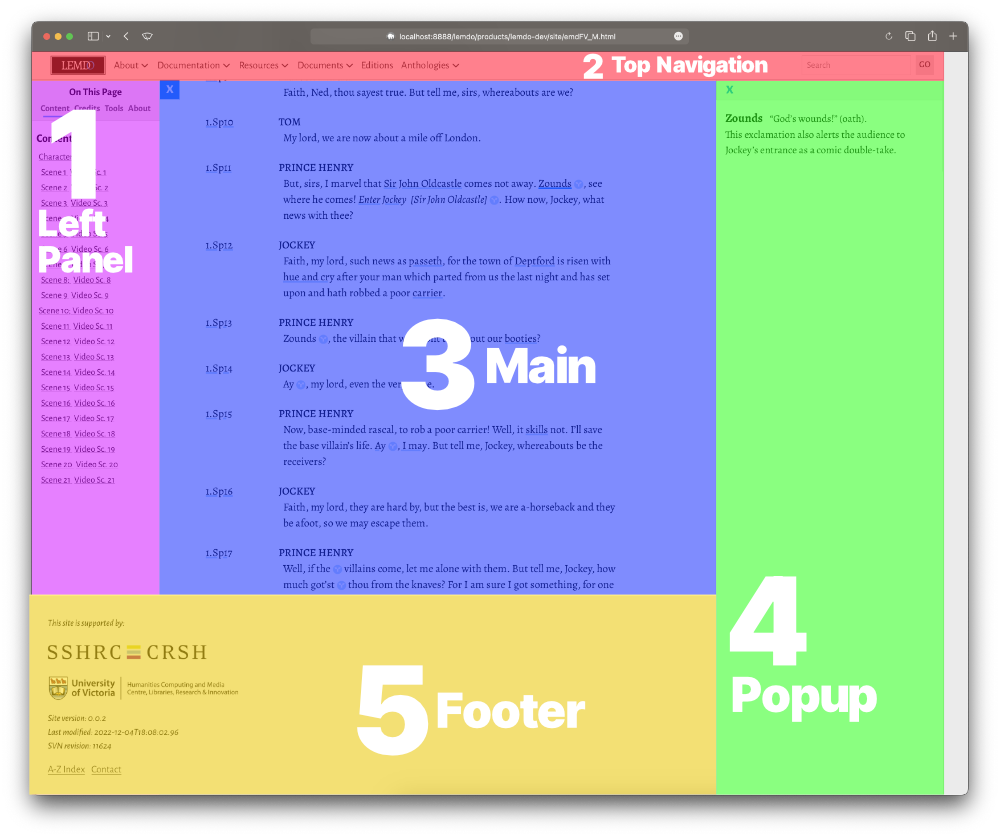
Overriding highlight colours, fonts, and typography can be done using the SCSS variables,
allowing for a change done once in the .scss file to appear everywhere the variable is applied, but it is not a requirement. Sometimes
it will be more efficient to use an inspector to locate the element that you wish
to change and add that element directly to your site’s .scss file in order to make the change.
Recommended Workflow for CSS Customization
We recommend that developers working on CSS customization download a local copy of
their anthology website from our Jenkins server, make and test their changes locally,
and then commit their changes to the shared LEMDO repository. You must commit at the
end of each work session, though you are welcome to commit more often; frequent commits
make it easier to check for bugs and make necessary fixes.
To follow our recommended workflow:
It will take a few hours for the Jenkins site to rebuild your anthology with your
customizations.
Run
./getSiteFromJenkins.sh {anthId} (replacing {anthId} with your anthology’s ID) from the lemdo directory in your command line. Doing so will download a complete copy of the latest
build of your anthology from our Jenkins server and place it in the products directory inside your local copy of the LEMDO repository.Open your local copy of the main anthology site by navigating into the products/{anthId}/site directory and opening any of the .html files therein.
Make your changes in the data/anthologies/{anthId}/site/css/{anthId}.scss file.
At the command line, test your changes by running
ant -f build_anthology.xml updateAnthology -Danthology.id={anthId}. Doing so will copy all JS, images, and font files over to the locally built site,
and run SASS to build the .scss file to create a .css file in the css folder.Super reload your local copy of the site to check if your changes achieved the desired
outcome.
Commit your changes, ensuring you
svn add any new images or font files before committing.Example: Font-Style Changes
If you wanted to change to change the sans-serif style font from Alegreya (the default)
to Arial you could change the css variable
--primarySans from:
--primarySans: "Alegreya Sans", "Helvetica Neue", Arial, sans-serif;
to:
--primarySans: Arial, sans-serif;
Doing so will change the font-face across your anthology’s entire site.
You can also use a developer tool to locate the HTML element being styled, recreate
it in your .scss file, and override the style that way. You may want to do this if the element you
are changing does not have a variable applied to it, or if you do not wish an existing
variable to be applied.
Customize Your Anthology’s HTML Template
Rationale
There are three aspects of an anthology that can be customized:
Some components of the basic HTML framework used to create pages.
The CSS styling of the site.
Site functionality via JavaScript.
This documentation will explain which pieces of the HTML you may modify and offers
a suggested workflow for doing so. For information on customizing CSS, see
Customize Your Anthology’s CSS.For information on customizing JavaScript, see
Customize Your Anthology’s JavaScript.
Introduction to LEMDO HTML Templates
Your anthology’s HTML template is in the sitePage.html file which is housed in the data/anthologies/{anthID}/template folder. It contains a banner/header, a site menu, and a footer. These are used to
replace the generic versions that come from the lemdo-dev build pages. You will customize
your anthology’s HTML in this file.
Recommended Workflow for HTML Customization
We recommend that developers working on HTML customization download a local copy of
the full lemdo-dev website from our Jenkins server, make and test their changes locally,
and then commit their changes to the shared LEMDO repository. You must commit at least
at the end of each work session, though you are welcome to commit more often; frequent
commits make it easier to check for bugs and make necessary fixes.
To follow our recommended workflow:
It will take a few hours for the Jenkins site to rebuild your anthology with your
customizations.
Run
./getSiteFromJenkins.sh from the lemdo directory in your command line. This will download a complete copy of the latest
build of our base lemdo-dev site from our Jenkins server and place it in the products directory inside your local copy of the LEMDO repository.Make your changes in the data/anthologies/{anthId}/site/template/sitePage.html file.
At the command line, rebuild your entire anthology by running
ant -f build_anthology.xml -Danthology.id={anthId} -DbuildFailedAnthologyAnyway=true
                                             buildAnthologies
(replacing {anthId} with your anthology’s ID).Open your local copy of your anthology site by navigating to lemdo/products/{anthID} and opening any .html page to check if your changes did what you need.
Commit your changes, ensuring you
svn add any new images or font files before committing.Customize Your Anthology’s JavaScript
Rationale
There are three aspects of an anthology that can be customized:
Some components of the basic HTML framework used to create pages.
The CSS styling of the site.
Site functionality via JavaScript.
This documentation will explain which pieces of the JavaScript you may modify and
offers a suggested workflow for doing so. For information on customizing CSS, see
Customize Your Anthology’s CSS.For information on customizing HTML, see
Customize Your Anthology’s HTML Template.
Introduction to LEMDO Anthologies’ JavaScript
Your anthology’s JavaScript is in the {anthID}.js file which is housed in the data/anthologies/{anthID}/site/js folder. By default it is empty. You may add functionality to your site in this file.
Recommended Workflow for JavaScript Customization
The workflow for customizing anthology JS is the same as that for customizing CSS.
We recommend that developers working on JS customization download a local copy of
their anthology website from our Jenkins server, make and test their changes locally,
and then commit their changes to the shared LEMDO repository. You must commit at least
at the end of each work session, though you are welcome to commit more often; frequent
commits make it easier to check for bugs and make necessary fixes.
To follow our recommended workflow:
It will take a few hours for the Jenkins site to rebuild your anthology with your
customizations.
Run
./getSiteFromJenkins.sh {anthId} (replacing {anthId} with your anthology’s ID) from the lemdo directory in your command line. This will download a complete copy of the latest
build of your anthology from our Jenkins server and place it in the products directory inside your local copy of the LEMDO repository.Open your local copy of the main anthology site by navigating into the products/{anthId}/site directory and opening any of the .html files therein.
Make your changes in the data/anthologies/{anthId}/site/js/{anthId}.scss file.
At the command line, test your changes by running
ant -f build_anthology.xml updateAnthology -Danthology.id={anthId}. This will copy all JS, images, and font files over to the local built site, and
run SASS to build the SCSS file to create a CSS file in the css folder.Super reload your local copy of the site to check if your changes did what you need.
Commit your changes, ensuring you
svn add any new images or font files before committing.Prosopography
Illya
Illya has a BA in English and Sociocultural Anthropology and an MA in English. Prior
to joining the HCMC, he was a PhD candidate in English and Book History at the University
of Toronto and worked on Records of Early English Drama and on the Modernist Archives Publishing Project. His work at the HCMC focuses on creating web-based applications for research projects
led by members of the faculty of Humanities at the University of Victoria. This involves
creating schemas for new and existing datasets, writing XSLT and build files to transform
datasets into structured TEI and HTML formats, implementing staticSearch, and ensuring
that new projects are Endings Principles compliant.
Janelle Jenstad
Janelle Jenstad is a Professor of English at the University of Victoria, Director
of The Map of Early Modern London, and Director of Linked Early Modern Drama Online. With Jennifer Roberts-Smith and Mark Beatrice Kaethler, she co-edited Shakespeare’s Language in Digital Media: Old Words, New Tools (Routledge). She has edited John Stow’s A Survey of London (1598 text) for MoEML and is currently editing The Merchant of Venice (with Stephen Wittek) and Heywood’s 2 If You Know Not Me You Know Nobody for DRE. Her articles have appeared in Digital Humanities Quarterly, Elizabethan Theatre, Early Modern Literary Studies, Shakespeare Bulletin, Renaissance and Reformation, and The Journal of Medieval and Early Modern Studies. She contributed chapters to Approaches to Teaching Othello (MLA); Teaching Early Modern Literature from the Archives (MLA); Institutional Culture in Early Modern England (Brill); Shakespeare, Language, and the Stage (Arden); Performing Maternity in Early Modern England (Ashgate); New Directions in the Geohumanities (Routledge); Early Modern Studies and the Digital Turn (Iter); Placing Names: Enriching and Integrating Gazetteers (Indiana); Making Things and Drawing Boundaries (Minnesota); Rethinking Shakespeare Source Study: Audiences, Authors, and Digital Technologies (Routledge); and Civic Performance: Pageantry and Entertainments in Early Modern London (Routledge). For more details, see janellejenstad.com.
Joey Takeda
Joey Takeda is LEMDO’s Consulting Programmer and Designer, a role he assumed in 2020
after three years as the Lead Developer on LEMDO.
Mahayla Galliford
Project Manager, 2025-present; Assistant Project Manager, 2024-2025; Research Assistant,
2021-present. Mahayla Galliford (she/her) graduated from the University of Victoria
with a BA (honours with distinction) in 2024, and an MA English in 2026. Mahayla’s
undergraduate research explored early modern stage directions and civic water pageantry.
Her SSHRC-funded MA thesis project focuses on transcribing, editing, and encoding
early modern girls’ manuscripts, specifically Lady Rachel Fane’s May Masque in collaboration with LEMDO.
Martin Holmes
Martin Holmes has worked as a developer in the UVic’s Humanities Computing and Media
Centre for over two decades, and has been involved with dozens of Digital Humanities
projects. He has served on the TEI Technical Council and as Managing Editor of the
Journal of the TEI. He took over from Joey Takeda as lead developer on LEMDO in 2020.
He is a collaborator on the SSHRC Partnership Grant led by Janelle Jenstad.
Navarra Houldin
Training and Documentation Lead 2025–present. LEMDO project manager 2022–2025. Textual
remediator 2021–present. Navarra Houldin (they/them) completed their BA with a major
in history and minor in Spanish at the University of Victoria in 2022. Their primary
research was on gender and sexuality in early modern Europe and Latin America. They
are continuing their education through an MA program in Gender and Social Justice
Studies at the University of Alberta where they will specialize in Digital Humanities.
Nicole Vatcher
Technical Documentation Writer, 2020–2022. Nicole Vatcher completed her BA (Hons.)
in English at the University of Victoria in 2021. Her primary research focus was women’s
writing in the modernist period.
Patrick Szpak
Patrick Szpak is a Programmer Consultant and Web Designer in the Humanities Computing
and Media Centre at the University of Victoria.
Samuel Seaberg
Samuel Seaberg, a University of Victoria English undergrad, enjoys riding his bike.
During the summer of 2025, he began working with LEMDO as a recipient of the Valerie
Kuehne Undergraduate Research Award (VKURA). Unfortunately, due to his summer being
spent primarily in working to establish an edition of Thomas Heywood’s If You Know Not Me, You Know Nobody, Part 2 and consequently working out how to represent multi-text works in a digital space,
his bike has suffered severely of sheltered seclusion from the sun. Note: Samuel now
works for LEMDO as the Assistant Project Manager, much to his bike’s chagrin.
Sofia Spiteri
Sofia Spiteri is currently completing her Bachelor of Arts in History at the University
of Victoria. During the summer of 2023, she had the opportunity to work with LEMDO
as a recipient of the Valerie Kuehne Undergraduate Research Award (VKURA). Her work
with LEMDO primarily includes semi-diplomatic transcriptions for The Winter’s Tale and Mucedorus.
Tracey El Hajj
Junior Programmer 2019–2020. Research Associate 2020–2021. Tracey received her PhD
from the Department of English at the University of Victoria in the field of Science
and Technology Studies. Her research focuses on the algorhythmics of networked communications. She was a 2019–2020 President’s Fellow in Research-Enriched
Teaching at UVic, where she taught an advanced course on
Artificial Intelligence and Everyday Life.Tracey was also a member of the Map of Early Modern London team, between 2018 and 2021. Between 2020 and 2021, she was a fellow in residence at the Praxis Studio for Comparative Media Studies, where she investigated the relationships between artificial intelligence, creativity, health, and justice. As of July 2021, Tracey has moved into the alt-ac world for a term position, while also teaching in the English Department at the University of Victoria.
Metadata
| Authority title | Chapter 24. Anthology Development |
| Type of text | Documentation |
| Publisher | Linked Early Modern Drama |
| Series | |
| Source | |
| Editorial declaration | |
| Edition | |
| Encoding description | |
| Document status | prgGenerated |
| License/availability |